 Space Backup Manual
Photos, albums and sharing
Chapter 5 of 14 · Contents
How to browse, view, save and restore the photos and videos your iPhone backs up, on the phone and in the Photos window of the computers; how to make albums, share them with colleagues and with people outside the company, and share a whole device's backups.
Everything in this chapter works the same way on every platform: the iPhone app, the Photos window of the Windows, macOS
and Linux apps, and the command line (sbctl on Windows, spacebackup on macOS and Linux). Where a button in a window
does something, the matching command is given next to it, so you can always do the same thing from a terminal or a
script.
Where to find what#
| You want to… | On the iPhone | On a computer | Command line |
|---|---|---|---|
| Browse your own phone's backups | Photos tab | Photos… → All | photos list |
| See what colleagues shared with you | Albums tab | Photos… → Shared with you (at the end of All and Albums) | photos sources, albums list, share list |
| Make an album | Albums tab | Photos… → Albums → New album… | albums create, photos new-album |
| Add to an album | the viewer, or a selection | Add to album (items of albums only) | photos add, albums add, albums clone |
| Share an album | the album's sharing | Share | albums share |
| Share a device's backups | Settings → sharing this iPhone's backups | Settings → Account → Share this PC's backups… | share add |
| Save copies to a folder | — | Save to a folder, Albums… → Save a copy… | photos save, albums restore |
| A slideshow | the viewer's play button | the Slideshow button above the grid, in the viewer, or right-click → Slideshow | — |
| Put photos back into the iPhone's library | Restore to the Photos library | — | — |
| Caption a photo | the viewer | right-click → Caption… (your own backups' items: sent to the phone) | photos caption, albums caption |
| Delete (move to Deleted) | the viewer's trash button | right-click → Delete… (sent to the phone) | photos delete --confirm |
| A public link to a photo | the viewer's share button | right-click → Public link… | photos link, photos unlink |
| Pick an album's cover | the album | — | — |
| Accept an album from another company | the invitation in Albums | — | albums invitations, albums accept |
| Your groups of people | Groups tab | (read-only on your account page) | — |
| Name the people in photos | Photos → People | Photos… → People | faces |
| Hide an album | the album's … → Hide album (coming) | the album's Turn off (albums shared with you; Hide album for any album is coming) | albums show <album> off |
A few words used throughout:
- Your backups: the date folders your devices wrote on the company's computers and drives (see Destinations). An iPhone's backup holds, besides the originals, a small thumbnail of every item and a month-by-month index (date taken, place coordinates, size, kind, favourite, captions). Browsing and search read these, so they keep working when the phone is lost, and they work for anyone the phone's backups are shared with.
- An album: a plain (not encrypted) copy of photos and videos you chose, kept under a name on one or more drives of the company's computers. See Albums.
- A share: either an album shared with people, or all of one device's backups shared with one person (Sharing a device's backups). Both are read-only unless the album's owner lets members add.
- Plain words only. The apps never show ids, keys or fingerprints: albums appear by name, people by name or email,
computers by name. Ids appear only in
--jsonoutput and in the API.
The Photos window on a computer#
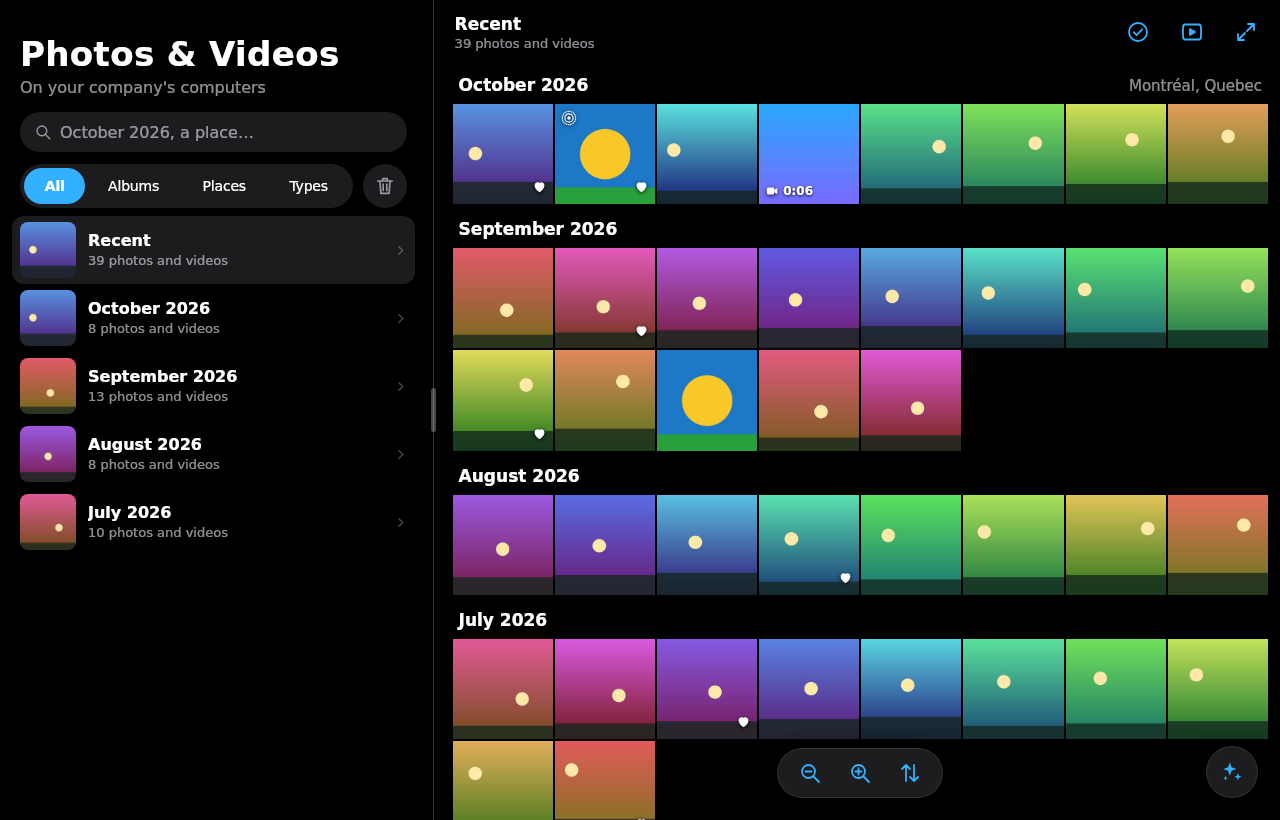
The Windows, macOS and Linux apps have a Photos window that offers the same photo experience as the iPhone app: your phone's photos and videos grouped by month, albums, places, types, what is shared with you, a full-size viewer, saving, restoring and the assistant. The window is the same on all three systems; only the way it is opened and the folder picker differ.
It is laid out as the iPhone app's Photos tab on an iPad, in dark colours:
- On the left, about a third of the window: at the top the order (an up and a down arrow), the assistant's sparkle and the bell; Photos & Videos, "On your company's computers", the search box, the switch All · Albums · Places · Types and the trash button (Deleted), then a list of rows. Each row has a small picture, a name in bold and how many it holds ("132 photos and videos"); a click opens it on the right. Under All: Recent (all your photos and videos, newest first), one row per month (newest first, or oldest first with the order at the top), Archived when you archived some, then Shared with you (albums and devices colleagues share with you: "6 photos and videos · from Anna").
- On the right, what you opened: an X to close it (back to all your photos), its name and count, and three buttons: Select (a check in a circle), Slideshow (a play sign in a rectangle) and Full screen (two diagonal arrows). Below them the photos, month by month, the month's place on the right when all of its photos were taken there ("October 2026 … Chicago, Illinois"); videos show a camera and their length.
- Floating at the bottom: Smaller, Bigger and the order (an up and a down arrow), and in the corner the assistant's sparkle button.
Drag the line between the two sides to make the list wider or narrower (double-click it for the usual third); the window remembers it. A narrow window (under about 760 pixels) shows one side at a time, as an iPad in a narrow window does: the list, then what you open in it, with the X to go back to the list.
Opening the Photos window#
| Platform | Where | What it needs |
|---|---|---|
| Windows | tray icon menu → Open Space Backup → Photos | Microsoft Edge WebView2 (part of current Windows; the installer checks for it) |
| macOS | menu-bar icon → Open Space Backup → Photos | nothing extra |
| Linux | tray menu → Open Space Backup → Photos, or Photos… in the main window | WebKitGTK (libwebkit2gtk-4.1, or -4.0; the .deb recommends it) |
Choosing Photos… again while the window is open brings it to the front.
- Windows without WebView2 asks: "Photos needs Microsoft Edge WebView2, a free part of Windows that is missing on this PC. Download and install it now? Then choose Photos… again." Click Yes, install it, and choose Photos… again.
- Linux without WebKitGTK says: "Photos needs WebKitGTK, which this computer does not have. Install the package libwebkit2gtk-4.1 (or webkit2gtk4.1) and open Photos again."
- "Photos cannot open right now. Please try again in a moment." (Windows): the viewer did not start; the reason is in the log (Logs per platform).
- "This Photos window has expired. Open Photos again from Space Backup.": the app was restarted or you signed out in the meantime. Choose Photos… again.
The window can open straight on one tab. From the command line, photos open starts the viewer and prints its local
address (with --json: {"url","port","secret"}); the apps load that address in their own window. You normally never
need this command, it is what Photos… runs.
spacebackup photos open --jsonNote: The Photos window is not a web page on the internet. It is served by Space Backup itself on this computer only (
127.0.0.1, a random port, a secret that changes at every start and sign-out), and shown inside the app's own window, not in your browser. Links to other sites open in your normal browser. Nothing decrypted is written to the computer's disk: the cache of thumbnails and previews (up to 1 GB, in the app's data folder) is itself encrypted with a key of this computer and emptied when you sign out.
What the window can show#
The window shows three kinds of sources:
- Your own devices: the phones (and other devices) signed in with your email whose photo backups this computer can read. They make up Recent and the months under All.
- Devices shared with you: a colleague's phone whose backups were shared with you (Sharing a device's backups). Each is a row All of <device> under Shared with you, at the end of the All list.
- Albums: your albums and the albums shared with you. They are under Albums (and the shared ones also under Shared with you at the end of the All list).
The photos are read wherever they are: from this computer's own drives, or from the company's other computers over the network or Space Relay, exactly as for a restore.
photos sources lists the same sources with a short key for each (d:<device> for a device, a:<album id> for an
album), whose they are, how many items, and why one cannot be read:
spacebackup photos sourcesYour phone is listed but its photos don't open#
An iPhone encrypts its backups with its own key (encryption is on by default; see Encryption per destination). A computer can show them only when it holds that key. Until it does, the phone is listed with "This computer can't open these photos yet." The computer gets the key in one of two ways:
- A restore of the phone approved for this computer. On the computer, ask for it with **Settings → Account →
Restore another PC's backups… → Ask to restore** (or
recover request Annas-); the company's owner or an admin approves it from the mail or the admin page (Approving a restore of another computer). Your own phone is in the list because it is signed in with your email.iPhone - The phone's backups shared with you by its owner, or by an owner or admin of the company (Sharing a device's backups). This is how a colleague's phone becomes readable.
Another member's phone that is neither shared with you nor approved for this computer is not listed at all, even when its backups are on this computer's drives: the Photos window shows what your iPhone shows, your own devices and those shared with you.
A phone backed up to Not encrypted drives needs neither. When a drive holds an encrypted backup and another drive a plain copy of the same day, the window shows the plain copy (or the encrypted one when this computer has the key).
A tab is empty#
All, Places and Types show your own devices' photos. When there is nothing to show, the list always says why
instead of staying blank: your device's line at the top tells what stops this computer (its backups here are encrypted
and this computer does not have the key yet; no backup of it is reachable right now), or the tab says that the backups
it can read hold no photos or videos yet. A device whose backups hold no photo yet (an iCloud Photos library that
found none) simply shows no photos; that is no problem, so there is no line about it above the photos. photos sources and photos list - give the same reason
on the command line.
The tabs#
The switch above the list on the left chooses what the list shows; a row opens its photos on the right.
| Tab | The rows on the left |
|---|---|
| All | Recent (every photo and video of your own devices, newest first, by month), then one row per month ("October 2026"), Archived (items you archived on the iPhone) when there are some, and Shared with you: the albums colleagues share with you and All of <device> for each device whose backups are shared with you |
| Albums | New album…, your albums, then Shared with you (the albums shared with you) |
| Places | Map first (a small picture of the map and how many photos and videos have a location; see The photo map), then one row per place, the place with the most items first |
| Types | Favorites, Videos, Live Photos, Panoramas, Selfies, Portrait, Screenshots, Screen Recordings, Slo-mo, Time-lapse, Bursts, RAW, Spatial, Cinematic (only the types that have items), each with its count |
The trash button next to the switch opens Deleted on the right: items you deleted in the iPhone's Photos tab (they
are not in All, Places, Types or the search), and what was taken out of albums in the last 30 days, each marked
from <album> (a From <album> row on the left). Right-click such an item (or choose several) for Put back,
which returns it to its album in its place (albums put-), or Delete permanently…
(albums delete-). The album's owner sees everything taken out of it, a member what
they took out. It is gray when Deleted is empty.
What you open shows on the right with its name and count ("132 photos and videos"); a shared album also says whom it is from. Your own album has a Share button (two people) next to Select. The X at the top left closes it and shows all your photos again (Esc does the same).
Tiles show a camera and the length for videos (bottom left), the Live Photo symbol for Live Photos, and a heart for favourites. Thumbnails load as you scroll: the ones on screen first, then the next screen and a half.
Places come from the coordinates the phone recorded; the place names are worked out on this computer. Items without a location never appear under Places.
The place under a photo#
The line under a photo (in the viewer, in its details, and on the TV) names the place it was taken at first, then the town: "Cloud Gate · Chicago, Illinois", "Millennium Park · Chicago, Illinois". The place is the nearest landmark or named place within about 250 m of where the photo was taken (a museum, a monument, a bridge, a work of art, a viewpoint), else the park the camera was in; with nothing named around, the town alone. Search finds a photo by it too ("Cloud Gate"). The names come from the landmarks list that ships with Space Backup (OpenStreetMap and Wikidata, the one Space Vision uses), read on this computer: no location leaves your computers.
The photo map#
Places › Map opens a map of your photos and videos on the right, as the iPhone's Photos app shows them. Each spot is a pin: the newest photo taken there in a white frame, with how many in its corner. Pins close together are joined into one as you zoom out and split again as you zoom in.
- All · Mine · Shared at the top: everything, only your own (your devices' backups and your own albums), or only what colleagues share with you. The window remembers your choice.
- Click a pin to open its photos, named after the place ("Toronto, Ontario"; "… and around" when the pin holds several nearby places). The back button returns to the map.
- Zoom with the + and − buttons, the mouse wheel or a pinch, or double-click (Shift+double-click zooms out). Drag to move the map; with the map selected, the arrow keys move it and + and − zoom.
- The search box narrows the map too: search "2025" and the map shows only that year's photos.
The map is drawn on your computer from a small outline of the world (coasts, lakes, countries, states and provinces; Natural Earth). Zoomed in to a country or a city it also shows streets, districts, parks, the coast and place names in your language (OpenStreetMap), which your computer reads from Space Backup's own server, a piece of the world map at a time. No map service is asked and no location of your photos leaves your computers. When that server cannot be reached the map shows the outline alone.
On the TV (both TV apps; the Fire TV app from 1.5.1): Map is the first row of the Places tab, under Sort. The map opens beside the left panel, fitted round every place your photos were taken at, with nothing else of the world around them. Each group of photos is its newest photo in a white frame with its count. The arrows move the frame to the nearest group that way; the group's place shows under it. You cannot pan or zoom the map yourself: OK on a group zooms the map to fit it, its photos now split into finer groups, and the left panel lists only the places in it. When a group's photos are so close together that a closer map would not split them, OK opens them, and Back from them returns to the map on the same group. Back on the map goes up one level (the map and the left panel together), and from the first level leaves the map. Left with no group that way goes to the left panel, Right back to the map. Up from the top groups of the first level reaches All · Mine · Shared, kept on the TV. The TV draws the map itself from what the computer hands it, the outline and, zoomed in, the streets and names as in the window: nothing about where your photos were taken goes to any map service.
From the command line, photos map lists the same spots (--whose mine or --whose shared for the switch); see
the command line.
Searching#
The search box at the top of the list ("October 2026, a place…") filters the photos on the right as you type: an album or a shared device you opened, else all your photos (a month, a place or a type you opened makes way for all of your photos, so nothing is missed):
- A date: a year (
2026), a month (October,Oct 2026), a day (Oct 13 2026) or an exact date (2026-10-13,2026-10). - Anything else is looked up in everything your computers know about each photo and video, without regard to case or accents: the place ("Chicago", "Niagara"), the caption, the description and tags your computers gave it, the text read in it (signs, documents, screens), a video's spoken words and what its frames show, and its file and folder names. Words written together or apart are the same ("tradeshow" finds photos described "at a trade show" or "trade-show"), and so are a word and its plural ("booths" finds "booth"). Related words count too: "tradeshow" also finds photos described as an "expo", an "exhibition" or a "convention", "children" finds "kids", "airplane" finds "jet", "beach" finds "seaside". Photos your computers have not analysed yet are found only by their place, caption, date and names.
Press / to jump to the search box. The command line filters the same way, and also by type and date range:
spacebackup photos list --search "Oct 2026"
spacebackup photos list --type live --from 2026-10-01 --to 2026-10-31
spacebackup photos list --source d:Annas-iPhone --type video --limit 20
--type takes photo, video, live, favorite, selfie, portrait, screenshot, screenRecording, slomo,
timelapse, burst, raw, spatial, cinematic or panorama. Without --source, all your own devices are listed.
Viewing a photo or video#
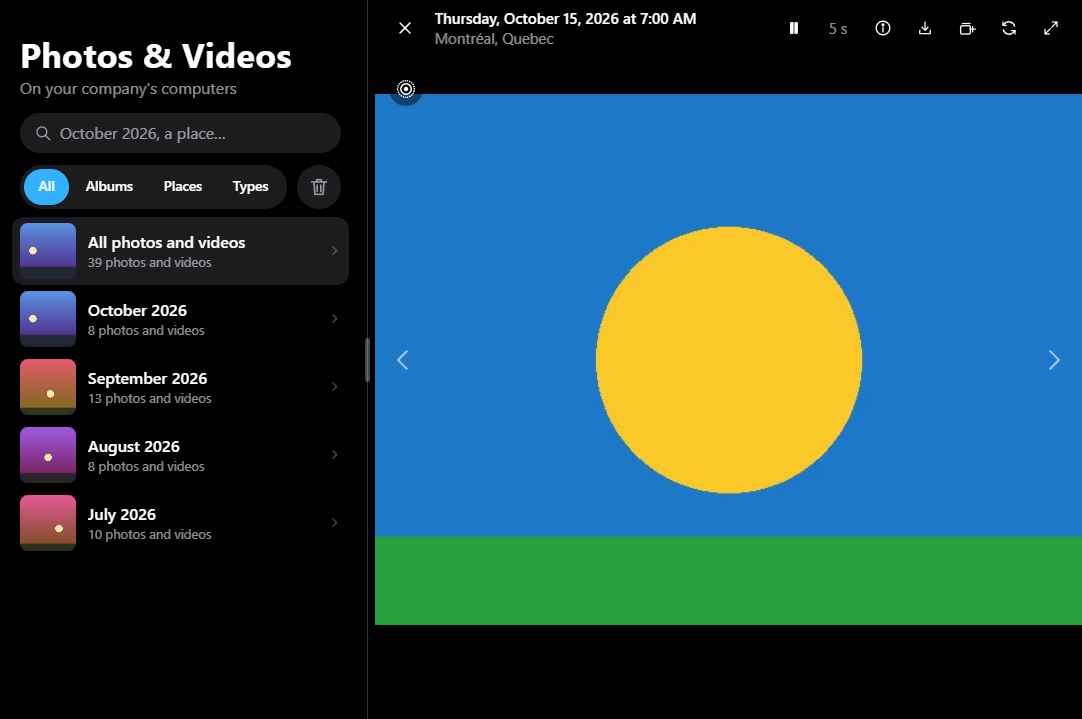
Click a tile to open it, over the photos on the right (as on an iPad; Full screen for the whole monitor). At the top: the date and time it was taken and the place, the landmark or park first when one is known ("Cloud Gate · Chicago, Illinois", as the iPhone shows it; see The place under a photo); on the right, Slideshow and its seconds per photo, Info, Save to a folder, Add to album, Restore and Full screen (as icons when the window is too narrow for their names: point at one for its name).
images/mac-photos-viewer-info.png| Action | Mouse or touch | Keyboard |
|---|---|---|
| Next / previous | the arrows at the sides, or swipe | Right / Left arrow (in full screen too) |
| Zoom the picture | mouse wheel, two fingers | + / -, 0 back to fit |
| Move a zoomed picture | drag | — |
| Info | Info, or right-click → About | i |
| Full screen | Full screen, the video's full-screen button, or double-click | F11 or f; Esc or F11 to leave |
| Play / pause a video | the play button under it | Space |
| Slideshow, and pause it | Slideshow / Pause, or right-click → Slideshow; a click on the picture stops it | Space; Esc stops it |
| Close | the X at the top left | Esc |
A video starts by itself with sound as soon as you open it, as large as it fits in the window, and stops when you go to the next item. If your computer ever refuses to start it with sound, it plays muted with an Unmute button.
Full screen takes the whole monitor the window is on: no window frame, no taskbar, the picture alone on black. The bar at the top and the arrows at the sides come back while you move the mouse and hide again when it rests. The arrow keys move to the next and previous item without leaving full screen. In the grid, F11 or the Full screen button (two diagonal arrows, top right) makes the photos fill the whole monitor without the list on the left; Esc, F11 or the button again leaves it. On Windows the window has a thin light-gray edge around its page, so that its dark page stands out on a dark desktop (the Destinations window has the same edge); in full screen there is none.
Zooming the whole window works as in a browser: Ctrl + and Ctrl − make everything bigger or smaller (text, thumbnails, buttons), Ctrl+0 goes back to 100 %, and so does Ctrl + mouse wheel. The window remembers its zoom (on a Mac, ⌘ instead of Ctrl).
Slideshow#
Slideshow shows the photos and videos of the grid you are in one after another, as the iPhone app's and a public link's slideshow do:
- Slideshow (the play sign in a rectangle) at the top right of the grid starts at the first item, or at the first selected one when you have selected some (Selecting several items). Right-click a thumbnail or the open photo → Slideshow starts at that one; Slideshow in the open viewer starts at the photo you are looking at.
- Each photo shows for 3, 5, 10 or 20 seconds: click the seconds next to Pause (5 s at first) for the next choice. The window remembers it. A video plays to its end, then the next item comes; after the last item it starts again from the first.
- While it plays, the bar at the top, the arrows and the mouse pointer hide after a moment and come back when you move the mouse; Info is hidden. The arrow keys still go to the next or previous item.
- Pause at the top, Space, Esc or a click on the picture stops it; the viewer stays on the item it reached.
- It works in full screen too: press F11 (or Full screen) before or during the slideshow for the pictures alone on the whole monitor. Esc stops the slideshow and leaves full screen.
The grid's buttons#
At the top right of the photos on the right, and floating at the bottom:
| Button | What it does |
|---|---|
| Select (a check in a circle) | starts choosing items (Selecting several items); filled while you choose |
| Slideshow (a play sign in a rectangle) | the grid's items one after another, from the selected one or the first (Slideshow) |
| Full screen (two diagonal arrows) | the photos on the whole monitor, without the list; again (or Esc) to leave |
| Smaller / Bigger (the magnifiers at the bottom) | more or fewer thumbnails across, from 12 down to 1 (at first as many as fit, about 8) |
| The up and down arrows (at the top of the list, left of the sparkle) | Newest first or Oldest first everywhere: the months in the list and the photos of every view you open turn at once |
| The up and down arrows (at the bottom) | Newest first or Oldest first for the photos open on the right only: one click turns them, and the new order shows for a moment above the button; the list and other views keep the order chosen at the top, and the top one, clicked again, sets them all alike |
| The sparkle (at the top of the list) | the assistant (The assistant) |
Captions on or off (captions under the thumbnails and on the photo) is in the right-click menu. The window
remembers how many across, the order chosen at the top and captions. A month's right-click menu offers Collapse
and Collapse all (and Expand) when several months show; a single month shows all its photos, so its menu has
only Select all. The command line lists items newest first (photos list).
The right-click menu#
Right-click a thumbnail, or the open photo or video, for its menu (the browser's own menu never shows here):
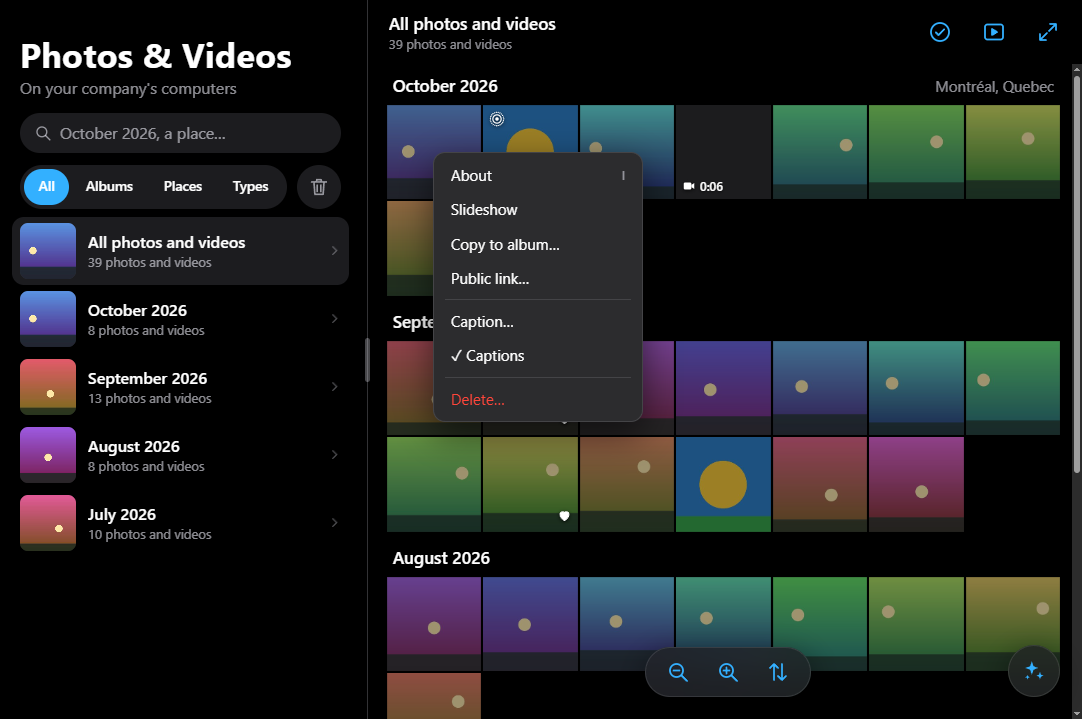
| Item | What it does | Command |
|---|---|---|
| About | opens Info (below) | photos show, photos details |
| Slideshow | a slideshow from this one (Slideshow) | — |
| Copy to album… | adds it to one of your albums | photos add <album> <id> |
| Public link… | makes, copies or revokes a public link, as the iPhone's share link (Public links) | photos link, photos links, photos unlink |
| Caption… | adds, changes or clears its caption (Captions) | photos caption |
| Captions | shows or hides captions everywhere in the window | — |
| Delete… | moves it to Deleted, as Delete on the iPhone | photos delete <id> - |
| Archive / Unarchive | asks your phone to archive it in its backups, as its own Archive (it stays on the phone; its next backup moves it into Archived), or, in Archived, to take it out again. (coming): the iPhone and Android apps do it from their next update; until then the request shows as declined | photos archive <id>, photos unarchive <id> |
With several thumbnails selected, right-click one of them: Copy to album…, Public link… and Delete… then apply to all of them.
What only the phone can do. Your iPhone owns its backups: their index is written by the phone (and an encrypted
backup cannot even be read by the computer), so the computer cannot delete an item, change a caption of your own
backups or link to one by itself. For these, the Photos window asks the phone, the way the Destinations window asks
it to encrypt a drive: the item shows Pending, waiting for <phone> in Info until the phone has done it (the next
time its app is open), with Withdraw to take the request back. If the phone says no, Info shows its reason.
photos requests lists them. An album's items are different: the computer captions them and makes their public links
itself, at once. Deleting an album's item is done in the album on the phone.
Info shows what the iPhone's About this photo shows, and more that only the computer knows:
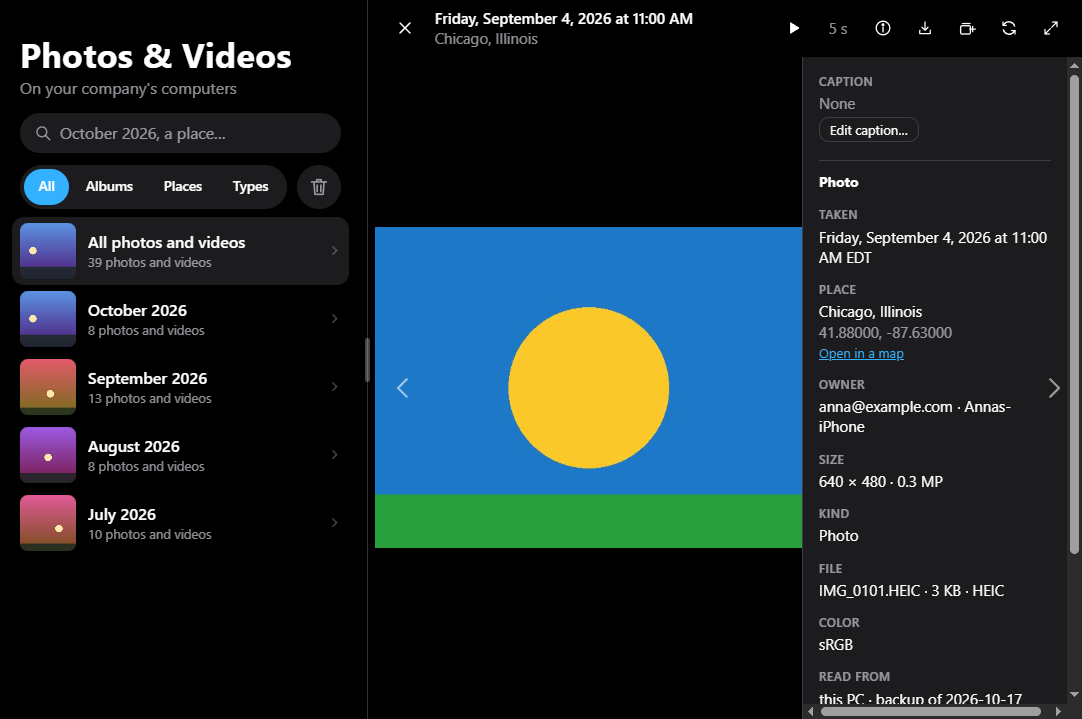
- Caption (with Edit caption…), and any request waiting for the phone.
- About this photo: Seen in it (what the phone recognised), Text in it, Colors (mostly which colour, and the share of each), Brightness.
- Camera: the camera, the lens, the exposure (focal length and its 35 mm equivalent, aperture, shutter, ISO), Flash and the software, from the phone's index and the original file.
- Photo / Video: Taken (date and time in the time zone it was taken in, when the photo says so), Place with its coordinates and Open in a map (opens your browser), Owner (who and which device), Size (pixels, megapixels, a video's length), Kind (Photo, Video, Live Photo, Selfie, Portrait mode, Screenshot, Panorama, Slow motion, Time-lapse, Burst, …), Favorite, File (its name, size and format), a video's Video line (codec, frames per second, sound, bit rate), Read from (this computer or another, and which backup date), Backed up (when), Albums (the albums it is in).
- On this computer: each drive of this computer holding it: Encrypted, or its path and its network path with Copy path and Copy network path.
- Found by your computers: what a computer's analysis found (a sentence, the speech of a video, what its scenes show).
- Files: the names of its files (an edit too).
The command line shows the same:
spacebackup photos show d~Annas-iPhone~0123456789abcdef
spacebackup photos details d~Annas-iPhone~0123456789abcdef
Not shown on a computer, and why: a small map inside the window (the window loads nothing from the internet, so it works offline and sends nothing out; Open in a map uses your browser instead); the phone's own one-sentence summary In short (made on the phone by Apple's on-device model and not stored in the backup; a computer's analysis has its own sentence under Found by your computers); how sure the phone was of each thing Seen in it (the backup keeps the names, not the percentages); the address under the place (the computer names the place offline, by city); the other computers' drives under On this computer (the phone lists every computer's copies; a computer lists its own).
(The ids come from photos list; a phone's item is d~<device>~<id>, an album's item a~<album id>~<device>~<id>.)
The picture always fits the window: the whole photo or video is shown inside the window at any window size and
display scaling (100 %, 125 %, 150 %, 200 %), its proportions kept, never cropped and without scroll bars, also while
you resize the window. It is enlarged only when you zoom (mouse wheel, double-click, +); 0 brings it back to fit.
Videos play in the window with controls under the picture (play, position, sound, full screen); in full screen the
video's own controls take over. H.264 videos play everywhere. HEVC (most iPhone videos since 2017) plays as it is on
macOS. On Windows the window can show HEVC only when the graphics card decodes it; on other computers (and on Linux
without an HEVC decoder) the computer converts each HEVC video to H.264 as it plays: the window says "Preparing this
video for this PC…" and the picture starts after a few seconds. The converted copy is kept in memory only, never on
disk, and is dropped when you sign out. The conversion uses ffmpeg: on Windows the pinned build is fetched once (about
100 MB, the same one Space Vision uses) the first time an HEVC video is opened ("Getting the video converter for this
PC…"); on Linux it is the system's ffmpeg (sudo apt install ffmpeg). Without ffmpeg the window says so and offers
Save to a folder.
Loading and videos, as on the iPhone (the window, and the TV apps on Fire TV). A photo still coming shows its loading bar (and how much has come) right under the picture, never over it; when the picture takes all the height, the bar sits just above the date and caption at the bottom. On the TV the bar sits above the caption line at the bottom of the screen. A video plays as soon as its start is here and keeps loading behind the playback; one left half-loaded carries on from what came when you open it again (the window, the Fire OS app), and the window starts it where you stopped. The position bar shows the part already loaded in a lighter gray ahead of the played part (on the TV: the controls that come with a pause). A video you move away from stops: the next or previous item (Left/Right on the TV remote), Back, closing the viewer, or the slideshow moving on; a video only read ahead never starts by itself. Once the video on the screen is all loaded, the Fire OS app reads the start of the next videos so they start at once.
Zooming on the TV. On a full-screen photo, Up on the remote zooms in (150 %, 200 %, 300 %, 400 %, as far as the photo's own detail goes) and Down zooms back out to the whole photo; it never goes smaller than that. While zoomed, the corner says "Zoom 200%", and OK switches to moving around: the four arrows then move the picture, and the corner shows a small outline of the photo with the part you see marked in it. OK again goes back to zooming, where Left/Right go to the previous or next photo (shown whole). Back shows the whole photo again; a second Back leaves full screen. At the normal size OK still starts and pauses the slideshow.
Pictures the window cannot show as they are (HEIC/HEIF, RAW, TIFF, or larger than 4096 pixels) are shown through a JPEG preview made on this computer.
Selecting several items#
Click Select (the check at the top right; or Ctrl-click, ⌘-click on a Mac, a tile) to start choosing. Click tiles to tick them; a bar floats at the bottom in place of Smaller / Bigger, says how many are selected and offers:
- Save to a folder: copies the originals into a folder you choose.
- Add to album: puts them into one of your albums (see Adding photos and videos).
- New album…: makes a new album with them.
- Share: puts them into an album (an existing one of yours, or a new one you name) and shares it with a colleague by email.
- Restore: puts the originals back in a folder per device, year and month.
- All / None: selects every item shown, or none.
- Done (or Esc, or Select again) ends the selection.
Saving copies, previews and restoring#
- Save to a folder asks for a folder (Choose… opens the system's folder picker) and copies the originals there: a Live Photo as both of its files, an edited photo with its edit too, each file dated with the date the photo was taken. A file that is already there with the same size is skipped.
- Restore asks "Restore … into <folder>, in a folder for each device, year and month? What is already there is left
as it is." The default folder is Pictures/Space Backup in your home folder, so a photo of October 2026 from
Annas-iPhone lands in
Pictures/.Space Backup/ Annas- iPhone/ 2026/ 10/ - A preview, from the command line only, writes the picture the window shows as a JPEG (HEIC and RAW converted).
spacebackup photos save d~Annas-iPhone~0123456789abcdef --to ~/Desktop/Trip
spacebackup photos restore d~Annas-iPhone~0123456789abcdef d~Annas-iPhone~fedcba9876543210
spacebackup photos preview d~Annas-iPhone~0123456789abcdef --to ~/Desktop
sbctl photos save d~Annas-iPhone~0123456789abcdef --to C:\Users\anna\Desktop\TripTo put photos back into an iPhone's Photos library, use the phone: Restore to the Photos library.
The assistant#
The sparkle button next to the search box opens the assistant: type what you want in your own words ("Show me the
videos from my last Chicago trip") and click Ask (or press Enter). It answers with a sentence and shows the matching
items, or makes the album you asked for. The command line is photos assistant <words>:
spacebackup photos assistant "make an album of the photos from Las Vegas"You can also ask by what the photos show, with or without a place or dates: "Create an album called night Chicago and put all the night views of Chicago in it", "Show me the photos of my dog", "Show me my screenshots from last month", "Show me the red cars". The assistant keeps your words for what they show ("night views") and still picks out the place (Chicago) and the dates; its sentence names them ("Make the album night Chicago with the night views of Chicago."). The words are matched like the search box's: against what was recognised in each photo (labels, description, colours, day or night) and its caption and text; on a computer every word must match, so "night Chicago" finds more than "night views".
Ask it how something works ("How do I restore a folder on Windows?", "What does Space Relay cost?") and it answers
from this manual instead, in the box: a short answer first, then a More: link to the section that answers it
best. On the command line the answer is printed with a More: <url> line. An answer usually takes two to three
seconds: the service looks the question up in this manual itself and sends the best sections along, so the model
answers in one go.
The Albums… window#
Besides the Photos window, each computer app has a small Albums… window (Windows and macOS: the Albums tab of the Space Backup window; Linux: the main window). It lists your albums and those shared with you (name, whose, how many items, on which computers) with Save a copy… (saves all of the album's photos and videos into a folder you pick), Refresh and Close. It is the same as:
spacebackup albums list
spacebackup albums restore "Las Vegas" --to ~/Pictures/Las-Vegas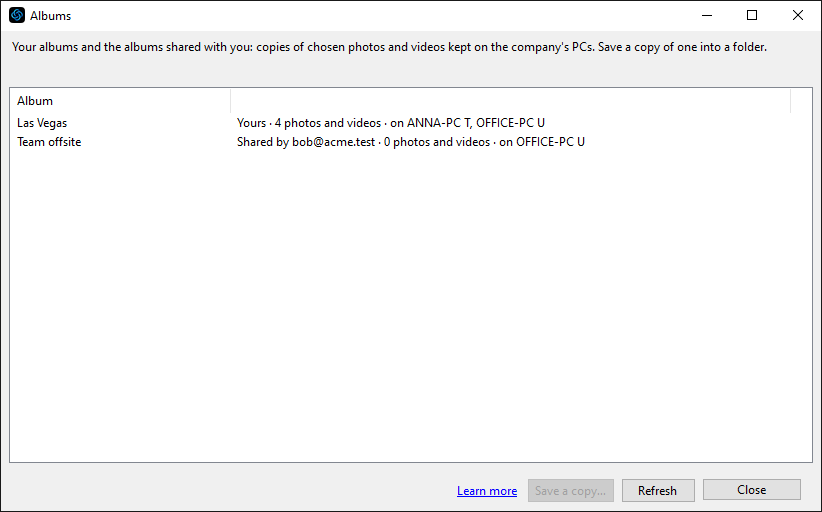
The phone's Photos tab#
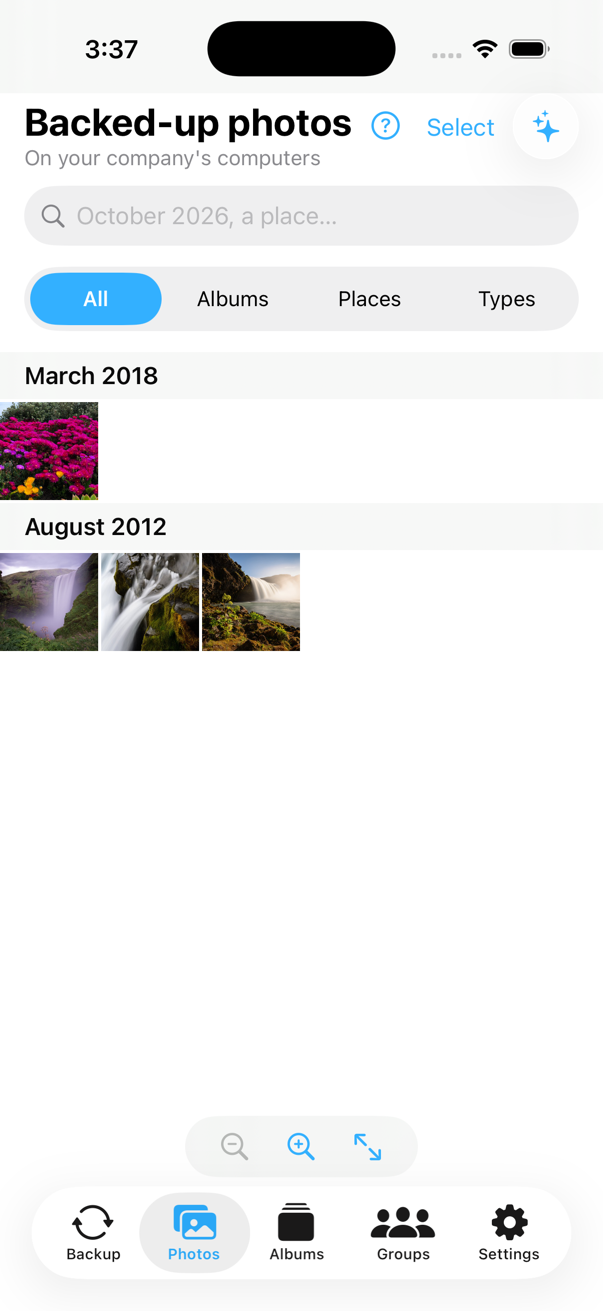
The iPhone app's Photos tab browses this phone's own backups on the company's computers: view, save, search by date or place, Types, and the assistant. It reads the thumbnails and index stored in the backups, so it also shows photos that are no longer on the phone.
- Archive (in the viewer, your own backups only): swipe down to archive a photo and delete it from the iPhone's library ("Deleted from library · Undo"), swipe up to archive it in the backups only, keeping it on the iPhone ("Archived in backups · Undo"). Archived items are kept for good, leave the normal grid and appear in Archived (count and grid) with Restore to iPhone. The computers' Photos window shows them under Albums → Archived.
- Delete (in the viewer, your own backups only): moves the item into the Deleted folder with the next backup; it stays on the iPhone. From Deleted you put it back or delete it for good; nothing is emptied automatically. The computers' Photos window shows them under Albums → Deleted. See Deleted.
- Restore to the Photos library: brings photos and videos back from the computers into the iPhone's library, in original quality, without duplicates; see Restore to the Photos library.
- Remove from backups: see Remove from backups.
What the phone backs up, and how, is in The iPhone and iPad app. Things marked (coming) are built but not yet in TestFlight build 84.
A photo's place and what is nearby#
(coming) A photo's place says what is right there, not only the town. For each spot where photos were taken (about 100 m across) the phone asks Apple's maps, on the phone, for the park or area, the street, the neighbourhood and the town, and for the landmarks within 250 m (museums, parks, landmarks, stadiums, theatres, universities; not shops or restaurants). It does this slowly in the background, newest photos first, and keeps the names on the phone.
- About reads, for example, "Art Institute of Chicago · Chicago, United States"; the place's screen lists Nearby with distances.
- Search finds a photo by any of these names, with or without accents, the words in any order: "Art Institute", "Institute", "art institute chicago", "Grant Park", "Monroe Street" (a street is also found written out: "E Monroe St" as "East Monroe Street").
- Only the coordinates of the spot go to Apple's maps, as for the town's name; never a photo.
Videos that play while they arrive#
(coming) A video kept on the computers starts playing as soon as its beginning has arrived; you no longer wait for the whole file. The rest comes in order behind it, encrypted backups too (each piece is opened on the phone). Swipe to the next item and back, and the video carries on from what has already arrived instead of starting again. While you watch one video, the next ones start loading. A video still on the iPhone, and a Live Photo's motion, play as before.
People and faces#
The company's computers can find the faces in your photos, group them into people, and let you name each person once. After that, new photos of them join them by themselves, and you can search and ask the assistant by name ("Marina in Chicago 2026"). This section describes the iPhone and iPad app.
- Where it runs. On the company's own computers, by Space Backup's Space Vision (open face models whose licences allow commercial use). The faces (their positions and a numeric fingerprint of each) are kept **encrypted on the company's computers and are never sent outside**: not to us, not to Apple, not to any other company.
- Which photos. Only photos backed up to Not encrypted drives, and albums. A computer never has a phone's data key, so a photo kept only encrypted has no faces. A photo's About says "Your computers haven't looked for faces in it yet" until they have.
- Whose people. Your People are built from your own devices' photos, your albums and the albums shared with you. The names are yours: another member names their own people.
- Who sees the names. Everyone a photo or album is shared with sees the names in it (in About), as you or the album's owner gave them.
Turning it on and off#
- Settings › Recognize faces is the company's switch, on by default. Only an owner or admin changes it (also on
the admin page and with
settings set recognize-). Off: no photo is looked at for faces from then on, and People, names in About and search by name go away; what was found is kept, unused, and comes back if it is turned on again.faces on|off - Each album has its own Recognize faces in its settings (the owner's; a new album takes the company's). Off: its photos show no names and are not used for People.
People#
Photos › People shows the people found in your photos: a face and a name (or Person 1, Person 2…, as the computers grouped the faces), (coming) sorted by the number of photos they are in, most first. The strangers are the last tile (Strangers). A tap opens the person's photos, among the photos shown there. On the iPad in landscape (coming), their face, names and menu stay on the left, with a row for All photos and each month, and their photos open in the right panel with the size controls, the order, Select, the slideshow and full screen.
On a person's page, and on a person's tile with a long press:
- Add a name (or Rename): opens the name picker (Naming a person).
- Merge with…: the two become one person (with the named one's name).
- Mark as stranger (coming): one tap, no question (Strangers).
- Delete person: their name and faces are forgotten on your computers; the photos stay. Their next photos make a new Person N: to keep someone out of People for good, mark them a stranger instead.
- Choosing photos on the person's page gives Not <name> (these photos are not of them) and Remove face; (coming) with the usual bar under them (Delete, Send to…, Restore, Add to album, New album…).
The photos of a hidden album (your own hidden, or one shared with you turned off) and of a deleted album are not in People: not counted, not among a person's photos, not their face; someone only in such albums is not listed. The same photo in your backups or another album still counts there. Show the album again and its people come back as they were, names included.
The same goes for deleted photos: a photo in your backups' Deleted folder, or deleted permanently, is not in People, on the phone, in the Photos window and on the TV. Someone whose every photo is deleted, or only in hidden or deleted albums, is not listed (not as a Person N, not among the strangers); their name is kept and comes back with Put back. People shows the change within seconds of the delete or the put back. Deleted on one computer, it does not come back from a copy on a computer that is off.
Several people at once (coming): Select in People, tap the people, then Merge (two or more, into the named one), Stranger, or Delete (asked once: "Delete 3 people?").
Naming a person#
To name someone:
- Open Photos › People and tap the person (or long-press their tile). In a photo, open About instead: each face found in it has Add a name (or Name) next to it.
- Tap Add a name (Rename once they have one). The name picker opens ("Who is this?" for someone not named yet).
- Type the name, or pick one from Named before or People in your company and groups.
- Tap Done (or the keyboard's return). The name shows on their tile, under their faces in About, and the search finds them by it.
The name picker has:
- a name field that filters as you type;
- Named before: the people already named (most photos first), the names given on this phone, and the names given on any of the company's computers;
- People in your company and groups: you, the company's people and everyone in your groups, with their emails. Picking one of the company's people links the person to that member: their email shows under the name, and the person's … has Not <email> to remove the link. A rename keeps it.
A name you type that is not in the lists shows as Use "…"; Done (or the keyboard's return) saves.
Other names (AKA). A person may have several names, for example a nickname. Under the name field, after a small AKA, there is a field for each other name, Add another name (up to 10 more) and a minus to take one out. The person's page shows them under the name ("AKA Mo, marina.g@example.com"), and the search finds the person by any of them. A name that is already another person's name or other name joins that person; an other name that belongs to someone else is refused ("Mo is another person's name") and nothing changes.
Birth date or age. A named person's page has Add birth date or age: a year, a month and year or the whole date, or their age today. The page then shows "Born 2023 · 2 or 3 years old", and the assistant finds "Masha when she was 2": her photos from the days she was 2. Your own birth date is in Settings › Account › Birth date (optional, only you see it), for "my photos when I was 30". Older computers keep the person but not the birth date.
Which one is you? In Settings › Account › Your name, You in People › Which one is you? lists the people
with faces: choose yours, and your photos show your name to everyone in your company. Not me undoes it. Only one
person is you: choosing another moves it. Above your name, Choose a photo… sets your picture (the middle square of
any photo), shown next to your name to you and your colleagues, for example in an album's Shared with; Remove photo
removes it. Until you choose one, your face in People stands in for it. On the command line: `spacebackup faces me
"<person>"andspacebackup account picture --set me.jpg`.
An email as a name. Any field may hold an email address, for someone you know only by their address. It is kept in lower case and shown as it is until you give a name. A company member's email in a field links the person to them, as picking the member does.
A face named wrongly (coming): in a photo's About, a named face has Change: This is someone else… (the name picker; only this face moves, to the person you pick or to a new one: "Masha, not Sasha."), Not <name>, and Remove face.
If a computer runs an older Space Backup, the app says so: "Your computers need a Space Backup update to keep the other names" (or "… to keep strangers").
Strangers#
(coming) A stranger is someone you don't want to see in People (a passer-by, a waiter) but want recognised, so that their next photos join them instead of making a new Person N.
- Mark as stranger in the person's menu, or Stranger in People's Select for several at once.
- Strangers move to Strangers (N), the last tile of People. They are not shown anywhere else: not in People, not in a photo's About, not found by search, the assistant or the TV.
- In the Strangers folder each one has Add a name / Rename, Not a stranger and Delete person. **Naming a stranger moves them back to People, as does Not a stranger**.
Names on your other devices#
(coming) Names you give on one device show on your other devices at once: the computers tell them (a change push to your other phones and iPads), and People asks again each time it is shown and when the app comes back on screen. An open person's page reads its photos again when something changed. A photo's About always reads its names fresh.
Albums#
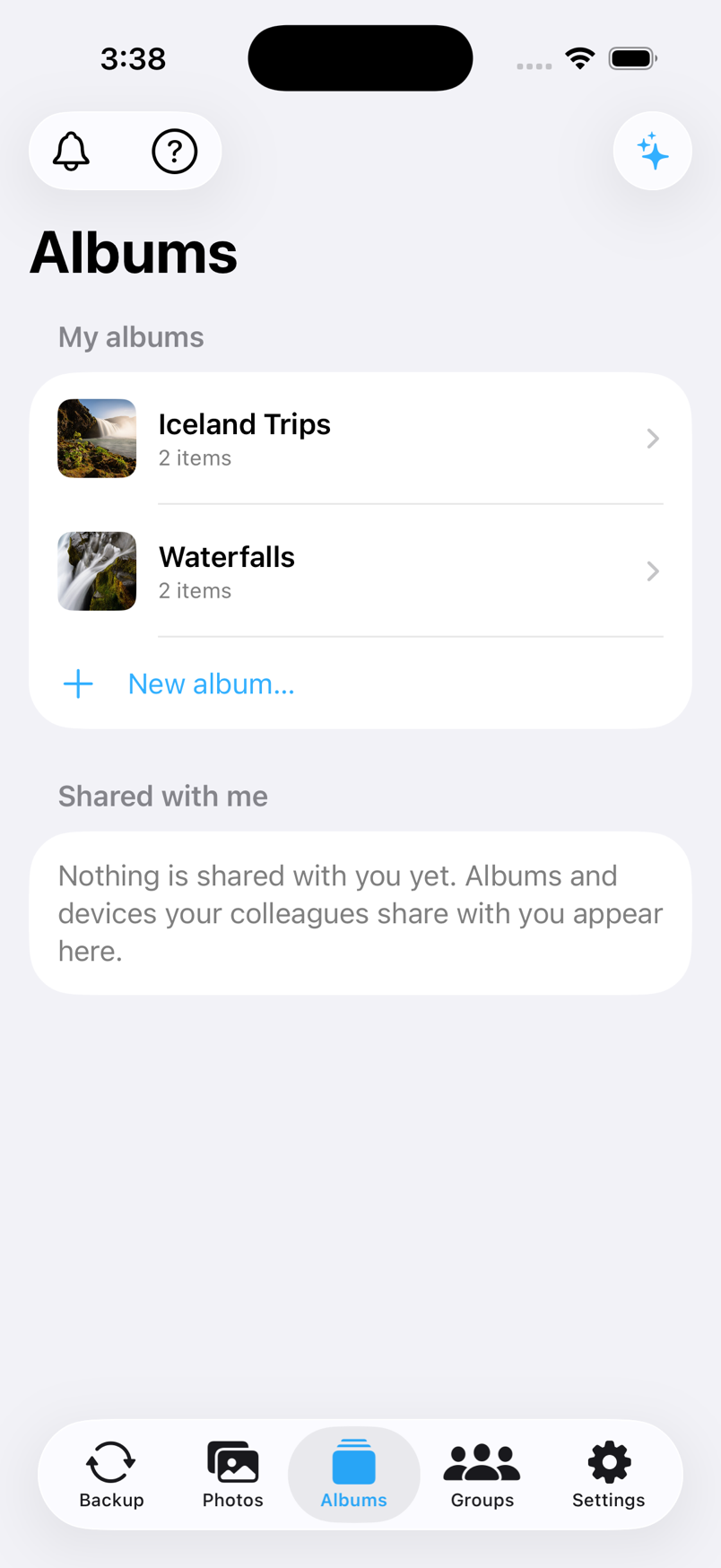
An album is a copy of photos and videos you chose, under a name ("Las Vegas"), kept on one or more drives of the company's computers that you pick for that album. On the iPhone, albums live in the Albums tab, together with the albums and devices shared with you.
- Plain copies. An album's files are not encrypted, so that the people you share it with can open them without your phone's key. Anyone who can open the drive's folder can read them, as with any Not encrypted backup. Put albums on drives you would trust with Not encrypted backups.
- No extra traffic from the phone. The copy is made on a computer, from the phone's backup that is already there. The phone sends only the list of items.
- Real copies. Every photo and video in an album is its own file on each drive, never a second name (hard link) of the backup or of another album's file, even on the same drive. Deleting or changing the backup never touches the album, but an album takes its full size on every drive that keeps it. Albums made before version 0.14.0 are turned into such copies once, in the background, after the update; an item that does not fit on its drive stays as it was, with a line in the log, until there is room.
- Who sees an album: its owner, on all of their devices, and the people it is shared with. Nobody else, also not the other computers of the company, even though they may keep the copy on their drives.
Where an album is kept#
You choose, per album, the drives that keep it: any drives of the company's computers (at most 8). The phone shows the same list of computers and drives as for its own backups. Each chosen drive gets the album's own folder next to the computers' backup folders:
<drive>/SpaceBackup/Albums/<album id>/album.json
<drive>/SpaceBackup/Albums/<album id>/IMG_1234.HEIC
<drive>/SpaceBackup/Albums/<album id>/IMG_1234.MOV
<drive>/SpaceBackup/Albums/<album id>/Thumbs/IMG_1234.HEIC.jpg- The files sit flat in the folder under the names they had on the phone; when two items have the same name, the
second gets
(2)before the extension (IMG_1234 (2).HEIC), and that name never changes. album.jsonlists the items, who added each, its date, place and caption. Renaming the album changes nothing on the disk (the folder is named by the album's id).Albumsis reserved: no device may be called "Albums".
When a computer keeping the album is off, the computer making the copy keeps the items for it as transfer jobs and sends them when it is back (it tries every minute, for up to 30 days). Neither the phone nor its key is needed for that. The copies waiting there are kept in the app's own data folder, readable only by the app.
Changing an album's drives (the owner): pick the new list on the phone; a computer that has the album copies it to
the new drives (computer to computer, nothing through the phone), and the drives you dropped have their copy removed
(later, if their computer is off). In the Space Backup app on a computer the
owner changes them on the album's Kept on page (below). From the command line the owner sets the list with
albums dest, which replaces it and does the same:
spacebackup albums dest "Las Vegas" ANNA-PC:D:\ OFFICE-NAS:/mnt/backupEach entry is <computer>:<destination path or id>, as dest list and peers show them.
Kept on, in the app (0.16.33): open an album, click the line under its name, then the line saying where it is. The owner sees Where it goes: every drive of the company's computers, grouped by computer, each with its free space, and the album's size. Tick a drive to add it: a computer holding the album fills it (or later, when that computer is off), with its progress shown on the page. Untick one to remove it: the app asks first ("The copy of Las Vegas on CHIA2 E: will be deleted; the other drives keep theirs"). At least one drive stays ticked, a drive without room for the album cannot be ticked, and a drive is unticked only once another drive has the whole album. People the album is shared with see the same list, read-only.
Creating an album#
- On the iPhone: in the Albums tab, make a new album, give it a name (1 to 100 characters) and choose where it is kept.
- In the Photos window: Albums → New album…, or select items and choose New album…. A new album made from the window is placed on the drives of the album the items came from, or on this computer's destinations.
- Command line:
albums createmakes an empty album;photos new-albummakes one and adds items to it.
spacebackup albums create "Las Vegas"
spacebackup albums dest "Las Vegas" ANNA-PC:D:\
spacebackup photos new-album "Best of 2026" a~al_k3jxxxxxxxxxxxxx~Annas-iPhone~0123456789abcdef
albums create answers "Created the album Las Vegas. Choose where it is kept: …": an album with no drive yet is listed
as "not placed yet" and shows "This album is not kept on any computer yet." in the Photos window.
There is no rename command on the computers; rename an album on the iPhone.
A folder as albums#
Dragging a folder onto the app (or albums import <folder>) makes every folder in it that holds photos or videos
(and the folder itself, when it does) an album named as its path from the folder you drag, the folder names joined by
" - ", with that folder's own photos and videos. Albums are never put inside albums: a folder's subfolders become
albums of their own, side by side with it. A Trips folder with a photo, a 2026 folder in it with a photo, and
Las Vegas in that with two makes three albums, Trips, Trips - 2026 and Trips - 2026 - Las Vegas. Folders with no photo or video of their own make no album.
Dragging the same folder again reuses those albums and adds only the photos that are new, so nothing is there twice;
an album of yours with that name is always reused. Two folders called 2024 in different places (Home and Work)
make two albums, Trips - Home - 2024 and Trips - Work - 2024. The
answer says which albums were made and which reused. Nothing needs to be backed up first: the files are copied from
your computer onto the album's drives. A new album is kept on every destination of this computer (or --dest).
spacebackup albums import ~/Pictures/TripsDrag and drop#
Photos and videos go both ways between the Space Backup window and the rest of your computer (Windows, Linux and the Mac):
- Out. Drag a photo (or, while choosing, any of the chosen ones; or the photo open in the viewer) to File Explorer,
the file manager, Finder, the desktop or another app: each arrives as its file, the edited version where there is
one, else the original (a Live Photo's picture), named as it was backed up. The same as a command:
photos save <id>.. If the computer the window reads from lacks a photo's file, it is fetched from another of your computers that has it; when none that is on has it, the message names the computers it looked on, so you know which to turn on.. . - - to <folder> - - originals - Folders in. Drop one or more folders on the window, anywhere: each folder that holds photos or videos becomes an
album of its own, and so does each folder inside it (named with its path: Trip 2026 - Day 1). Albums are never put
inside albums. A folder with no photos or videos of its own is skipped; an album of yours with the same name is added
to. While you drag, the label says Add to new album Trip 2026; at the end one line says what was made, for example
"Made 12 albums from Trip 2026 (3 already there, added to them)." The same as a command:
albums import <folder>. - Photos in. Drag photos or videos over an album in Albums (its name or its picture) or over an open album's photos:
the album lights up and the label says Add to Trip 2026; drop them and they are added. Anywhere else nothing is
taken. Files go only into your own albums, kept as they are. The same as a command:
albums put <file or folder>... . - - album <album> - Inside the window. Drag photos from the grid onto an album to add them to it. While you drag (one photo, or the chosen ones while choosing), a trash appears at the bottom saying what a drop does, Delete 3 photos or, in an album, Remove 3 from Trip; it turns red under the pointer. Drop them there and it is done at once: deleted ones move to Deleted with Undo on the yellow banner. Let go anywhere else and nothing happens. This works in Photos, a person's page, Places and Types, and an album's page.
In Albums, a right-click on an album gives its four icons at the top, as the iPhone's swipe: Add photos (when you may add to it), Share album… and Album settings… (your own), and Hide album.
A large folder runs as a job: albums import … --detach answers at once and albums imports shows how far it is.
Adding photos and videos#
From the iPhone (the usual way): add items from the viewer, from a selection or from a filter. The phone asks the computer holding its newest complete backup to make the copies. Because the phone's backups are encrypted with its own key, it lends that key to that computer for that one request only: it travels over the company's encrypted channel, is kept in memory only (never on disk, in logs or in crash reports) and is dropped when the request ends. The computer then sends plain copies to the album's other drives.
From a computer's Photos window: select items and choose Add to album, then the album and Add. The list offers your albums and the albums whose owner lets members add. Only items of albums can be added from a computer (they are copied from album to album). Photos from a phone's own backups are added on the phone itself: the window says "Photos from <device> are added to albums on <device> itself."
A computer's own backed-up files (a PC as a source): albums add adds files of this computer that are in its
backups. --on names the computer holding those backups; it decrypts them with this computer's key, lent for that
request only, and sends them on to the album's other drives.
spacebackup albums add "Las Vegas" ~/Pictures/vegas/IMG_0042.JPG ~/Pictures/vegas/clips --on OFFICE-NASsbctl albums add "Las Vegas" C:\Users\anna\Pictures\vegas --on OFFICE-NASA folder adds the files directly in it. --date YYYY-MM-DD takes the files from that backup date. When a computer
keeping the album is off, the answer says "N item(s) wait on <PC> until it is back" and exits 0.
Adding an item that is already in the album changes nothing.
Making an album from another one#
You can fill one of your albums with the items of another album (yours, or one shared with you) without anything going through your phone or computer: the computer that keeps the source album copies the items into the target album on its own drives and sends them to the target's other drives. Each item keeps its date, place and the device it came from.
- The whole album: Copy album… in the album's … (More) menu, on the iPhone also by swiping it to the left or with a long press on a shared album, in the window also with a right-click on it in Albums. It makes a new album of your own, not shared, on the drives you choose (those holding the album to begin with, so nothing goes over the network): Copy an album.
- Some items, in the Photos window: open an album, select items, Add to album (or New album…).
- Command line:
albums clone <album> <from album> -, optionally- on <PC> --drive(which drive of that computer to read from) and--id(only some items; ids fromalbums show --json).
spacebackup albums clone "Best of 2026" "Las Vegas" --on OFFICE-NAS
spacebackup albums clone "Best of 2026" "Las Vegas" --on OFFICE-NAS --id 9f2c0000aaaa1111 --id 77aa0000bbbb2222
Exit codes: 0 all copied (or waiting for a computer that is off), 4 some failed, 1 none.
Merging two albums#
Two of your albums can become one: drag one album onto another in Albums (on a phone: touch and hold it, then drag; or Merge with… in the album's menu). The app asks Are you sure you want to merge? and offers a name for the new album made of both names ("Barcelona + Paris"); change it if you like, then Merge.
- A new album is made with every photo and video of both, each once: a photo that is in both albums (or the same picture twice, for example once from the phone's backup and once sent in from another app) is kept once. Captions and what Space Vision found go with them; the new album's cover is the cover of the album you dragged.
- The two albums go to Albums › Archived: they are no longer in your album list but are not deleted. Open one there as any album, or Unarchive it to bring it back. Undo (right after the merge) brings both back and deletes the new album.
- Only your own albums can be merged. The new album is not shared: the people the old albums were shared with keep those albums as they were, and see nothing of the new one until you share it.
- The computer that keeps both albums copies the items on its own drives (nothing goes through your phone); you get a notification when it is done. When no computer that keeps both can be reached, nothing is changed.
- Archive album (in an album's menu) puts any album of yours in Archived the same way, without merging.
- Command line:
albums merge <album> <other album> [-,- name <new name>] albums archive|unarchive <album>,albums archived,albums unmerge <merged album>(Undo).
spacebackup albums merge Barcelona Paris
spacebackup albums merge Barcelona Paris --name "Spain and France 2026"
spacebackup albums unmerge "Barcelona + Paris"
Removing items and deleting an album#
- Removing items takes them out of the album on every drive that keeps it (a computer that is off removes them when it is back; an item removed meanwhile is never brought back by a late transfer). The owner removes anything; in an album that members can add to, a member removes only what they added.
- Deleting an album takes it out of every list, yours and its members', and keeps it 30 days in **Recently
deleted (under Albums, shown only when there is one). There, Put back** brings it back exactly as it was: its
people and what each may do, its invitations, settings, cover, drives and public links. Delete permanently ends it
at once; after 30 days it goes by itself. While it is deleted its public links do not open and nobody else sees it.
Only the owner deletes an album from the apps; an owner or admin of the company can also delete, put back or delete
it permanently with the account service (and its remote MCP:
albums_delete,albums_deleted,albums_put_back,albums_). On the iPhone a delete waits 7 seconds with Undo before it is sent.delete_ permanently
spacebackup albums remove "Las Vegas" ~/Pictures/vegas/IMG_0042.JPG --on OFFICE-NAS
spacebackup albums delete "Las Vegas"
On the iPhone, both are done from the album itself.
Warning: Deleting an album permanently (or 30 days after a delete) deletes the copies on the drives. The photos stay in the phone's own backups (and on the phone), but captions written on album items and photos that were only in the album are gone with it. Computers that do not keep deleted albums yet remove their copies at the delete: an album put back then has its people and settings again, but not those copies.
Status: where the copies are#
The phone shows, per album, where it is and what is still on its way, for example "On CHIA2 · E: and ANNA-PC · D:, waiting for OFFICE-PC". The command line asks the computer that is adding to the album:
spacebackup albums status "Las Vegas" --on OFFICE-NAS| State | Meaning |
|---|---|
done | that drive has the album (for the computer's own drives, with its item count) |
waiting for <PC> | items kept as transfer jobs until that computer is back, with the last reason ("OFFICE-PC is offline") |
failed | that computer refused (for example the drive is no longer one of the album's); kept 7 days |
missing | that drive does not hold the album |
offline | that drive is not connected |
albums list shows each album with its owner, item count, where it is kept, who it is shared with and "members can
add"; albums show <album> lists its items.
Viewing and saving an album#
Everyone who sees an album can view it and save a copy: on the phone in the Albums tab, in the Photos window under
Albums, with Albums… → Save a copy…, or with albums restore. Files already in the folder with the same size
are skipped, so saving again only adds what is new. When this computer does not keep the album itself, it reads it from
a computer that does (--from <PC> picks one).
spacebackup albums restore "Las Vegas" --to ~/Pictures/Las-Vegas --from OFFICE-NASSharing an album#
The owner of an album shares it with people by email. A colleague (a member of the company, also one who was
invited and has not joined yet) gets it at once: a mail ("<owner> shared the album <name> with you") and a notification
on their phone. They see it in their Albums tab under the albums shared with them, in the Photos window under
Shared with you, and in albums list. A colleague who turned off **Automatically accept albums shared by people in
my company gets an invitation instead (Accepting albums yourself). Someone outside** the company
gets an invitation too: see Guests from outside the company.
- Read-only by default: they view it and save copies. They cannot add, remove, rename, caption or delete.
- On the iPhone: the album's Share with a colleague; pick people from the company list (it lists your colleagues before you type anything, and finds them by first name, last name or the start of their email), or a whole group at once.
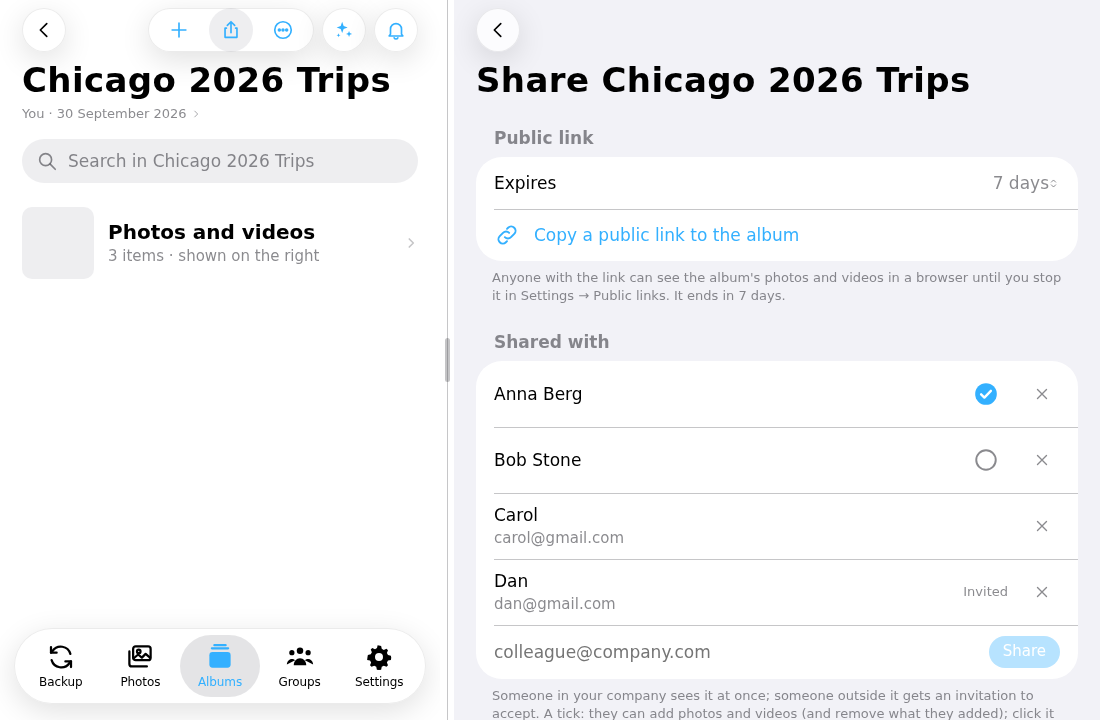
- In the Photos window: open the album and click Share (two people, next to Select), type the email and click Share. ("They see the album under Shared with you and can save copies; they cannot change it.")
- Command line:
spacebackup albums share "Las Vegas" bob@acme.com
spacebackup albums unshare "Las Vegas" bob@acme.com
albums share answers "The album Las Vegas is shared with bob@acme.com: they can view it and save a copy (read-only)."
albums unshare answers that the computers holding it stop serving it to them within 5 minutes; it also withdraws
an invitation still waiting, and removes a guest.
Note: An address at your company's own domain that is not a member yet cannot get the album: the answer says they are not a member of your company and to invite them to the company first (Inviting people). They join the company rather than becoming its guest.
Sharing with a group shares with everyone in it at once (up to 100 people), all or none: if one address cannot get it, nobody is added and the answer names that address.
An owner or admin of the company can also share and unshare any album of the company.
Albums members can add to#
The owner can let the people an album is shared with add to it: the switch in the album's settings on the iPhone, or
spacebackup albums members-can-add "Las Vegas" on("The people the album Las Vegas is shared with can now add to it (and remove what they added).") Then each member may:
- add their own photos and videos (from their phone, as the owner does), and clone items in from other albums they can see;
- remove only what they added (also what they cloned in); anything else answers "you can remove only what you added";
- caption only what they added (Captions).
What stays the owner's: deleting the album, choosing its drives, its name and its cover. Each computer checks who added an item from what the account service confirmed at the time, never from what a device claims. Items added before this was recorded are the owner's.
Turning it off (albums members-: "Only you can add to the album Las Vegas now (what its
members added stays).") stops new adds and removes by members within 5 minutes; what they added stays.
The share mail tells members what they may do ("…and add your own (and remove what you added)" when it is on).
Leaving an album#
A member who no longer wants an album shared with them removes themselves: on the iPhone from the album, in the app with the album's Leave this album button (Where to share and stop sharing), or
spacebackup albums unshare "Las Vegas" bob@acme.com # bob's own email: Bob leaves the albumThe owner is not mailed. A guest from outside the company leaves the same way on their phone.
Turning a shared album off#
An album shared with you can be turned off without leaving it, and back on any time: on the iPhone from the
album, in the Space Backup app on a computer (the album's Turn off button or its right-click menu; turned-off
albums wait under Shared with me with Turn on), on your account page (/account/me, Shared albums:
Turn off / Turn on), with the command line, or with the account service's POST /
(chapter 9).
spacebackup albums show "Las Vegas" off     # or: albums turn-off "Las Vegas"
spacebackup albums show "Las Vegas" on # or: albums turn-on "Las Vegas"- Off: the album is not in your Photos, Recent or Albums lists, you get no "added to the album" notifications for it, and nothing of it is downloaded or kept on your devices. You stay in the album: its owner still sees you among the people it is shared with, marked as turned off.
- Computers: a computer leaves an album you turned off out of its Photos window, its sources and your own TVs, and
does not open it, so nothing of it is read or cached there.
albums listmarks it "turned off";albums show,albums restore(Save a copy),albums guest-restoreandalbums clonefrom it refuse it until you turn it on. - On: it comes back as it was.
- Each person decides for themselves, album by album, and a guest from outside the company can do it too. To be taken out of the album altogether, leave it instead (Leaving an album).
Hiding an album#
(coming) On the iPhone and iPad any album can be hidden, your own or one shared with you: swipe it left and tap Hide, or use its long press menu or the album's … › Hide album. A hidden album leaves Photos, Recent and Albums, and nothing of it is downloaded. Settings › Albums › Hidden albums (N) lists them, each with Show to bring it back.
- An album shared with you is hidden with your account, on all your devices: it is the same switch as Turning a shared album off, which it replaces on the phone. The owner still sees you among its members.
- Your own album is hidden with your account too, on all your devices (the account service keeps it since 2026-11-01; the computers' Photos windows follow it from their next update). The people it is shared with see no change; sharing, members and the album's copies on the drives are untouched.
Accepting albums yourself#
Automatically accept albums shared by people in my company is on by default: an album a colleague shares with you
is yours at once. Turn it off (in the iPhone app's settings, in the Space Backup app's Settings, on your account
page under Shared albums, with spacebackup settings auto-, or with
PUT /) and albums from your company arrive as invitations, like those
from outside it: you accept or decline each, or leave it for later (Accepting or declining).
Turning it back on does not accept the invitations already waiting. Trusting a sender is for people outside your
company only.
Asking the owner to remove a photo#
On a photo in a shared album that is not yours, the iPhone app lets you ask the owner to remove it. The owner gets a notification on their devices ("<your name> asks you to remove a photo", titled with the album's name) that opens that photo. Asking again about the same photo changes nothing; a person can ask about at most 50 photos a day. When the photo leaves the album, the request is done and the owner's notification is marked read. The owner decides: nothing is removed by the request itself.
When someone adds to an album#
When someone adds photos to an album, its owner and everyone it is shared with (but not the person who added, nor anyone who turned the album off) get a notification: "<name> added 12 photos and videos", titled with the album's name. Adds are gathered: at most one notification per album and person every 5 minutes. Each person can turn these off ("album-added" in the notification settings: Choosing what notifies you); they stay in the history either way.
Sharing a device's backups#
Besides albums, you can share everything one of your devices ever backed up ("Annas-iPhone", "ANNA-PC") with another person of the company. It is read-only: they can view and restore a copy of it, on all of their devices, without asking anyone each time. Nothing on the computers can be changed or deleted through a share.
- A member shares their own devices. The company's owner and admins can share any device's backups with anyone in the company, also those of a removed device (a lost or retired PC).
- The person must be a member of the company (or invited to it: they get access once they join). It cannot be the device's own owner ("these backups are already <email>'s"), and an owner or admin cannot share another member's device with themselves (they ask to restore it instead: Approving a restore).
- One device with one person at a time. To give several people access, share with each.
Where to share and stop sharing#
In the Space Backup app (Windows, macOS, Linux) every share you can stop has a visible button on its row; nothing is only in a right-click menu. Each one asks first and then says what it did.
| What | Share | Stop sharing |
|---|---|---|
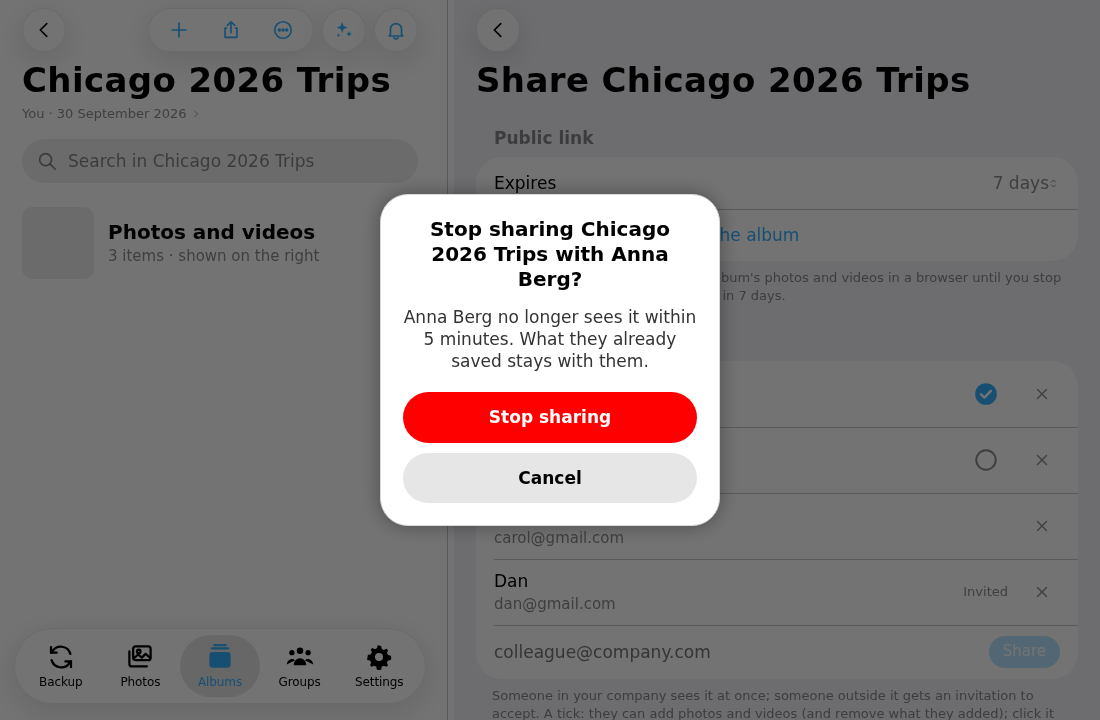
| An album you own | the album's Share button: an email box, or Share with a group | Shared with lists the people, guests and invitations; the × at the end of a row ("Stop sharing with Anna Berg"), or right-click the row → Stop sharing. It asks "Stop sharing Chicago 2026 Trips with Anna Berg?"; the line under the list then says "Chicago 2026 Trips is no longer shared with Anna Berg." |
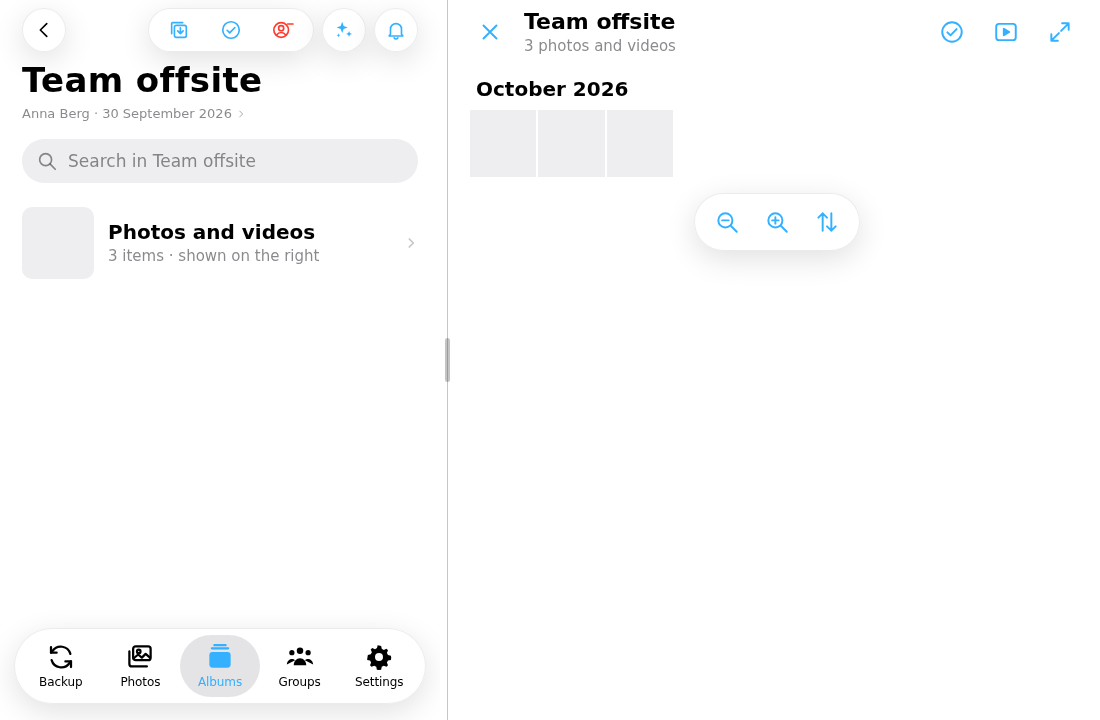
| An album shared with you | — | open it: Leave this album (the person with a minus, next to Restore and Select), or right-click it in Albums → Shared with me → Leave this album. It asks "Leave Team offsite?" |
| This computer's backups | Settings → Account → Share this PC's backups…: an email box and Share | the same page lists the people it is shared with and since when, each with Stop sharing. It asks "Stop sharing with bob@acme.com?" (see What stopping a share does) |
| A public link | an album's Share → Copy a public link to the album, or a photo's share button | Settings → Public links: Stop sharing on the link. It asks "Stop sharing Chicago 2026 Trips?" |
A device's backups elsewhere:
| Where | How |
|---|---|
| iPhone | Settings → sharing this iPhone's backups (by email) |
| Your account page on the web | Shared backups: "Share the backups of [your device] with [email]" → Share; Stop sharing per row (The admin page) |
| The admin page (owner, admins) | Shared backups for every device of the company |
| Command line | share add, share remove, share list; for albums albums share, albums unshare (also to leave: your own address); for links photos unlink |
spacebackup share add bob@acme.com                 # this computer's backups
spacebackup share add bob@acme.com --pc Annas-iPhone  # another of your devices (owners/admins: any device)
spacebackup share list                             # what you share, then "Shared with me"
spacebackup share remove bob@acme.com --pc Annas-iPhone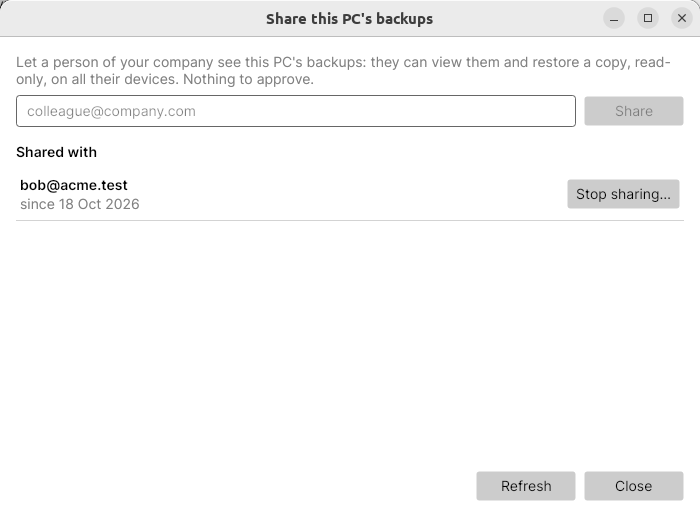
The person gets a mail ("anna@acme.com shared ANNA-PC's backups with you") saying what it means and that there is nothing to do. When a member shares, the company's owner and admins get a copy of the news; when an admin shares someone else's device, the device's owner is told by mail, with how to stop it, and by a notification ("<Name> was given access to <device>'s backups by <admin>").
What stopping a share does#
Stopping a share stops new backups from being readable. It cannot take back what was already shared. Every app says so in these words before you confirm:
Backups made before today stay readable to bob@acme.com, who already had access to them. New backups are not shared.
and adds:
ANNA-PC's next backup takes longer: it copies its encrypted folders again.
Why: while the share existed, Bob's devices held the device's key. So when a share ends (after the key was handed out), the device makes a new key at its next sync, and its next backup copies every encrypted folder again under the new key (plain folders are not affected). Its older backups stay readable to the device itself. The computers holding the backups stop serving them to Bob within 5 minutes.
Bob gets a mail ("anna@acme.com stopped sharing ANNA-PC's backups with you"); when an admin stopped it, the device's
owner is told too. The person a device is shared with can also remove it from their own list (**Remove from my
list** on their account page, or share remove <their own email> -).
A share also ends by itself when the person is removed from the company, or when the device is removed.
Restoring a shared device#
While a share exists, no approval is needed:
- A phone's photos: in the Photos window under Shared with you → All of <device> (view, save, restore), and in the iPhone app's Albums tab.
- A computer's files: the Restore… window lists "Shared with me: ANNA-PC (anna@acme.com)" after this computer's
own folders; pick a date, the files, and restore them into a folder.
recover listshows the device asshared. - Command line:
spacebackup history --pc ANNA-PC
spacebackup browse /home/anna/Documents --pc ANNA-PC
spacebackup restore /home/anna/Documents/report.docx --pc ANNA-PC --to ~/Restored
sbctl restore C:\Users\anna\Documents\report.docx --pc ANNA-PC --to C:\RestoredThe backups are read from this computer's drives, or from the company's other computers that hold them (they serve them only after the account service confirmed the share). See Restoring files for the restore window itself.
Guests from outside the company#
An album can also be shared with someone outside your company: a friend with a gmail address, a client in another company that uses Space Backup, a relative. They become a guest of that one album.
Inviting a guest#
Share the album with their email as with a colleague (on the iPhone, in the Photos window's Share, or
albums share). Because they are not in your company, they get an invitation instead:
- a mail with a link (it opens the invitation in the Space Backup app on their iPhone, or points them to the App Store: "Get it from the App Store, sign in with the email address the invitation went to, and you will find it under Albums"), and a notification on their phone if they already have the app ("<your name> invited you to a shared album");
- the album lists them as invited (to its owner and the company's admins), with no name until they accept, and as declined if they decline;
- the invitation does not expire (since 2026-10-31): it waits until they answer, you withdraw it or you delete the album. Sharing again while one is waiting, or after they declined, changes nothing (they can still accept the declined one).
spacebackup albums share "Las Vegas" carol@gmail.comanswers "carol@gmail.com is outside your company: they were invited to the album Las Vegas (by mail and on their phone; they can view it and save a copy once they accept)." (Computers before this change still add "the invitation lasts 30 days"; it no longer expires.)
A person can send at most 200 invitations a day.
Accepting or declining#
The invited person signs in to Space Backup with the address the invitation went to (in their own company, or in
none) and finds the invitation in the Albums tab (on the iPhone, or in the Space Backup app on a computer), or on
their account page (/account/me, Shared albums): Accept, Decline, or Later (leave it; nothing is
sent, and it is there again next time); it does not expire. A declined invitation stays listed as Declined
with Accept, so they can change their mind until the owner withdraws it or deletes the album. After accepting, the
album appears as "Shared with you by <owner name> (<company>)". The same goes for an album from a colleague when they
accept albums themselves.
- Trust this sender: when accepting, they can choose to trust the person who sent it. Albums that person shares with them later are then accepted at once (a notification and a mail say so, no invitation). Trust is per person, never a whole company. The account service keeps the list of trusted senders per person and can remove one.
- A computer in another company can be a guest too, from the command line:
spacebackup albums invitations                   # waiting, then declined: album, from whom, since when
spacebackup albums accept "Las Vegas" --trust-sender   # a declined one too
spacebackup albums decline "Las Vegas"           # stays listed as declined
spacebackup albums guest                         # the albums you are a guest of
spacebackup albums guest-restore "Las Vegas" --to ~/Pictures/Las-Vegas
What a guest can do#
A guest views and saves the album: its list of items, its thumbnails and its files. Nothing else: no adding, removing, captioning, copying or deleting, whatever "members can add" says, and no access to anything else of your company (backups, other albums, computers). Your company's computers check every request and log every guest connection and refusal.
- Names across companies are shown only between people who share an album: the owner sees the name of a guest who accepted; the guest sees the owner's name. Nobody else sees a cross-company name.
- Guests get the "someone added to the album" notification like members, and can turn it off.
- A guest can turn the album off and on again, like a member.
How a guest's phone reaches your computers#
A guest has no key of your company, so they reach the album through a narrow door of their own:
- Their app asks the account service for a guest pass (renewed every hour): it names the albums they are a guest of, the computers keeping each, and those computers' public keys.
- The phone connects through Space Relay in your company's relay group (or directly when it is on the same network), seeing only the computers that keep its albums.
- It opens an encrypted guest channel to the computer, which checks the guest's album ticket with the account service and serves only that album, view and save only.
What this means for you as the album's owner:
- The guest's traffic through Space Relay counts as your company's (Billing and prices).
- The computers keeping the album must be signed in to the account (a computer that isn't says "this PC cannot serve guests"), and your company must have Space Relay set up; otherwise the guest's app cannot reach the computers.
- A computer serves at most 8 guest connections at once.
Removing a guest#
The owner (or an admin) removes a guest at any time, and withdraws an invitation still waiting (or declined), the same way as for a
colleague: on the iPhone, with the × on their row in the app's Shared with (Where to share and stop sharing), or albums unshare "Las Vegas" carol@gmail.. Deleting the album ends every guest's access.
A guest can also leave. Either way the guest loses access within 5 minutes. What they already saved stays with them.
Public links#
A public link is a web address anyone can open in a browser, without the app or an account: one photo or video, or a selection of them (a page of thumbnails, each opening its photo or video), or a whole album. Send it in a message or a mail.
A public link is deliberately public. Whoever has the address sees the items, until the link expires or you revoke it. Treat it like the photos themselves.
Making a link#
On the iPhone, open a photo or video (or select several) and choose Create a public link next to Share; copy the link or share it. It lasts 7 days unless you choose otherwise: up to 90 days, until a date up to 10 years ahead, or never (it then works until you revoke it). You can change when an existing link ends later.
- An item in an album or in a Not encrypted backup is linked where it is.
- An item that is only in an encrypted backup is first copied, plain, into your own album Shared publicly (one per phone, on the drives that phone's backups go to). Your phone does this itself: it reads and decrypts the item and sends the plain copy; no key ever leaves the phone. Everything you shared publicly is then in one place.
- Nothing from an encrypted backup is ever served through a link.
From About this photo (every app, the TV too): Create public link shows the photo's link, or makes one (7 days; change it in Settings › Public links). If it has a link already, that one is shown: never a second. On a computer, the iPhone, iPad and Android you see the link, a copy button (Copied) and its QR code; the TV shows only the QR code, to scan with a phone from the sofa. A photo of your own phone's backups is linked by the phone: About says "Your iPhone makes the link at its next backup." and shows it once it is made. A TV showing albums shared from another company has no Create public link.
A whole album: from an album you own, choose Create a public link for the album. The link shows what the album holds each time it is opened: photos you add later appear, ones you remove disappear (their addresses stop working). A large album is shown in pages of 60. Only the album's owner, or the company's owner or an admin, can make one. The page comes from a computer that keeps the album; an item whose copy is not on that computer yet is left out and counted ("2 items are not shown"), and photos you deleted or archived on the iPhone are left out. A link to an album also stops while the album is deleted, works again when it is put back, and ends when it is deleted permanently.
Opening a link#
The address looks like https:/. When someone opens it, the account
service reads the item from one of your company's computers that is online, through Space Relay, and passes it on;
nothing is stored on the service. Videos stream and can be scrubbed.
The page is a small gallery, on a phone or a computer:
- A selection or an album shows its thumbnails; tap one to see it large. ← / → (or the arrow keys, or a swipe) go to the previous and next one. Each photo has its own address, so you can copy and send just that one.
- The page uses the whole width of the window: a phone shows about 3 thumbnails across, a large display 10 or more.
- Three layouts (the buttons at the top right; the browser remembers your choice): the grid of thumbnails, a large photo with a strip of thumbnails under it, or a large photo with the strip at the side (on a phone held upright the strip goes under the photo). Tap a thumbnail in the strip to show it.
- Full screen (the corner-arrows button, or Full screen above the grid) fills the screen, from any layout; the strip hides until you tap the photo. On an iPhone the buttons hide until you tap.
- ▶ Slideshow shows the photos one after another, 3, 5, 10 or 20 seconds each (the browser remembers your choice); videos play to their end. Tap, press Esc or press the button again to stop.
- iPhone photos (HEIC) are shown as JPEG so that every browser can show them; the computer serving them converts each one once. The JPEG has no location data.
- ⬇ Download saves a photo as JPEG or as the Original (.heic); other files as they are.
- When none of the computers holding the item is online, the page says "The owner's computers are offline. Try again later."
- An expired or revoked link says "This link has expired or was removed."
- The traffic counts to your company's Space Relay use (Billing and prices).
Seeing and stopping links#
Settings → Public links on the phone lists the phone's links with how many times each was opened, and stops one at once (Revoke). The company's owner and admins can list and revoke every link of the company, on the phone or under Public links on the company's web page (a link without an end shows Never). A link also stops when its phone is removed from the company or its owner leaves it. For developers: Public links.
Captions#
A caption is your own text on a photo or video ("Dinner at the pier"): plain text, up to 2,000 characters, line breaks allowed. It is shown under the picture in the viewer and in Info, on the phone and in the Photos window.
There are two kinds:
- Captions in your phone's own backups: written on the iPhone and stored in its backup index. On a computer,
right-click → Caption… (or Edit caption… in Info) sends the new caption to the phone, which writes it into its
backups with its next backup; until then Info shows it as pending (
photos caption <id> "text"). - Captions on album items: stored with the album on every drive that keeps it, and travel with the item when it is cloned into another album. The album's owner captions any item; in an album that members can add to, a member captions what they added. Read-only members and guests see captions but can't change them.
In the Photos window: open an album item you may caption, open Info (or click the caption under the picture), type in the Caption box ("Add a caption") and click Save caption (or press Ctrl+Enter, ⌘+Enter on a Mac). Clear caption removes it.
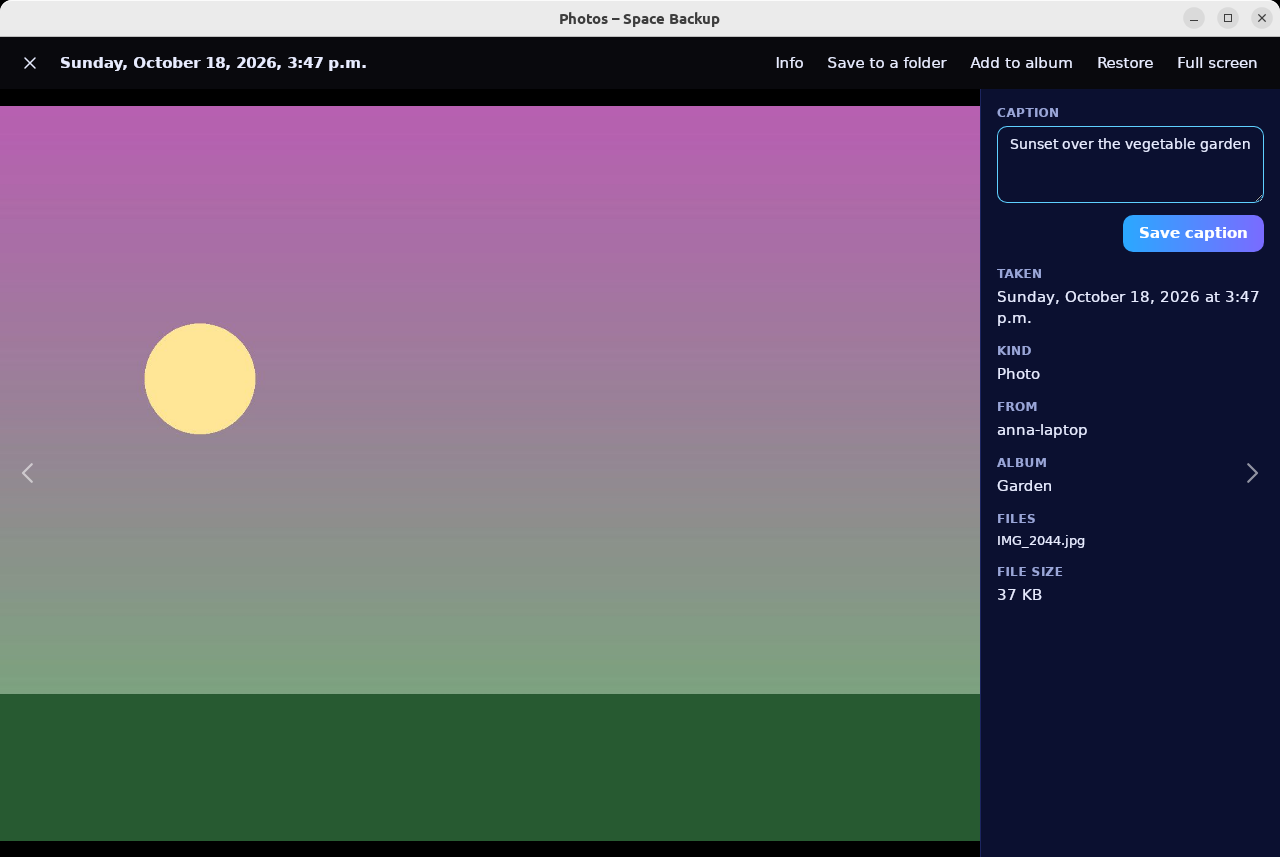
Command line:
spacebackup albums caption "Las Vegas" 9f2c0000aaaa1111 "Dinner at the pier"
spacebackup albums caption "Las Vegas" 9f2c0000aaaa1111 --clear
The item id is as albums show --json lists it, or the Photos window's id (a~<album id>~<device>~<id>). This
computer's own drives keeping the album are changed directly, the others through the first computer that answers; a
computer that is off gets the caption when it is back. Exit codes: 0 set; 1 the item isn't in the album, isn't yours
to caption ("You can caption only what you added"), or no computer keeping the album can be reached; 2 a caption that
breaks the rules; 4 set, but some computer failed (listed).
Album covers#
Every album shows a cover picture in the albums list. By default it is the album's newest item. On the iPhone, the album's owner can pick another item as the cover, or go back to the newest. Members, guests and admins see the cover but cannot change it. The cover is part of the album, so it is the same on all of the owner's devices and for everyone it is shared with (guests included).
When the cover item is removed from the album, the album goes back to showing its newest item.
The computers' Photos window shows the same cover on each album's card. Covers are chosen on the iPhone; there is no
command for them (photos sources --json shows an album's cover).
Live Photos#
A Live Photo is a still picture plus a short video (with sound) taken around it. Space Backup always keeps the two together.
- Backed up as two files under the same name in the same month folder: the picture (
IMG_1234.HEIC) and its video (IMG_1234.MOV); an edit addsIMG_1234 (edited).JPG. Its thumbnail is the still. When you choose to back up "Photos" only, Live Photos still count as photos and their video comes with them. - In an album both files are copied (
IMG_1234.HEICandIMG_1234.MOV), and a name clash gives both the same suffix (IMG_1234 (2).HEIC,IMG_1234 (2).MOV). - In the Photos window a Live Photo has the Live Photo symbol on its tile and a button on the picture: point at it
(or click it) to play the movement with sound; it goes back to the still when it ends. Info says "Kind: Live
Photo" and lists both files. Types → Live Photos lists them all (
photos list --type live). - Saving and restoring on a computer (Save to a folder, Restore,
photos save,photos restore,albums restore) writes both files, side by side with the same name, so photo apps that understand Live Photos pair them again. - Restoring to the iPhone's library brings it back as a real Live Photo (picture and video paired), with its date and place: Restore to the Photos library.
People, groups and names#
Display names#
Each member has an optional first and last name in their company (each up to 40 characters; a last name needs a first name). The apps show it next to the email: with albums ("Shared by Anna Smith"), album members, devices, and the member list. It is shown only inside the company, and across companies only between an album's owner and its guests who accepted.
You set your own name:
- in the app: Settings › Account › Your name, then the first and last name and Save (empty fields clear it), on a computer, an iPhone or an iPad;
- on your account page on the web, Your name → Save (empty fields clear it; see The admin page);
- or from the command line (the first word becomes the first name, the rest the last name):
spacebackup account name set "Anna Smith"
spacebackup account name            # shows it
spacebackup account name clear
The company's owner and admins can set anyone's name on the admin page (Members).
The Groups tab and Coworkers#
The iPhone app's Groups tab keeps your own groups of people to share with ("Family", "Project Alpha"), so you can share an album with all of them at once. Groups are kept with your account, so they follow you to a new phone and to the computers, and they are private: nobody else, admins included, sees or changes them.
- A group has a name (up to 40 characters) and up to 500 email addresses (anyone's, not only colleagues'). You can have up to 200 groups.
- Coworkers: while your company lets anyone with its email domain join by themselves (auto-join), you also have an automatic group of every active member at the company's domain. Space Backup keeps it current as people join and leave; you can't change it, only hide it.
- Your account page on the web lists Your groups (read-only); groups are made in the app.
- Albums are shared with a whole group in one go. Device backups are shared person by person, so the app shares with each member of the group.
Commands of this chapter#
The same commands on every computer: spacebackup … on macOS and Linux, sbctl … on Windows. Every command takes
--json for machine-readable output (Global flags and JSON).
| Command | What it does |
|---|---|
photos open | starts the Photos window's local viewer and prints its address |
photos sources | the devices and albums this computer can show, and why one can't be read |
photos list [- | photos and videos, newest first |
photos show <id> | one item's info |
photos save <id>. | Save to a folder (originals; a Live Photo's two files) |
photos preview <id> - | the shown picture as JPEG |
photos restore <id>. | Restore into <dir>/ (default Pictures/Space Backup) |
photos add <album> <id>. | Add to album (album items) |
photos new- | New album (with these items), kept on these drives (default: every drive of Where it goes) |
photos assistant <words> | the assistant |
albums list · albums show <album> [- | albums, an album's items |
albums restore <album> - | save a copy of an album |
albums create <name> · albums dest <album> <PC>:<destination>. · albums delete <album> | make, place, delete (owner) |
albums add <album> <path>. · albums remove <album> <path>. | add or remove this computer's backed-up files |
albums clone <album> <from album> - | copy items from another album |
albums status <album> - | drive by drive |
albums share <album> <email> · albums unshare <album> <email> | share, invite a guest, stop, leave |
albums members- | let members add |
albums caption <album> <item id> "text"|- | caption an album item |
albums invitations · albums accept <album> [- · albums decline <album> | invitations to you from other companies |
albums guest · albums guest- | albums you are a guest of |
share list · share add <email> [- · share remove <email> [- | sharing a device's backups |
account name [set "<name>"|clear] | your display name |
Full details of each: Command line reference.
When something goes wrong#
| What you see | What it means and what to do |
|---|---|
| "This computer can't open these photos yet." | The phone's backups are encrypted and this computer has no key for them. Ask to restore it (Restore another PC's backups… → Ask to restore, or recover request <phone>) and have an admin approve it, or have the phone's backups shared with you. See above. |
| "No backup of <device>'s photos was found on this computer or on the computers it can reach right now." | The computers holding the phone's backups are off or out of reach. Try again when they are on. |
| "This album is not kept on any computer yet." | The album has no drive. The owner chooses its drives (phone, or albums dest). |
| "No computer keeping the album <name> can be reached right now" / "None of the computers keeping <name> can be reached right now." | Every computer keeping the album is off or unreachable. |
| "Photos from <device> are added to albums on <device> itself." | A phone's own photos are added to albums from that phone. On a computer you can add only items of other albums. |
| "you can remove only what you added" / "You can caption only what you added" | You are a member of an album members can add to: you change only your own items. |
| "None of them is in the backups yet." (an album's grid) | The album's items are still being copied, or the computers keeping it are off. Check albums status. |
| "This video cannot be played here. Save it to a folder to watch it." | The window can't decode this video (usually HEVC without a decoder). Save it and play it with another app. |
| A guest says the album never loads | Check that the computers keeping the album are on and signed in, and that your company has Space Relay set up. |
| Someone still sees an album or device right after you stopped sharing | Computers stop serving it within 5 minutes. What they already saved stays with them. |