 Space Backup Manual
The iPhone and iPad app
Chapter 4 of 14 · Contents
The Space Backup app backs up an iPhone's or iPad's own photos and videos to your company's computers, lets you browse, search and restore them, and keeps albums with the people you work with. This chapter covers every screen of the app: what to back up, when, over which network, where it goes, encryption, removing and restoring photos, and the assistant. People and faces, albums and sharing are in Photos, albums and sharing.
What is in TestFlight. This chapter and the next describe the app as it is in TestFlight build 84 (2026-10-31). A few things are marked (coming): they are built and will be in the next build, but not in build 84 yet.
What the app is, and what it is not#
- The phone is a source only. It sends its photos and videos to the company's computers (Windows, macOS and Linux PCs that have backup drives, called destinations). It never stores anyone else's backups, and other devices never back up to it.
- The phone only connects out. It reaches a computer directly on the office or home network when it can, and through Space Relay otherwise. The computers never try to call the phone, so nothing needs to be opened on your router or firewall for it.
- Everything the phone sends is encrypted on the phone by default, with the phone's own key, before it leaves. The computers that store it cannot look inside (see Encryption per destination).
- Photos are the phone's job alone: the computers keep the files, check them weekly, repair damaged copies, and prune old dates like any other backup. Which photos go, when, and in which form is decided entirely on the phone.
Note: The iPad app is the same app. Everything in this chapter applies to an iPad unless iPad differences says otherwise. Where the text says "iPhone" or "phone", read "iPhone or iPad".
Install and sign in#
Installing, signing in and joining the company are described step by step in Getting started. In short:
- Install Space Backup on the iPhone (see Getting started for where to get it).
- Open it and enter your work email address. The account service mails you a sign-in link and a 6-digit code; tap the link or type the code (Sign in by email link).
- If your company already uses Space Backup, the phone joins it (Join a company). If you are the first person of your company, the company is created for you.
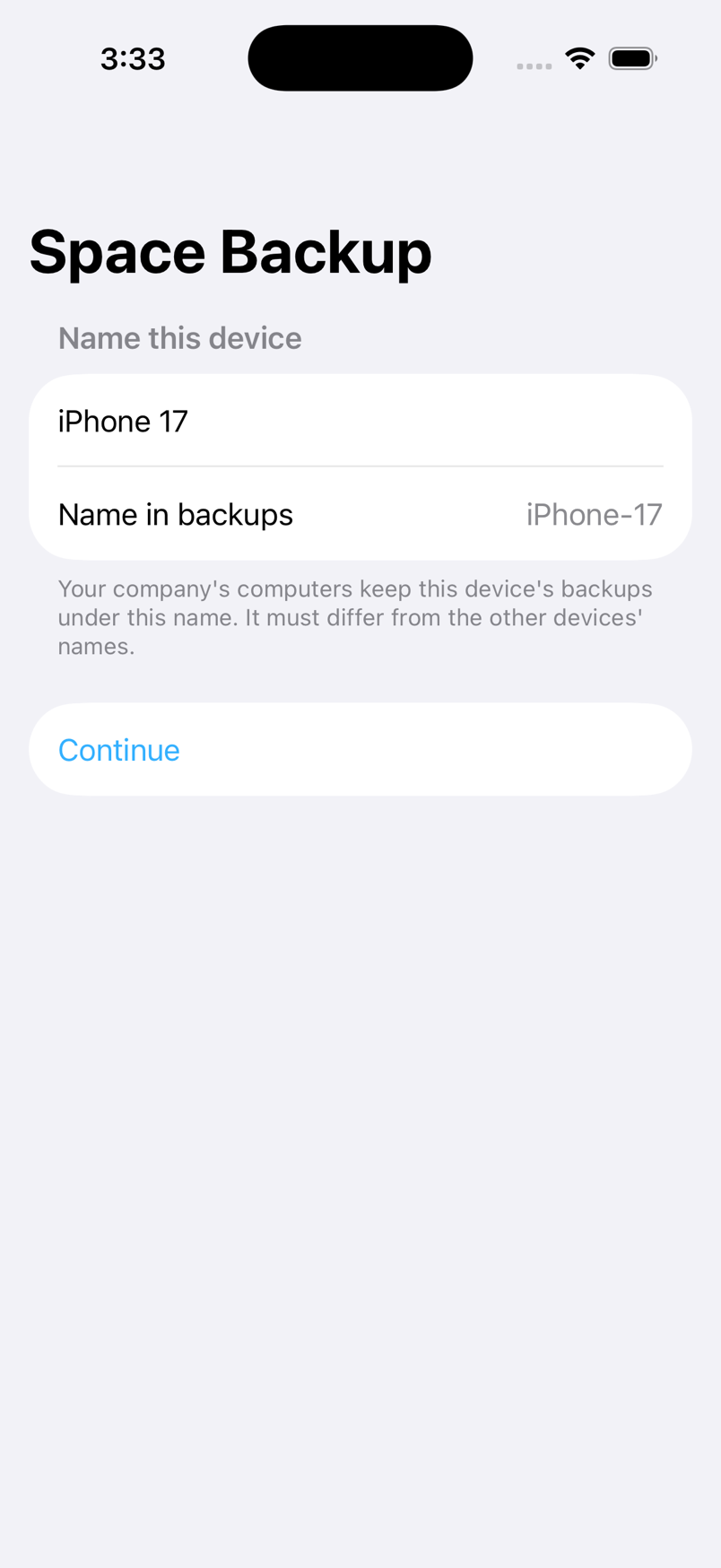
- Name the device. The name you type becomes the phone's device name: the folder its photos go into on every computer, and the name everyone in the company sees for it. The app turns what you type into a valid name and shows you the result before it registers the phone:
You type The device name becomes Anna's iPhone Annas-iPhoneBob iPad Pro Bob-iPad-ProThe rules are the same as for a computer's name (Choose a computer name): 1 to 64 letters, digits,
-,_or.(plain ASCII), starting with a letter or digit, not ending in., no.., and not a reserved Windows name such asCON,NULorCOM1. The name must be unique among the company's active devices, ignoring upper and lower case. If another device already uses it, the app says so and asks for another name. - The company key. The phone needs the company key to talk to the company's computers. It gets it end to end from a computer of the company that is online, usually within seconds. If none hands it over within 2 minutes, the company's owner and admins get an email and a notification to approve the phone (A device waiting for the company key). The app tells you who it is waiting for, for example "Waiting for ANNA-PC to hand over the company key."
- Allow access to Photos. iOS asks whether Space Backup may read your photo library. Choose full access so that the app can back up everything you choose. Without it, only what iOS lets the app see can be backed up.
- Choose what to back up (What to back up). A new install backs up nothing until you choose something.
Tip: Do the first big backup at the office or at home on Wi-Fi, on the same network as one of the company's computers. The phone then sends straight to that computer instead of through the relay, which is much faster and does not use relay credit.
The tabs and screens#
The app has five tabs along the bottom, left to right:
| Tab | What it is for |
|---|---|
| Backup | What to back up (your selections), where it goes (the company's computers and drives), Back up now, Schedule backup, the last and next backup, and the backup log |
| Photos | Browse, view, search, save, archive and delete in this phone's own backups on the computers; restore them to the Photos library; remove items from the backups |
| Albums | Albums you made, albums shared with you, and the devices whose backups are shared with you (this tab replaced the earlier Shared with me tab) |
| Groups | Your own groups of people to share with, and Coworkers (The Groups tab and Coworkers) |
| Settings | Your account, the company, Recognize faces, sharing this phone's backups, TVs, hidden albums, notifications, sign out |
There is also a sparkles button that opens the assistant.
The Backup tab#
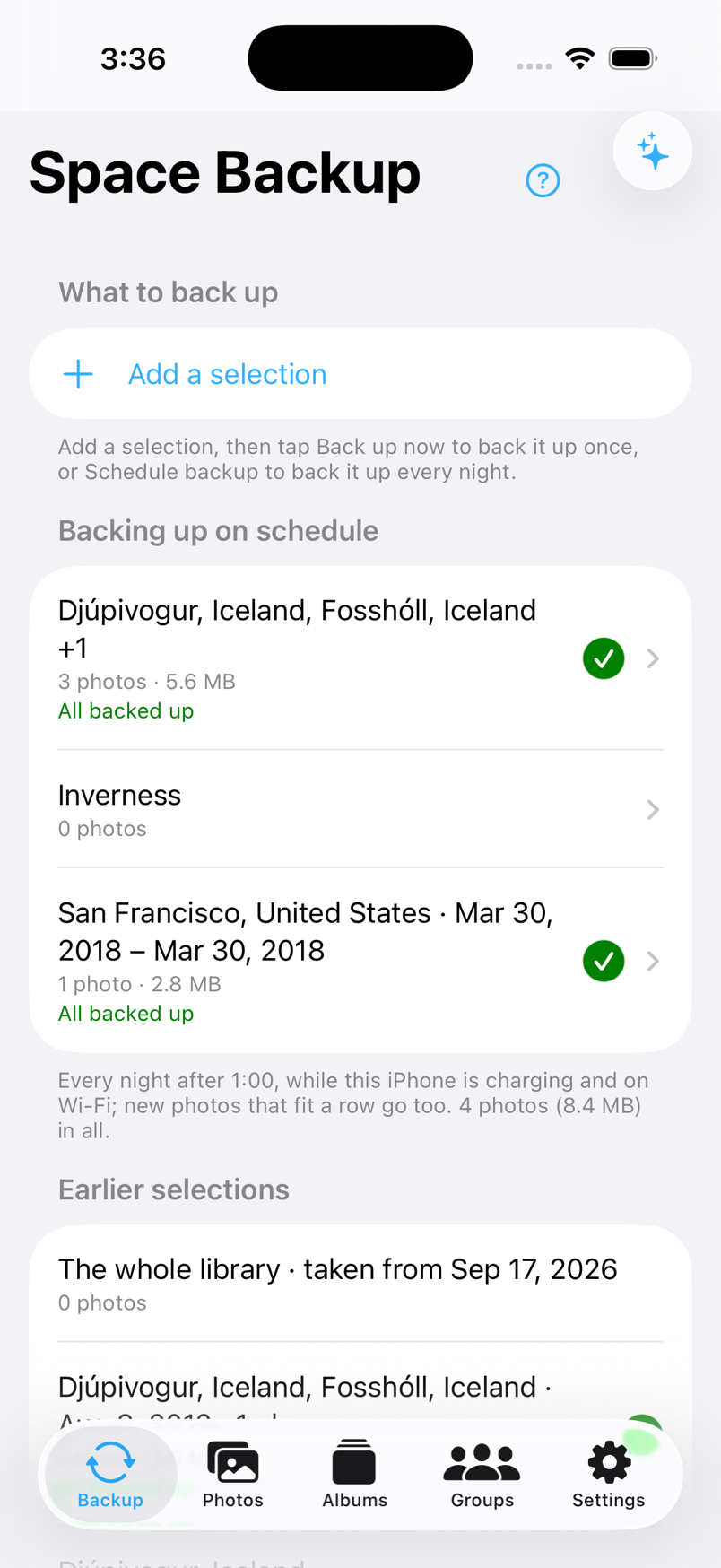
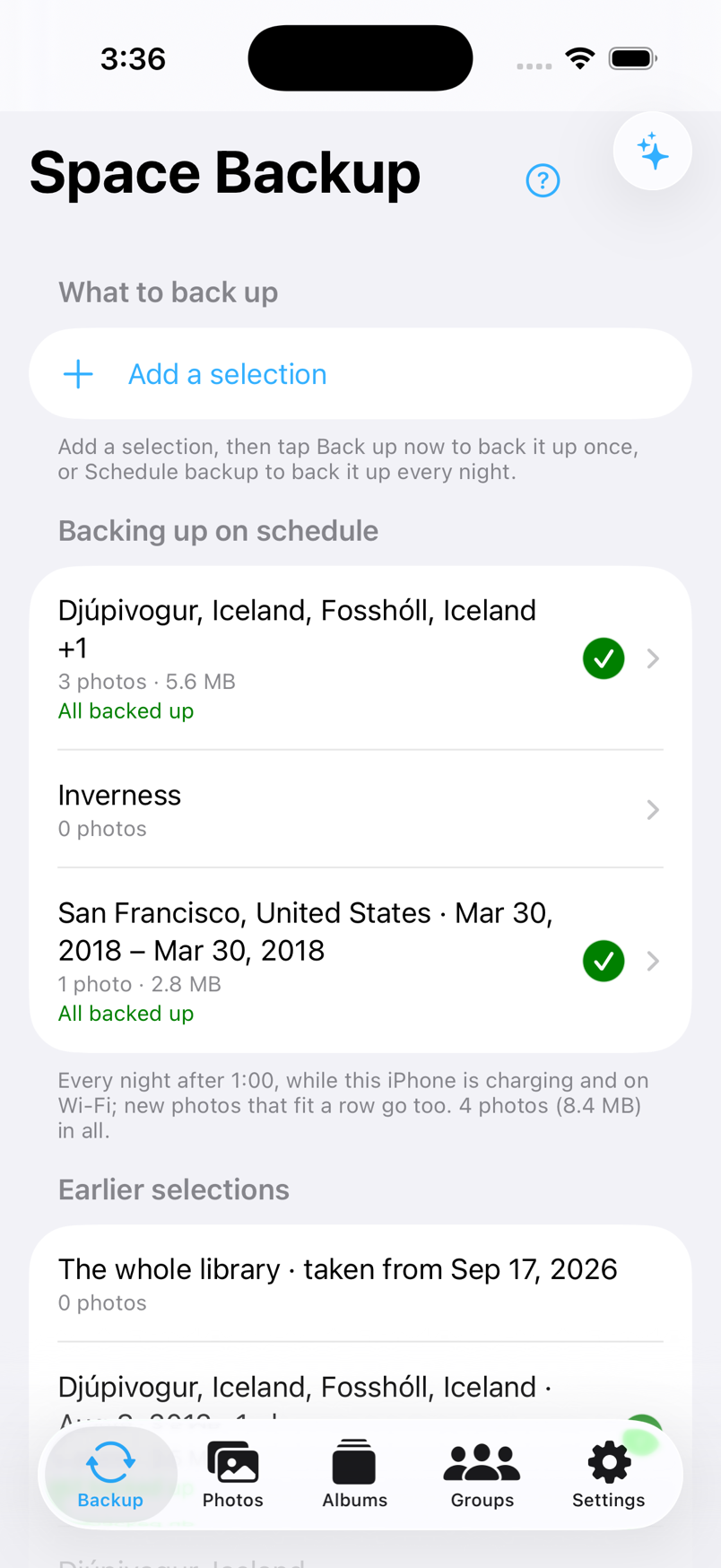
From top to bottom:
- What to back up: the selections you have chosen but not backed up yet, one row each, with + Add a selection under them (What to back up).
- Back up now and, right under it, Schedule backup (Back up now or on a schedule).
- Backing up on schedule: the selections that are backed up every night.
- Earlier selections: selections that were backed up once, newest first.
- A total line, for example "Backing up 1,240 photos and 85 videos (14.8 GB)".
- Where it goes: the company's computers and their drives that this phone can reach (Where it goes).
- Last backup, Next backup and the Backup log (The backup log).
If none of the company's computers can be reached, the tab says so plainly: "None of your company's computers can be reached right now."
The Photos tab#
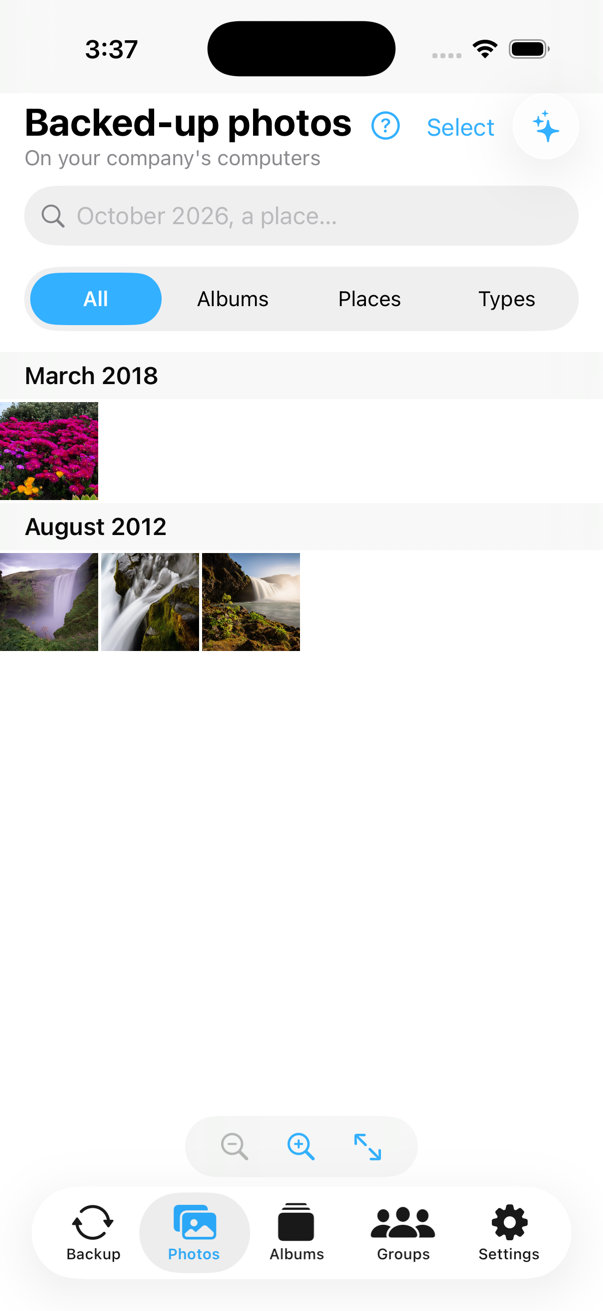
The Photos tab shows what is in the backups on the computers, not what is on the phone. It works even after the photos have left the phone, or on a new phone.
- Browse by month, newest first, from small thumbnails made on the phone at backup time and stored with the backup. The strip under the search field chooses what you browse: Recent (this phone's backups, the devices shared with you and every album, each photo once, newest first), Albums, Places, People (when Recognize faces is on: People and faces) and Types.
- Search by date, by place and by a person's name ("Marina in San Francisco"). Places come from the location (GPS) recorded in each photo; the phone asks Apple's maps for the place's name (the coordinates only, nothing else). (coming) A photo's place also names what is right there: the nearest landmark or named place, the park, the street and the town, so "Art Institute", "Institute", "Grant Park" or "Monroe Street" find it (A photo's place and what is nearby).
- Types: Favorites, Videos, Live Photos, Panoramas, Selfies, Portrait, Screenshots, Screen Recordings, Slo-mo, Time-lapse, Bursts, RAW, Spatial and Cinematic, as in Apple's Photos app. Items backed up before the app recorded media types show under the types only once their month is written again.
- View a photo or video full screen, with its caption when it has one; swipe between items. Close the viewer with the X. The About of a photo shows its date, its place, the people in it and where its copies are. (coming) Videos from the computers start playing as soon as their start has arrived, and pick up where they were when you swipe back (Videos that play while they arrive); turning the device refits a full-screen photo instead of closing it.
- Save a copy to the phone, Add to album, Restore to the Photos library (Restore to the Photos library), and Remove from backups (Remove from backups).
- Archive with a swipe in the viewer (Archive), and the Archived folder.
- Delete in the viewer (Deleted), and the Deleted folder, from which items are put back or deleted for good.
- Grids can be grouped by when an item was taken or by when it was backed up ("Backed up Oct 17, 2026, 12:18 PM · Iberostar, Mexico"). Items backed up before the app recorded upload times are grouped by the day taken.
Browsing works on cellular data too: thumbnails are small. Opening or saving a full-size original over cellular shows its size first.
The Albums tab#
- Your albums: make an album, rename it, delete it, add photos and videos (from the viewer or from a filter), set a cover, write captions, share it with colleagues.
- Shared with you: albums other people shared with you (view and save; add too, if the owner allows members to add), and albums from other companies you were invited to ("Shared with you by <owner name> (<company>)").
- Devices shared with you: another device's backups that its owner or an admin shared with you, read-only (view, save, search).
An album is a plain (not encrypted) copy of the chosen items, made by a computer from the phone's backup that is already there, so adding 500 photos to an album sends nothing from the phone again. Albums, sharing, guests, captions and covers are described in Photos, albums and sharing.
The Settings tab#
- Account: signed in as (your email), the company, with Rename for the owner and admins (Renaming the company), and the auto-join switch.
- Recognize faces: the company's switch, on by default; only an owner or admin changes it (People and faces).
- Albums › Hidden albums (N) (coming): the albums you hid, each with Show (Hiding an album).
- TVs: Sign in a TV… with the camera or the code the TV shows.
- Sharing: Share this iPhone's backups… with a colleague by email, and the list of people they are shared with (Sharing a device's backups).
- Notifications: the notification history (under Settings or behind a bell icon) and what notifies you (Notifications and history).
- Sign out.
What to back up#
You decide exactly which photos and videos the phone backs up. A new install starts with nothing chosen and backs nothing up until you pick something.
What you choose is kept as a list of selections. Each selection is one row on the Backup tab. Tap + Add a selection to add one; the chooser offers:
| Selection | What it backs up |
|---|---|
| Everything | The whole library. You choose all time, from now on (only items taken after this moment), or from a date |
| Going back | Everything taken in the last X days, months or years ("the last 3 months"). Counted back from today, so it moves with the calendar: new photos are always in, the oldest drop out of the rule as time passes |
| A time period | Everything taken between two dates (the date the photo was taken, in the phone's local time) |
| A place | Everything taken at one location: pick a spot on a map with a radius, or type a city or area name |
| Pick photos | Items you tap in a grid (multi-select). Backed up once |
| Add from an album… | Everything that is in one of your iPhone's albums or media types today, added as picked items |
Each row shows what it holds right now, with the photos/videos switches applied, for example "Chicago trip · 61 photos · 4 videos · 1.2 GB" ("· 0 videos" is left out). Under the list, a total line gives the size on disk: "Backing up 1,240 photos and 85 videos (14.8 GB)". An item that is in several selections is backed up once.
Places#
- Pick a place on the map and drag the radius, or type a city or area name ("Niagara-on-the-Lake"). Names are looked up on the phone with Apple's own geocoding.
- A place uses the location stored in each photo. Photos and videos without a location never match a place (for example screenshots, or photos taken with Location Services off for the Camera).
- New photos taken at the place are included as they appear.
Time periods and "going back"#
- A time period is fixed: "between Oct 12, 2026 and Oct 14, 2026".
- Going back moves: "the last 3 months" on January 15 means October 15 to January 15. Photos that age out of the rule are not deleted from the backups: they stay in the older backups until those are pruned on the computers.
- Everything from a date is like a period with no end: everything taken at or after that moment.
Picked items and "Add from an album"#
- Pick photos opens a grid of your library. Tap the items you want. Items that are already safely on the computers are marked Backed up.
- Picked items are backed up once. When a picked item is safely on the computers, it leaves the selection by itself; the grid starts empty again and shows those items as Backed up. They are never sent again.
- Picked items do not age out with the dated backups: every later backup keeps them (as a hard link on the computer, which costs no transfer and no space), even after you delete them from the phone, until you remove them yourself (Remove from backups).
- Add from an album… lists the albums and media types iOS lets apps read, each with its name, count and a cover photo:
- your own albums, shared albums, and albums synced from a computer;
- Videos, Selfies, Live Photos, Portrait, Panoramas, Time-lapse, Slo-mo, Bursts, Screenshots, Screen Recordings, RAW, Cinematic, Spatial, Favorites, Recently Added.
Choosing one adds everything in it today to your picked items (what is already on the computers is left out). It is a one-time grab, not a live rule: photos added to that album later are not included unless you choose the album again.
Note: Trips, Recent Days, Memories, People & Pets, Featured and Duplicates are built privately by Apple's Photos app; no app can read them. To back up a trip, select its photos in Photos and use Add to Album, then pick that album here. Or use a place, or ask the assistant, which finds trips from the photos' dates and places.
Photos, videos and media types#
- Two switches, Photos and Videos, both on by default, apply on top of every selection ("only videos from the last 3 months", "photos only, everything"). At least one must stay on.
- Live Photos count as photos: their short video part always comes with them.
- Leave out screenshots and screen recordings is a switch that keeps them out whatever else is chosen. It is on by default. Turn it off to back them up like any other item.
- To back up only one media type (for example only Portrait photos), use Add from an album… and pick that type.
How the rules combine#
Inside one selection:
- Different kinds of rule narrow each other: a place AND a time. "Going back X" and time periods are both the time kind.
- The same kind adds up: this place OR that place; this period OR "the last 3 months".
- Picked items (including what Add from an album… added) come on top, whatever the place or time.
- The Photos/Videos switches and the screenshots switch filter the result.
- Everything overrides the other rules (apart from the switches).
Across selections, any selection that includes an item backs it up.
The screen sums each selection up in one sentence with its live count, for example:
Photos and videos taken in Niagara-on-the-Lake between Oct 12, 2026 and Oct 14, 2026, plus 12 picked photos and videos.
Changing and removing selections#
- Swipe left on a row and tap Delete to remove it. Nothing already backed up is deleted by this. Removed rows go to Earlier selections.
- Earlier selections lists them newest first, each with what it was and when it last ran ("Chicago trip · 412 items · backed up 14 Oct", "Last 3 months, videos only · 9 Oct"). With more than three, the newest three show with a Show N more / Show less row. Tap one to add it back; swipe left to drop it from the list.
- Taking items out of a selection: in a selection's items, use Select then Remove, or press and hold an item, or ask the assistant. The item is left out of that selection from then on; the selection's rule stays the same. This does not delete it from backups made earlier; for that see Remove from backups.
- Each row of Backing up on schedule and Earlier selections shows a green check when everything in it is on the computers, otherwise how far it is ("40 of 52 backed up").
Note: Changing what to back up never deletes anything already backed up. Items you no longer select stay in the older backups until those age out on the computers (the computers keep a set number of dated backups, see How many backups are kept), as for a computer folder taken out of the backup. Picked and archived items are kept for good until you remove them.
Back up now or on a schedule#
Earlier versions of the app had a Once | Daily switch. It is gone; there are now two buttons on the Backup tab, under What to back up:
| Button | What it does |
|---|---|
| Back up now | Backs up the selections in What to back up once, now. What each selection holds at this moment is backed up and stays in the backups for good. The selections then move to Earlier selections, frozen to those items |
| Schedule backup | Moves the selections to Backing up on schedule: they are backed up every night after 1:00 while the phone is charging and on Wi-Fi, and keep picking up new photos that match |
- Hand-picked selections are backed up once, never scheduled. Schedule backup applies to rule-based selections (places, periods, going back, everything). Picked items go with Back up now (or the next run) and then move to Earlier selections.
- Automatic backups run only while something is scheduled (or picked items are still waiting). With nothing scheduled, the app makes no automatic backups. There is no separate "Pause backups" switch: to stop automatic backups, remove the scheduled selections.
- Stop stops the backup that is running (in the app and on the lock screen). It does not change your selections; the next run carries on where it left off.
- A backup starts sending the first photo within seconds. Nothing is prepared for the whole library first, and thumbnails are made after their photo has been sent.
Whole library only at night#
An option keeps the full-library backup to the night: it then runs only while the phone is locked, charging and on Wi-Fi. Unlocking the phone, unplugging it or losing Wi-Fi pauses it until the next night. During the day only the chosen items (picked items, albums, Back up now items) are sent.
Free space on the phone#
Photos and videos stored only in iCloud (with Optimize iPhone Storage on) must be downloaded to the phone before they can be sent. Before each file the app checks the phone's free space: an iCloud-only item is downloaded only if at least 2 GB stay free afterwards. Otherwise it waits and is tried again later, so a backup never fills the phone.
The backup log#
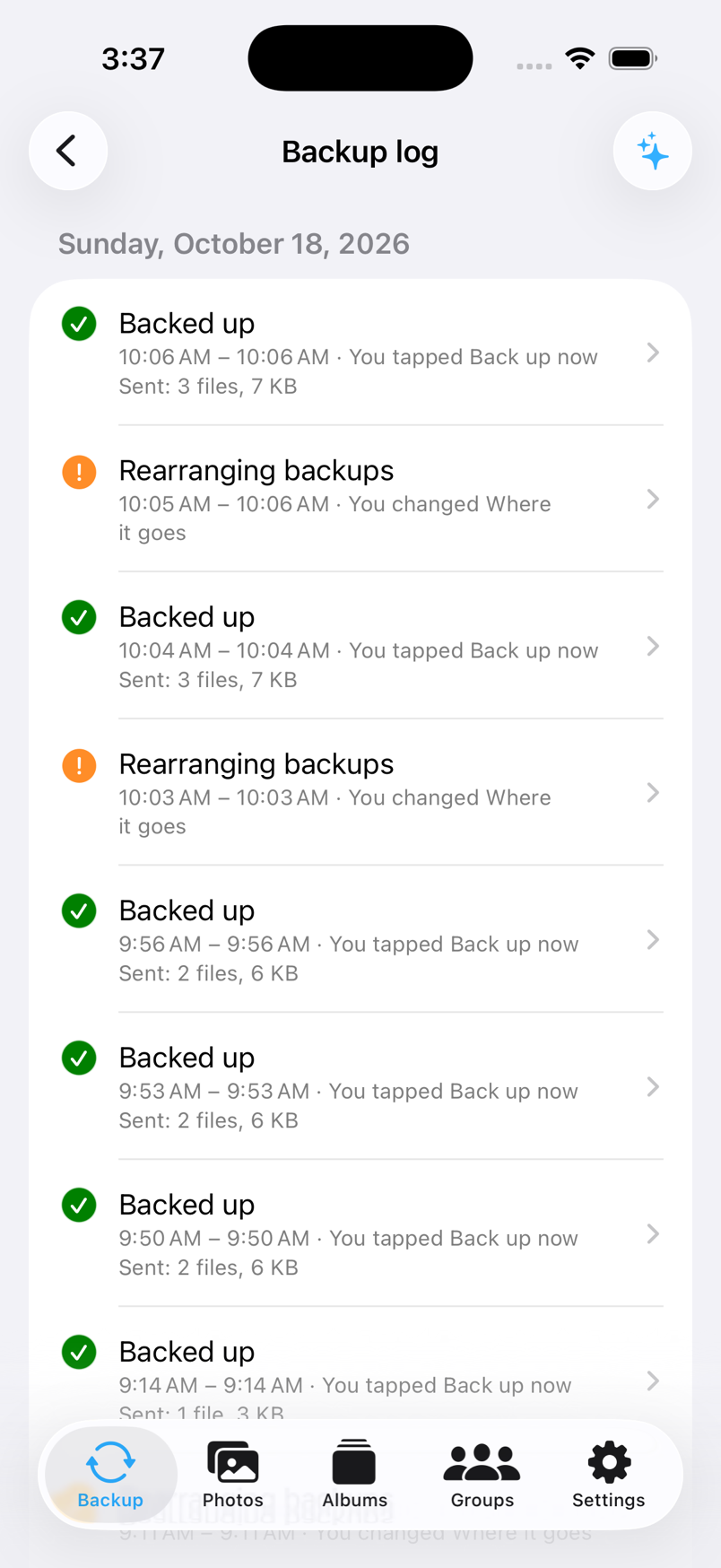
The Backup log row, after Last backup and Next backup, shows every run in detail (kept on the phone), and also the scheduled runs iOS began that could not start, with the reason. It is also where the phone reports computers that are moving its backups after a change of destinations (Changing where it goes), for example "rearranged 412 items to CHIA2 E:".
Wi-Fi and cellular#
- Backups run on Wi-Fi only by default. Automatic and background backups always wait for Wi-Fi.
- A network iOS marks as expensive or constrained counts as cellular: mobile data, a phone's Personal Hotspot, and any network in Low Data Mode.
- On cellular the app never backs up the whole library. Back up now on cellular asks first:
You're not on Wi-Fi. Back up N new photos and videos (X MB) over cellular data?
with Back up over cellular and Wait for Wi-Fi. It covers only what is new since the last backup, and only that one time.
- A backup that is running when Wi-Fi drops pauses and carries on by itself when Wi-Fi is back. It never switches to cellular without asking.
- Browsing the Photos tab works on cellular. Opening or saving a full-size original on cellular shows its size first. A restore to the Photos library follows the same rule as a backup: on cellular it asks first and shows the size.
images/ios-cellular-prompt.pngProgress on the lock screen#
While a backup runs, its progress shows on the lock screen and, on iPhones that have one, in the Dynamic Island, as a Live Activity:
- a line such as "Backing up to Digital Sign Tech · 312 of 18,532 · 1.2 GB of 64 GB" (the company's name, items done of the total, bytes done of the total);
- a progress bar by bytes (a small progress ring in the Dynamic Island);
- the state in words: Backing up, Waiting for Wi-Fi, Paused or Done;
- a Stop button.
When the backup finishes, the activity shows the result ("Backed up 18,532 photos and videos") and goes away a few minutes later. A restore to the Photos library uses the same Live Activity.
A backup you started keeps running after the app leaves the screen as far as iOS allows. Where iOS offers it, the app continues as a background processing task; otherwise the backup pauses and the activity says so. Open the app to let it carry on.
Tip: If the activity does not show, check Settings → Space Backup → Live Activities in iOS and make sure it is on.
images/ios-lock-screen-live-activity.pngWhere it goes#
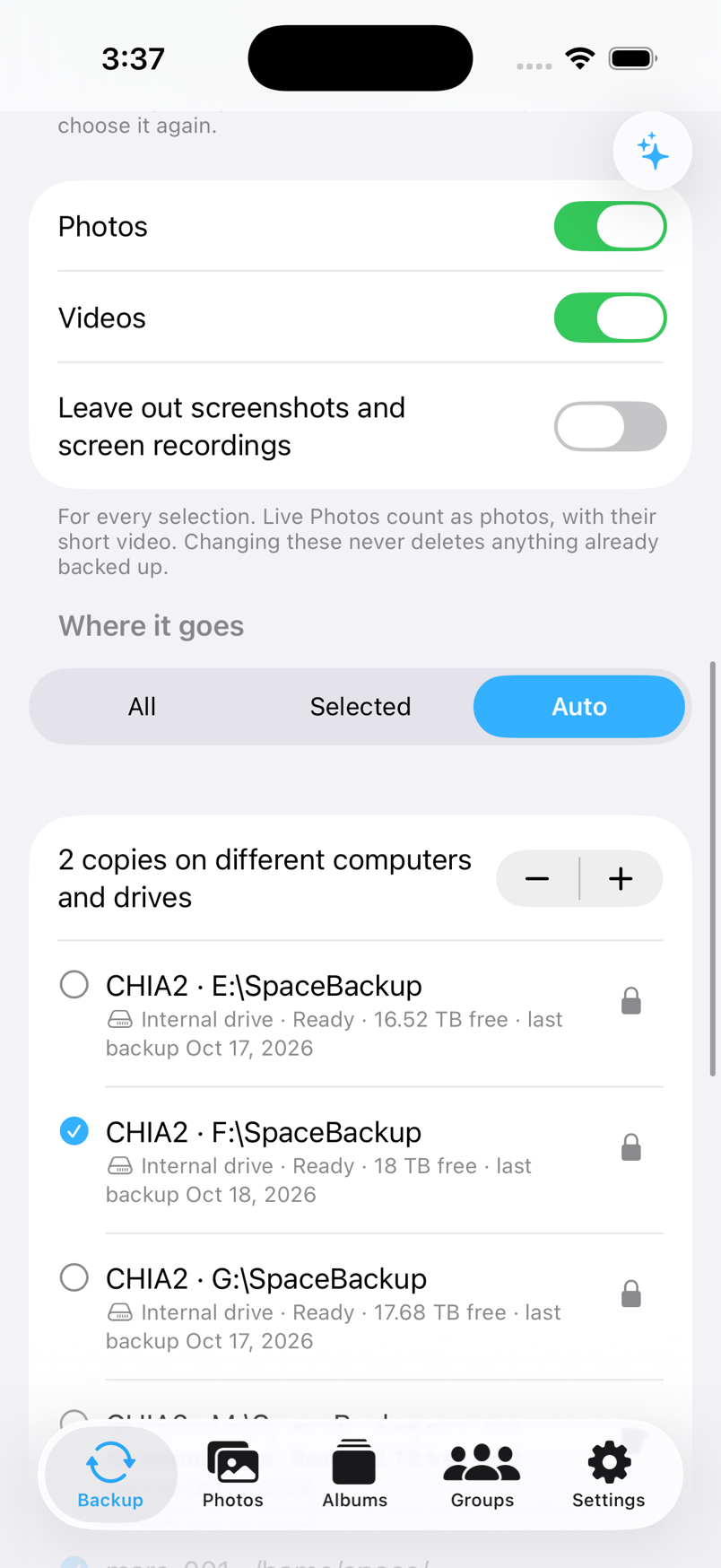
The Where it goes part of the Backup tab lists the company's computers and their drives that this phone can reach, one row per drive:
| Column | Shows |
|---|---|
| Computer | The computer's name (ANNA-PC, OFFICE-NAS) |
| Drive | The drive or folder on it (E:, /mnt/backup) |
| Status | Ready, Offline or Full, in words |
| Free space | What is left on that drive |
| Last backup | When this phone last backed up there |
| Lock icon | Whether this phone's backups are encrypted on that drive (Encryption per destination) |
The choice of drives is the same as for a computer folder (Destinations):
- All destinations (the default): every drive of every computer.
- Selected: tick the drives you want.
- Auto: how many computers and how many copies in all, spread over them by themselves, plus drives that always get a copy (Auto: where the copies go).
This one choice applies to everything the phone backs up, and also to the phone's albums: New album and an album's settings show it read-only.
Send once, the computers copy#
With several computers chosen, the phone sends each backup once, to one computer (one on the same network when there is one, otherwise the one with the best connection through the relay). That computer then copies the finished backup to the other chosen computers' drives itself, computer to computer: on the network where they share one, through the relay only between sites. Copies are checked byte for byte, and a computer that is off gets its copy when it comes back.
- A drive counts as holding the backup only when its copy is complete. Until then the drive shows that it is waiting.
- A computer running an older version of Space Backup, or a drive set to a different encryption than the first computer's drive, gets its own copy from the phone.
- At every run the phone checks how the copies are doing and asks again for any that failed or waited too long.
This keeps relay traffic (and relay credit) to one copy, however many computers keep your photos.
Changing where it goes: rearranging your backups#
When you change the destinations while backups already exist, the phone asks "Rearrange your backups?"
- Rearrange: the computers move the dates already backed up to the new drives, computer to computer; the phone sends nothing again (except for encryption changes, below). Each date is copied and checked on the new drives first, and only then removed from drives no longer chosen, and never below one complete copy. Computers that are off do their part when they come back. Your albums follow the new choice too. The backup log shows the progress, for example "rearranged 412 items to CHIA2 E:".
- Otherwise, new backups follow the new choice at once, and the old drives simply stop getting new dates; what is on them ages out as usual.
Note: The computers never hold your phone's key, so they cannot encrypt or decrypt anything. When a drive is switched between Encrypted and Not encrypted, its older backups are not converted in place: the phone sends those dates to that drive again, in the new form, and the old form is removed only after the new one is complete and holds every item of the old one (a photo you deleted from the iPhone included: the phone reads it back from a drive and sends it again). Until then both sit side by side and the Photos tab reads either.
Encryption per destination#
Each destination drive on the Backup tab has its own choice: Encrypted (the default) or Not encrypted. It is shown as a lock icon on each drive's row:
| Icon | Meaning |
|---|---|
| Closed lock | Encrypted: names and contents are encrypted on the phone with its own key. The computer that holds them sees neither photos, names, places nor captions |
| Open lock, orange | Not encrypted: plain files, which can be opened directly on that computer (for example a family PC) |
Tap the lock to switch. Choosing Not encrypted shows one plain line first:
Anyone who can open that drive can see these photos.
- One drive can be plain while the others stay encrypted. Each copy is written separately, so a plain copy never shares a file with an encrypted one.
- Thumbnails and the search index follow the same choice per drive.
- The Photos tab, restores, and the computers' own restore tools read both kinds.
- Switching a drive applies to new backups. Earlier dates stay as they were until they age out, unless you choose Rearrange (above), in which case the phone sends them again in the new form.
- The assistant never changes encryption. Asked to, it tells you to tap the lock icon of the drive on the Backup tab.
Encryption itself (AES-256-GCM, the phone's data key, the company key) is explained in Security model. Albums are always plain copies: see Albums.
Where the photos go on the computers#
On each destination drive, the phone's backups are in a folder named after the device, with one folder per backup date, as for a computer. Inside each date folder:
Annas-iPhone/2026-10-18/Photos/2026/10/IMG_1234.HEIC            the original
Annas-iPhone/2026-10-18/Photos/2026/10/IMG_1234.MOV             its Live Photo video
Annas-iPhone/2026-10-18/Photos/2026/10/IMG_1234 (edited).JPG    its current edit
Annas-iPhone/2026-10-18/Thumbs/2026/10/IMG_1234.HEIC.jpg        thumbnail for browsing
Annas-iPhone/2026-10-18/Index/2026-10.json                      the month's search index
Annas-iPhone/2026-10-18/Archived/2026/09/IMG_0950.HEIC          an archived item
Annas-iPhone/2026-10-18/Deleted/2026/08/IMG_0811.HEIC an item deleted in the Photos tabPhotos/<year>/<month>/is by the month the item was taken, in the phone's local time. Files keep their original names.- A Live Photo's video sits next to it under the same base name. An edited photo also gets its current version as
… (edited).<ext>(an edited HEIC may be a JPEG). - Two items with the same name in one month get
(2),(3)in the order they were taken. That suffix stays with the item for good, so deleting one photo never renames the others. - Each item's file date is the date it was last modified, so an edit makes a new version; unchanged items are hard-linked from the previous date and cost no space.
Thumbs/andIndex/are made on the phone at backup time and stored with the backup, so browsing and search survive a lost phone and work for people the backups are shared with. They add about 1 % to the size.Archived/holds items you archived,Deleted/items you deleted in the Photos tab.- On an encrypted drive, all of this is under a
.sbe-<key id>folder inside the date folder, with encrypted names: you see only that folder on the computer. On a Not encrypted drive the layout above is visible as is. - A photo deleted from the phone is missing from the next date folder, as a deleted file on a computer is. Older dates keep it until they are pruned. Picked, archived and deleted items are the exception: they are kept in every date.
On a computer, restore - and the Restore window restore whatever you pick: Photos/ gives the originals. The computers' Photos window shows the phone's backups as well (The Photos window on a computer).
Archive#
In the Photos tab's viewer, for your own backups:
- Swipe down: archive the item and delete it from the iPhone's library. A pill says "Deleted from library · Undo".
- Swipe up: archive it in the backups only; it stays on the iPhone. A pill says "Archived in backups · Undo".
- A hint about both gestures shows the first 5 times you open the viewer. The viewer closes with the X.
An archived item moves into the Archived folder of the backup and leaves the normal grid. It is kept for good: never sent again, never aged out, even after it has left the phone.
- The next backup moves it; the app starts that backup when the viewer closes (Wi-Fi rule as always).
- A swiped-down item leaves the iPhone only after that backup completed. iOS asks you once to confirm deleting them all. A background backup leaves them for the next time you open the app.
- The Photos tab's Archived folder shows the count and the items, with Restore to iPhone: a swiped-up item just leaves Archived; a deleted one is saved back to the iPhone and backed up again like a new photo.
Deleted#
In the Photos tab's viewer, for your own backups, Delete does not delete anything yet: the item moves into the Deleted folder of the backup, where you can open it and either put it back or delete it for good.
- The next backup moves it there (out of the photos, or out of Archived). Its thumbnail stays, so the Deleted folder shows it like any other.
- A deleted item stays on your iPhone, and later backups don't bring it back into the normal grid.
- It is kept like an archived item: in every backup date, never aged out, until you put it back or delete it for good. Nothing is ever emptied automatically.
- Put back: the next backup moves it back into the photos.
- Delete permanently: the same as Remove from backups; its files leave every backup date and every drive.
- An album keeps its own copy: deleting an item from the backups never takes it out of an album.
On the computers, deleted items are treated as archived ones: they are not in the Photos window's normal grid or searches, and show under Albums → Deleted (The Photos window on a computer); they are never analysed by Space Vision and never shared through a public link. The restore tools show Deleted/ as just another folder of the backup.
Remove from backups#
Remove from backups takes photos and videos out of this phone's backups on the computers. Use it for items you never want kept, or for picked, archived and deleted items, which are otherwise kept for good.
- Open the Photos tab and select the items (or open one in the viewer).
- Choose Remove from backups and confirm.
What happens:
- The phone removes the items' files (the original, its Live Photo video, its edit, its thumbnail, and its archived or deleted copy if any) from every backup date and every drive that holds them, and rewrites that month's search index without them. The computer checks the whole request first and writes the new index before it deletes anything, so a request that goes wrong leaves the backup as it was.
- Backups that were finished stay complete and keep passing the weekly check; nothing else in them changes.
- The items stay on your iPhone. Remove from backups does not touch the Photos library.
- The computers write a line to their log for each change (which device, how many files, which date and drive), so an admin can see what was removed.
- A computer that is off is dealt with at a later run. A computer still running an older version of Space Backup, which cannot remove files for the phone, is left alone: the phone names it and tries again at each run until it is updated.
Only the phone's own backups can be changed this way: no device can remove anything from another device's backups, and nothing can be removed through a share or an album invitation.
Warning: Removing from backups cannot be undone. If the item is still on the phone and still matches a scheduled selection, it can be backed up again at the next run; take it out of that selection first (Changing and removing selections).
To ask the owner of a shared album to remove a photo of yours from their album, use the request on the album item instead (Photos, albums and sharing); the owner gets a notification (Notifications and history).
Restore to the Photos library#
The phone can bring photos and videos back from the computers into its own Photos library, for example on a new phone or after deleting them.
Choosing what to restore#
Choose any mix of:
- an album (one of your Space Backup albums),
- a shared album (one shared with you),
- a place,
- a time period,
- selected items (multi-select in the Photos tab),
from this phone's own backups, your albums, and backups or albums shared with you.
Before it starts#
The app shows what it will do and the free space on the phone:
Restore 412 photos and 23 videos (5.8 GB) to your library?
If there is not enough room on the phone, it says so plainly and does not start. iOS asks for permission to add photos if the app does not have it yet (full access covers it).
What comes back#
- Original quality: the original file of each item, with its date taken, location and other metadata. Videos keep their full resolution.
- A Live Photo comes back as a Live Photo (the photo and its video paired).
- An edited item comes back as its edited version; the original too, if you ask for it.
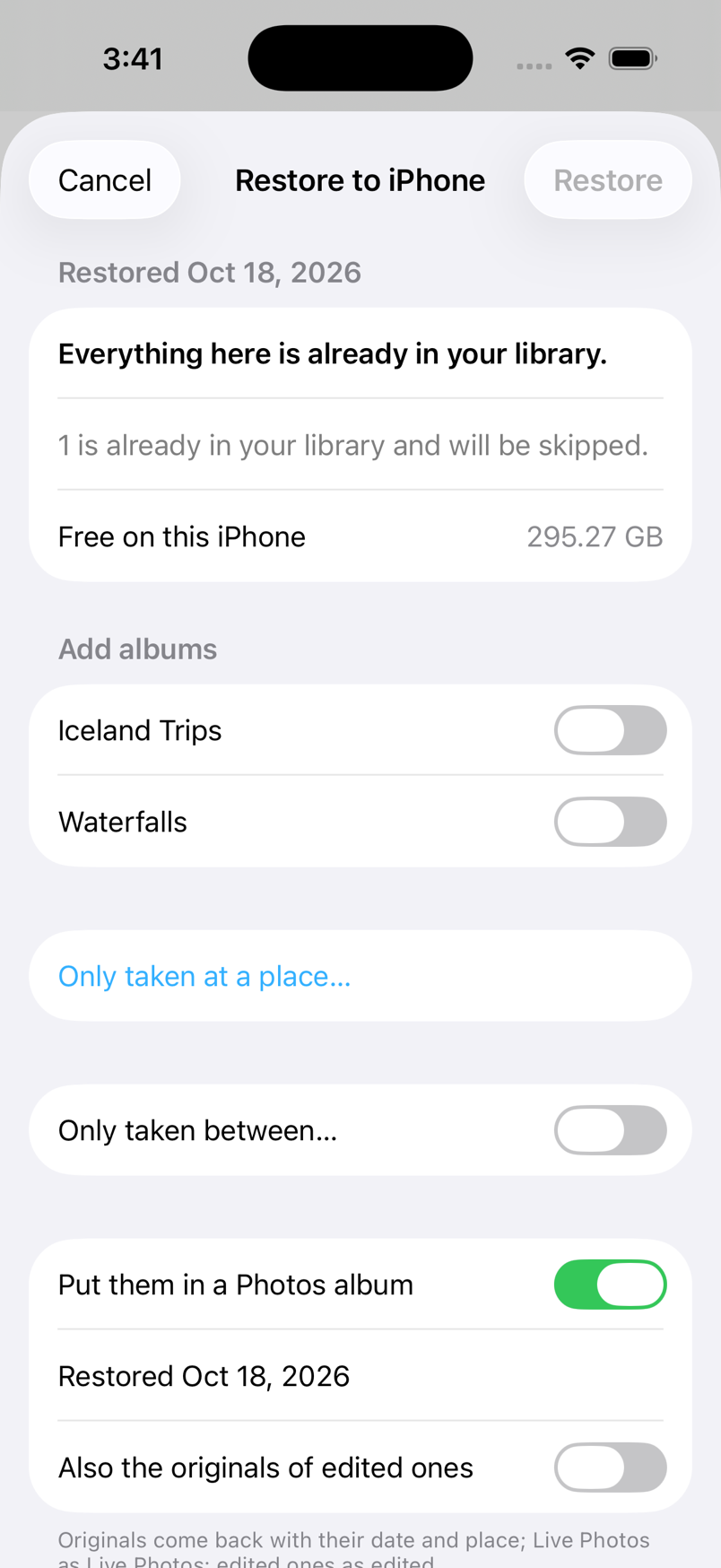
- No duplicates: an item already in the library (the same item, or the same date taken, size and content) is skipped and counted as "already in your library".
- Into an album: the restored items are also put into a Photos album named after the source ("Chicago trip", "Shared: Anna's Las Vegas", "Restored 16 Oct 2026"). This is a switch, on by default.
While it runs and at the end#
- Progress shows in the app and on the lock screen (the same Live Activity as backups), with Stop. It continues in the background as far as iOS allows.
- The Wi-Fi rule applies as for backups: on cellular, the app asks first and shows the size.
- At the end: "Restored 412 photos and 23 videos · 37 were already in your library", and the list of any that failed, with the reason in words.
Restored items are new items in the library, so a selection that includes them (for example Everything) backs them up again like any new photo.
Albums and photos: how-tos#
Short how-tos for things done every day. They are in TestFlight build 92 (2026-11-01). Where the Space Backup app on a computer does it differently, the last paragraph of each says how; the computer's window is described in The Photos window on a computer.
Copy an album#
To make your own copy of an album (yours, or one shared with you): open Albums, swipe the album to the left or open it and tap … (More), then Copy album…. Give the copy a name and choose its drives; it starts on the drives that already hold the album, so nothing is sent over the network. The copy is made between your computers and becomes an album of your own, with all the photos and videos of the original; nothing is downloaded to your iPhone. A long press on a shared album in the list also offers Copy album…. The copy is not shared with anyone.
On a computer: in Albums, right-click the album (yours or one shared with you) and choose Copy album…, or open
it and click … (More) › Copy album…. The same page asks for the name (the album's name with "copy" after it, to begin
with), the drives (those holding the album ticked) and whether to Include captions; Copy starts it, and the
Albums tab shows how far it is until it ends. Nothing is downloaded to the computer you are at. The same as a command:
photos copy-. See also
Making an album from another one.
Share an album#
Open the album and tap the Share button at the top, or tap … (More) › Share album…, or swipe the album to the left in Albums and tap the blue person icon. Share it with a group, type someone's email, or make a public link that anyone can open in a browser: under Public link choose when it expires (1 day, 7 days, 1 month, Never or Custom, a date up to 10 years ahead) and tap Copy a public link to the album. A tick beside a person lets them add photos; swipe a name to the left to stop sharing with them. Only the album's owner can share it.
On a computer: open the album and click Share at the top, or … (More) › Share album…, or right-click the album in Albums and click the share icon. The page is the same: Share with a group, Public link with the same expiry choices and Copy a public link to the album (the link is put on the clipboard), and Shared with, where the circle beside a person lets them add photos and videos (filled: they can) and the × at the end of the row, or a right-click on it, stops sharing with them. More in Sharing an album and Public links.
Swipe an album#
In Albums, swipe one of your albums to the left for four buttons: Add photos (green +, from this iPhone, your backups or another album), Share (blue), Hide (orange) and Album settings (gray). An album shared with you shows Add photos when its owner lets people add, and Hide.
On a computer there is no swipe: right-click the album in Albums. The same buttons are in a row at the top of the menu (Add photos, Share album…, Hide album, Album settings…, as on the iPhone only those that apply), with Copy album… and Delete album (or, for an album shared with you, Leave this album) under them.
Delete by dragging to the trash#
Press and hold a thumbnail, then drag it: a trash can comes up at the bottom. Drop the photo on it to delete it (in an album: to take it out of the album). While choosing several, drag one of the chosen ones to take them all. A yellow banner with Undo confirms it at once. Let go anywhere else and nothing happens.
On a computer: drag a photo with the mouse (no need to hold first). The trash at the bottom says what a drop does (Delete 3 photos, or in an album Remove 3 from Trip) and turns red under the pointer. The rest is the same: the chosen ones go together, Undo is on the yellow banner. See Drag and drop.
Photos sent from other apps#
In Photos, WhatsApp, Mail, Files or any app, tap Share and choose Space Backup. Pick the album they go into: **From Other Apps is chosen unless you pick another of your albums. Tap Back up**. Photos of your library are backed up first and then added; files from other apps go in as they are. They show in the album when Space Backup next opens on Wi-Fi. They go only into albums of your own; From Other Apps is made the first time it is needed.
On a computer there is no Share menu entry: drag the photos and videos from File Explorer, the file manager or Finder
onto one of your albums in the Space Backup window, or onto an open album's photos
(Drag and drop); they go in as they are. From the command line,
albums put <file or folder>. puts them into From Other Apps too unless --album names another of your albums.
Auto: where the copies go#
Backup › Where it goes › Auto: choose Computers (All, the default, or a number) and how many copies in all. The copies are spread over those computers by themselves (at least one on each), on the drives with the most free space, so all drives fill evenly. Every Auto copy is not encrypted: anyone who can open those drives can see the photos. Under Always back up to, tick drives that should get a copy of everything as well. Save; your computers move the backups you have to match.
On a computer Auto is the same choice for the computer's own folders (Backup tab › Where it goes, or a folder's page): Computers, Copies in all and Always back up to, then Save. One difference: a computer's folders keep their own encryption (the lock of each folder); Auto does not make them plain. See Auto by computers.
Space Relay balance#
Settings › Space Relay shows a bar of this month's free relay traffic left. When it is used up, the bar shows your prepaid relay credit, and a small "Relay balance" line appears at the top of every screen; it turns red when little is left. Buy relay credit… is under the bar.
On a computer it is the same: Settings › Space Relay has the bars and Buy relay credit… (it opens the buy page in the browser); while the free traffic lasts, credit already bought shows as a second bar, Prepaid, for after. The "Relay balance: 38 GB left" line at the top of the window opens Settings › Space Relay when clicked. The free allowance and the credit are the company's, shared by all its devices (Billing and prices).
Save a photo or video to your iPhone#
Open the photo and tap the Save button at the top (the arrow into a tray), or tap Share and choose Save Image or Save Video. It goes into the Photos app on this iPhone. To put back many at once, use Restore to the Photos library.
On a computer the Save button in the viewer, Send in a photo's right-click menu, or Save to a folder under the share button while choosing several asks for a folder and copies the originals there; you can also drag a photo out of the window (Saving copies, previews and restoring).
Add a caption to several photos#
Choose the photos: tap Select (the check in a circle) and tap each one, or All. In the bar at the bottom, tap the caption button (a speech bubble), between Share and Delete. Type the caption and tap Add. The words go after each photo's own caption, as a sentence of their own ("Printer test" and "Lab demo" make "Printer test. Lab demo"); nothing is replaced, and a photo whose caption already has them is left alone. It works in Photos › Recent, an album, Places, Types and a person's photos; in an album shared with you, only for the photos you may caption (the notice says how many were not yours). The new caption can be searched at once.
Choose a whole month in an album#
Open the album and tap Select. Each month's heading shows All at the right: tap it to choose every photo and video of that month, and None to clear them. When you are not choosing, the heading shows the town where all of that month's photos were taken, if they were all taken in one (photos without a location are not counted).
The assistant#
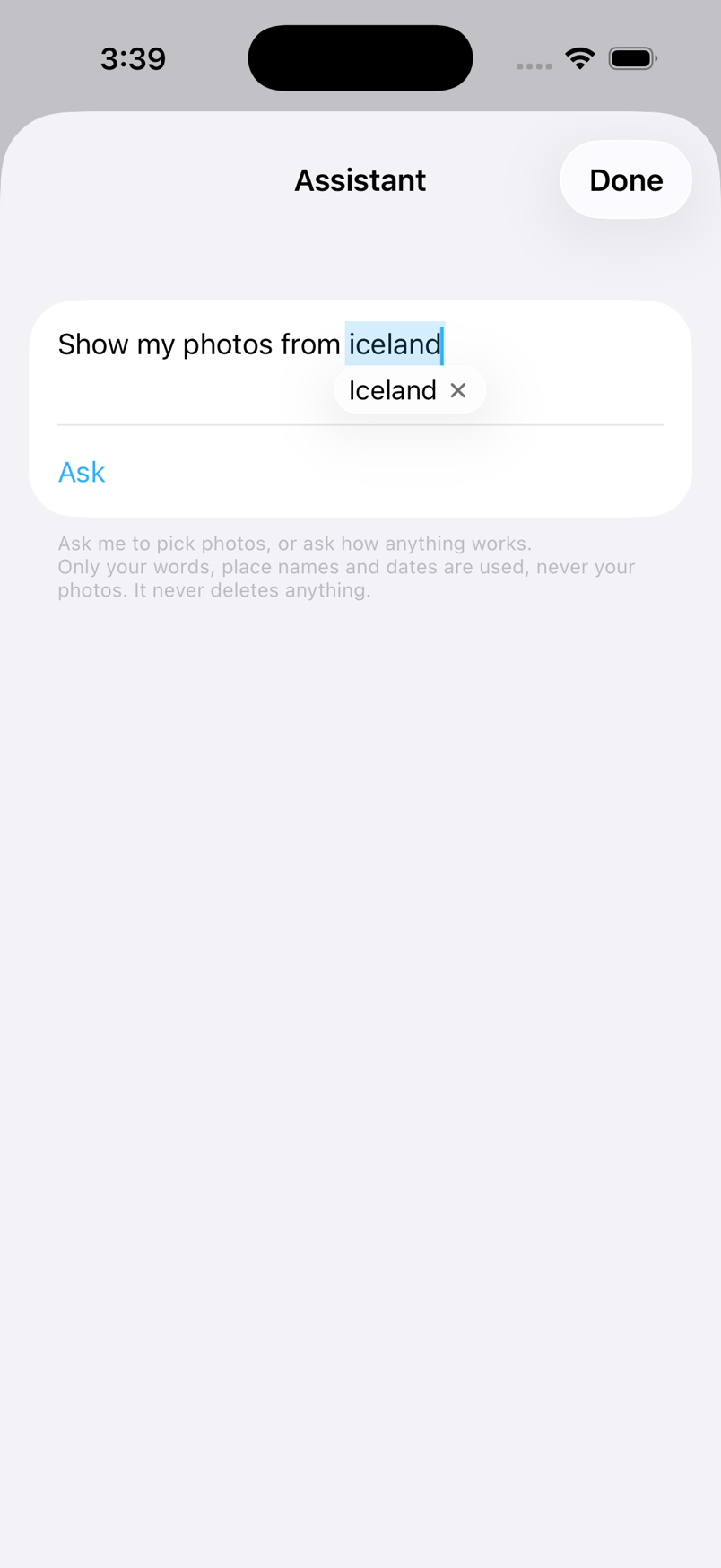
The sparkles button opens the assistant. Type or dictate what you want in plain words, for example:
- "I would like to back up all photos from my last Chicago trip"
- "Back up the videos from the last 3 months"
- "How many photos did I take in Niagara-on-the-Lake?"
- "Show me the videos from my last Niagara trip"
- "Make an album of all our Chicago trips"
- "Create an album called night Chicago and put all the night views of Chicago in it"
The assistant turns your words into the app's own actions.
What it does#
| You ask to… | The assistant… |
|---|---|
| back up something | adds a new selection to What to back up on the Backup tab and takes you there. Nothing starts by itself: you see it, then tap Back up now or Schedule backup (or leave it for the next run) |
| show something | opens the Photos tab (your own backups) or what is shared with you, filtered by place, dates, photo/video and what they show ("photos of my dog", "screenshots") |
| count something | tells you how many photos and videos match |
| make an album | makes the album and fills it with the matching items, with no more questions. The name is the one you give ("an album called night Chicago"), else taken from your request ("Chicago trips"); what they show ("the night views of Chicago") is matched against what the phone recognised in each photo; "all our Chicago trips" means every trip there in all years, "my last Chicago trip" the newest one |
| take items out of a selection | leaves them out of that selection (its rule stays) |
| know how something works ("How do I encrypt a drive?", "What does Space Relay cost?", "What is stored about me?") | answers from this manual: a few short sentences or steps, then a More: link to the section that answers it best. On the server path this is one model call, usually under two seconds; a question asked before (the same words) is answered again at once. (coming) The app carries the manual itself and shows the matching paragraphs with their links at once, on the phone; the written answer replaces them when it comes |
Its one-sentence answer may show briefly as a message at the top of the screen.
It is a chat: your question stays printed above its answer and the field is cleared, ready for a follow-up ("and for one folder only?"), which is answered in the light of what was asked before. The X clears the field; earlier exchanges stay below, newest first; New chat starts over. When an answer names one of the app's settings, an Open … row (Open Recognize faces, say) under it takes you straight there. Settings of the computers (such as Backups to keep on each drive) are changed in the Space Backup window on a computer.
The tools behind it: find places, find trips, count items (by place, dates, photo or video), add a backup rule (a place, a period, "going back", or a one-time pick of the items of a trip), show items, and make an album. A plan may also ask to start a backup; the app ignores that, so a backup only starts when you tap.
Trips#
The assistant finds trips from your library's dates and places alone: runs of days with photos at a place away from your usual places (home and work are where most of your photos are taken). Trips are named after the place and month, such as "Chicago, Sep 2026". "My last Chicago trip" is the most recent one there. A trip is backed up as a one-time pick of its items (the photos taken there on those days).
Photos without a location cannot be part of a trip.
What it cannot do#
- It never changes destinations or encryption. Asked to, it tells you where to do it ("tap the lock icon of the drive in the Backup tab, closed means encrypted").
- It never removes or deletes anything, neither from the phone nor from the backups.
- It cannot see Apple's own Trips, Memories or People albums (no app can); it finds trips itself, as above. People named in Space Backup (People and faces) it understands: "Show photos of Marina in San Francisco".
- Trips use only dates and places. What the pictures show ("night views", "red cars") comes from what the phone itself recognised in each photo after backing it up (labels, description, colours, day or night), never from Apple's albums; the words are sent to the server path as you typed them, never the photos.
- On the server path (below) there is no daily limit. Only a burst (more than 20 requests a minute from one device, or 200 an hour for the whole company) is answered "Too many assistant requests in a short time … Please wait a minute and try again."
On the phone or on the server, and privacy#
| Your iPhone | Where the request is understood | What leaves the phone |
|---|---|---|
| Has Apple Intelligence on (iOS 26 or later on a supported iPhone) | On the phone, by Apple's on-device model | Nothing. Photos, places and dates never leave the phone for this |
| No Apple Intelligence (older iPhones, or it is turned off) | Space Backup's server plans the actions (POST /, using an Anthropic Claude model) | Your words, today's date, the names of your places with their photo counts, the trips found on the phone (name, place, dates, count), and how many photos and videos you have. No photos, thumbnails, coordinates or faces (a person's name goes only if you typed it) |
On the server path:
- The server only plans: it sends back the list of actions and one sentence. Every action runs on your phone, under the same rules as if you had tapped it yourself.
- The service's logs keep only counts (how many actions, token usage, how long it took), never your words or your places. To answer a question asked again at once, the service keeps the answers to questions about the app, by their words, in memory for up to a day (never on disk, never a plan, and dropped when the manual changes or the service restarts). Everything that is stored about you, and where: What is stored about you.
- If the assistant is not available on the server, it says "The assistant is not available on this server."; if it is busy, "The assistant is busy right now. Please try again in a minute."
Device state: reinstalling and new phones#
Your selections, earlier selections, destination choice and per-drive encryption choice are not lost when you delete the app or change phones. They are kept in three places:
- On the same phone: in the iOS Keychain, which iOS keeps when an app is deleted and reinstalled. They are restored at launch before anything else.
- On the computers: an encrypted copy (
selections.json) is written next to the phone's backups whenever the list changes. - With your account: the phone's catalog and choices are sealed on the phone with its key and kept by the account service under the device's name. The service never opens it (it cannot), and keeps one per person and device name, up to 8 MB.
Reinstalling the app on the same phone: sign in again with the same email and give the phone the same device name. Everything comes back by itself.
A new or reset phone:
- Sign in with the same email and give it the same device name as the old phone.
- The new phone needs the old phone's key to read its encrypted backups. Signed in with the same email and holding the company key, it gets it automatically, with no approval (Your own devices).
- The app offers "Restore your backup choices from <date>?". Accept, and your selections and destinations are as they were.
- Use Restore to the Photos library to bring the photos back.
Note: If two phones of yours that are both still registered use the same device name, the app says "Another device with this name keeps its state here. Rename this device." Give one of them another name, or have the old device removed (Devices).
Push notifications#
The phone gets push notifications from the account service (through Apple's push service), for example:
- "Las Vegas · Anna added 12 photos and videos" when someone adds to an album shared with you (at most one per album every 5 minutes; a burst of adds is summed into one);
- an album or a device's backups shared with you, or no longer shared;
- for owners and admins: a device waiting for the company key, a new device, a restore asking for approval, Space Relay credit low or used up;
- an invitation you sent was accepted;
- for an album's owner: someone asks you to remove a photo.
Tapping a notification opens the right screen. The app's icon badge shows how many are unread. Every kind can be turned off; the history keeps everything anyway. All of this is described in Notifications and history, with the settings and the history.
If iOS notifications are off for Space Backup (Settings → Notifications → Space Backup), nothing is pushed, but the history still fills.
iPad differences#
- The iPad runs the same app with the same tabs, selections, destinations, encryption, assistant and restore. It registers with its own device name (
Annas-iPad) and shows as iPadOS in the company's device list. - An iPad is a separate device: its photos go into its own folder on the computers, and its selections are its own. If your iPad and iPhone share an iCloud Photos library, back up from one of them only, or the same photos are stored twice.
- iPads have no Dynamic Island: the Live Activity shows on the lock screen only.
- Two panels. In landscape the iPad shows a list on the left and what you open on the right: a month, a place, an album, a person. The bell is at the top right of the left panel on every screen, the assistant's button in the right panel. The right panel's grids have the thumbnail size controls (− / +), the order, Select, the slideshow and full screen.
- A tap shows the photo full screen (coming): in the right panel a single tap on a photo opens it full screen, on black with no controls; a tap there shows the controls for a moment, a swipe down closes it. Turning the iPad keeps it open and refits it.
- A person's photos in the right panel (coming): a person's page keeps their face, name, other names (AKA) and menu on the left, with rows for All photos and each month; their photos open on the right with the size controls, the order, Select, the slideshow and full screen (People and faces).
- An iPad without cellular data is always on Wi-Fi as far as the app is concerned; one connected through an iPhone's Personal Hotspot is on cellular (Wi-Fi and cellular).
Background behaviour and limits#
- iOS decides when apps may run in the background. Scheduled backups are started by iOS at night while the phone is charging and on Wi-Fi; on some nights iOS does not start them, or starts them and stops them early. The backup log lists runs iOS began that could not start, with why.
- A backup you start keeps going for a while after you leave the app, as far as iOS allows; if iOS stops it, the Live Activity says it is paused. Open the app to carry on. Nothing is lost: the next run carries on from where this one stopped.
- Low Power Mode and Low Data Mode make iOS hold back background work; with Low Data Mode the network counts as cellular.
- The phone needs at least one of the company's computers to be on and reachable (directly or through the relay). Phones never back up to each other.
- Through the relay, traffic counts against the company's relay credit (Space Relay); on the same network as a computer it does not.
- The phone never hosts backups and has no destinations of its own.
Troubleshooting on the phone#
| What you see | What to do |
|---|---|
| Nothing is backed up after installing | A new install backs up nothing until you add a selection. Add one on the Backup tab, then tap Back up now or Schedule backup |
| "None of your company's computers can be reached right now." | Make sure at least one company computer is on, signed in and online. Outside the office the phone uses the relay: check that the company has relay credit (Space Relay) |
| A drive shows Offline | That computer is off, asleep or not connected; the phone backs up to the other drives, and the drive catches up when it is back |
| A drive shows Full | Free space on that drive or choose other destinations. The phone keeps backing up to the drives that have room |
| Waiting for Wi-Fi | You are on cellular, a Personal Hotspot or Low Data Mode. Join Wi-Fi, or use Back up now and confirm Back up over cellular for just the new items |
| Scheduled backups did not run last night | They run after 1:00 only while the phone is charging and on Wi-Fi, and iOS may skip a night. Check the backup log. Make sure Background backups is on in Settings and something is in Backing up on schedule |
| Some items wait and are never sent | They are probably iCloud-only and the phone has less than 2 GB free after downloading them. Free space on the phone |
| A place selection finds fewer photos than expected | Photos without a location never match a place. Use a time period or pick them instead |
| Screenshots are not backed up | Leave out screenshots and screen recordings is on by default. Turn it off |
| "Waiting for … to hand over the company key" | Open Space Backup on one of the devices named, or ask an owner or admin to approve the phone (A device waiting for the company key) |
| The device name is refused | Another active device of the company already uses it. Choose another, or have the old device removed by an owner or admin |
| "Another device with this name keeps its state here. Rename this device." | Two of your registered devices use one name. Rename one, or have the old one removed (Devices) |
| A computer is named after Remove from backups | It runs an older version and could not remove the items yet. Update it (Automatic updates); the phone tries again at each run |
| The Live Activity does not show | Turn on Live Activities for Space Backup in iOS Settings |
| People is empty, or says no computer recognizes faces yet | Faces are found only in photos backed up to Not encrypted drives and in albums, by computers running Space Backup with Space Vision. A photo's About says "Your computers haven't looked for faces in it yet" until they have (People and faces) |
| "Your computers need a Space Backup update to keep …" (other names, strangers) | The computer that answered runs an older version. Update it (Automatic updates) |
| The assistant answers "Too many assistant requests in a short time" | More than 20 requests in a minute from this phone (or 200 in an hour from the company) on the server path. Wait a minute |
| No push notifications | Check iOS Settings → Notifications → Space Backup, and that the kind is not turned off in your notification settings |
More help, logs and support: Troubleshooting. Write to support@spacebackup.net with the phone's device name and what the backup log says.