 Space Backup Manual
Backing up on the computers
Chapter 3 of 14 · Contents
How Space Backup backs up folders on Windows, macOS and Linux computers: choosing folders and how often, the drives and computers they go to, the night window, how many backups are kept, copying between computers, the file manager menus and badges, restoring, Google Drive, updates, and every field of the Settings window.
How a backup works, in one minute#
- You choose folders on a computer (for example
C:\Users\anna\Documentsor/home/anna/Projects) and how often each one is backed up. - You add destinations: drives or folders that receive backups, on this computer (an internal disk, a USB drive, a network share) and, once the computers of your company are signed in, on every other computer of the company.
- Every backup goes into a folder named after the day, for example
SpaceBackup\. Each day's folder is a full snapshot, but files that did not change are not copied again: they are hard-linked to the copy of the previous day, so ten days of backups take about one full copy plus the changes.ANNA- PC\ 2026- 10- 18\ - Backups run in the night window (01:00–05:00 by default), each computer and folder at its own minute, so an office does not start all at once.
- Every copied file is verified (hashed while it is read, read back after it is written), and a weekly check re-reads the backups and repairs damaged files from good copies.
- Folders set to Encrypt (the default) leave the computer encrypted, so the other computers store only data they cannot read.
- Restoring is a window (or a command) that puts files back where they were or saves a copy into a folder. The backups are also plain folders on the drives, so a plain backup can be copied back by hand.
Every button and setting described here also has a command: sbctl on Windows, spacebackup on macOS and Linux. The commands are given next to each item; the full reference is in Command line reference.
Note: The iPhone and iPad back up their photos and videos to the same destinations; that side is described in The iPhone and iPad app. This chapter is about the computers.
Where to find things on each platform#
| Windows | macOS | Linux | |
|---|---|---|---|
| The app | the tray icon (right or left click) | the menu-bar icon | the tray icon of spacebackup-gui, or its main window when the desktop has no tray |
| Folders | tray → Open Space Backup → Backup | menu → Open Space Backup → Backup | tray → Open Space Backup → Backup, or main window → Backed-up folders… |
| Destinations | tray → Open Space Backup → Backup → Where it goes | menu → Open Space Backup → Backup | tray → Open Space Backup → Backup, or main window → Destinations… |
| Restore | Open Space Backup → Backup → Restore, or Explorer's Restore from Space Backup… | Open Space Backup → Restore, or Finder's Restore from Space Backup… | Open Space Backup → Restore, or the file manager's Restore from Space Backup… |
| Settings | tray → Open Space Backup → Settings | menu → Open Space Backup → Settings | tray → Open Space Backup → Settings |
| Log | Open Space Backup → Settings → Open log | spacebackup log | Open Space Backup → Settings → Open log, or main window → Open log |
| Command line | sbctl (in a PowerShell or Command Prompt window) | spacebackup | spacebackup |
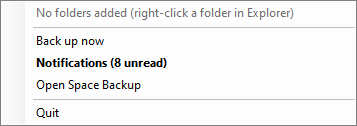
The tray (and menu-bar) menu is short and the same on Windows, Linux and the Mac: the status, Update to Space Backup … and Sign in to encrypt your backups… when they apply, Back up now (or Cancel backup), Notifications, Open Space Backup and Quit. Check backups now, Photos, Albums and, for the company's owner and admins, the company admin page are in the Space Backup window. On Linux, Quit closes only the window app: backups go on in the background service (Stop service… in the main window, or spacebackup stop, stops the service). On a Mac, Quit closes the menu-bar app only; Stop Space Backup… stops the service.
The tray icon tells you the state at a glance: the plain knot when all is well, the knot turning while a backup, copy or check runs (the percentage is in the tooltip), a yellow ! for a warning (a destination or computer missing, files skipped, a copy redone after a failed verification, a firewall rule missing, wake timers off) and a red × for an error (write errors, or no destination reachable).
One window on Windows: the Space Backup app#
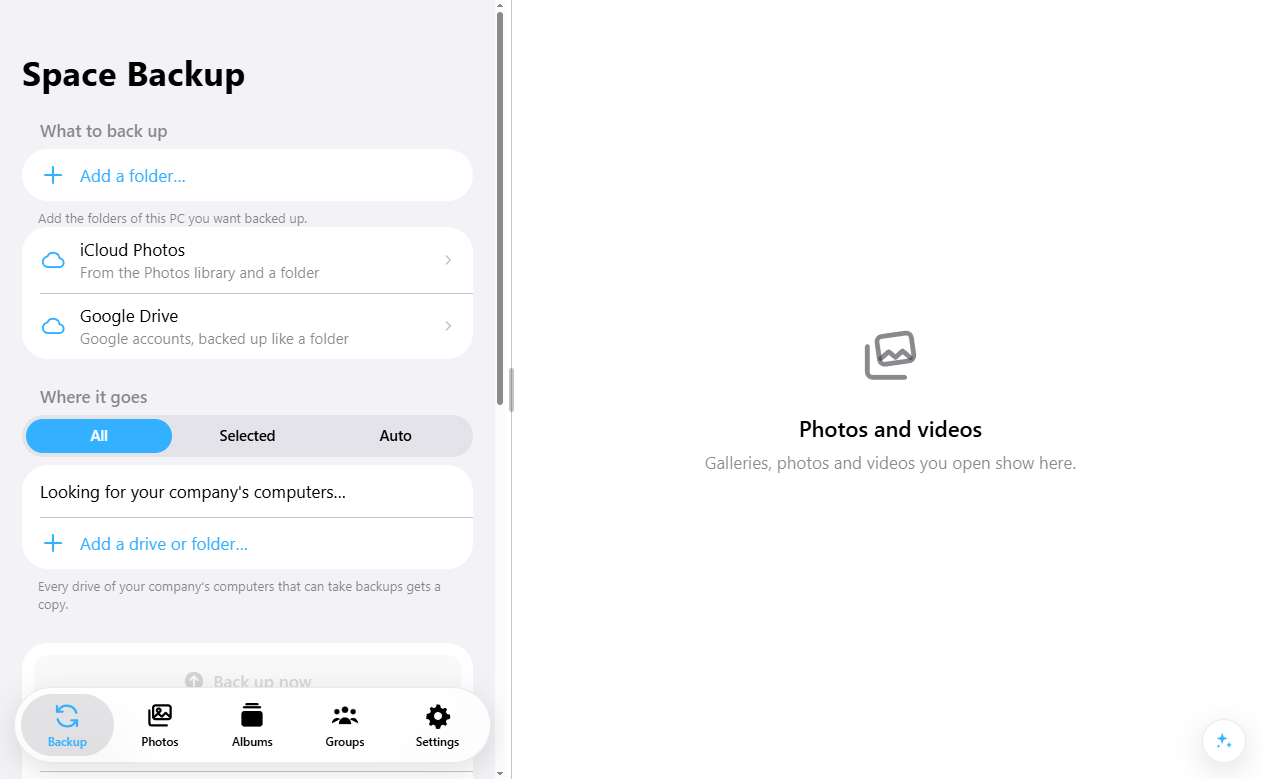
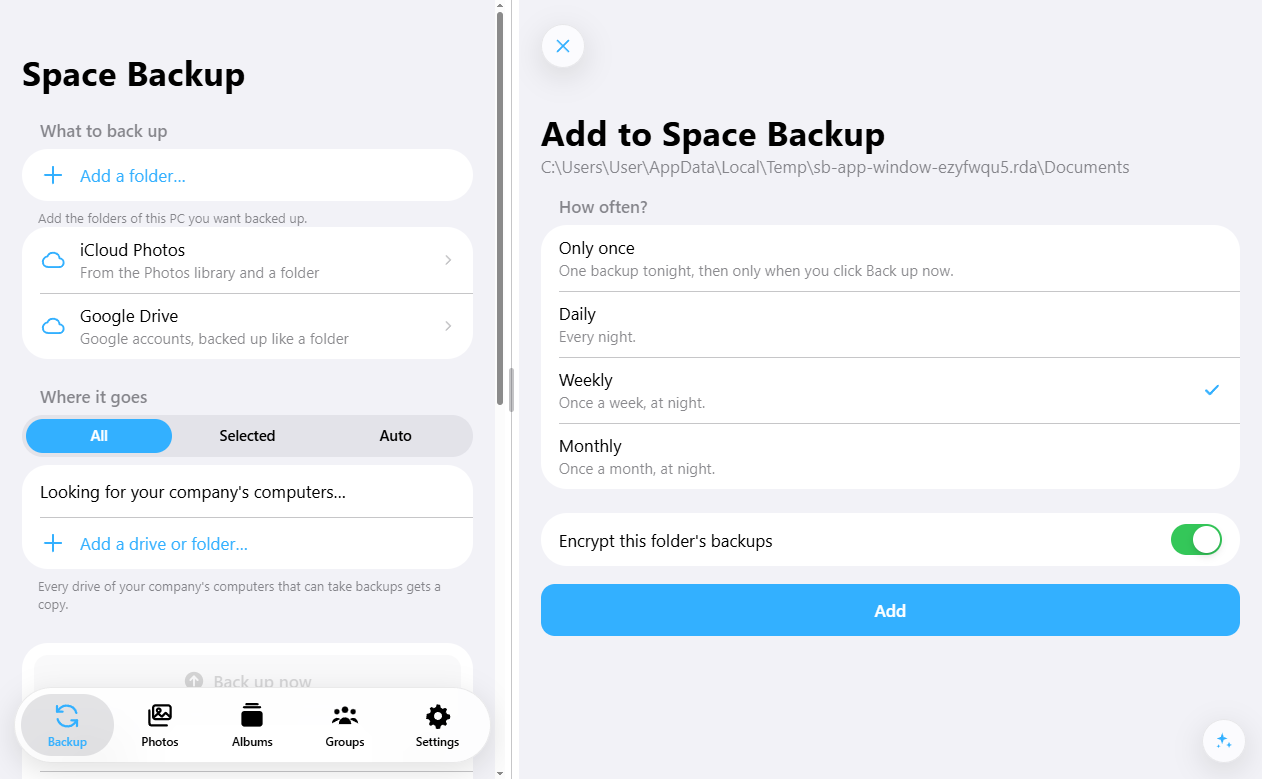
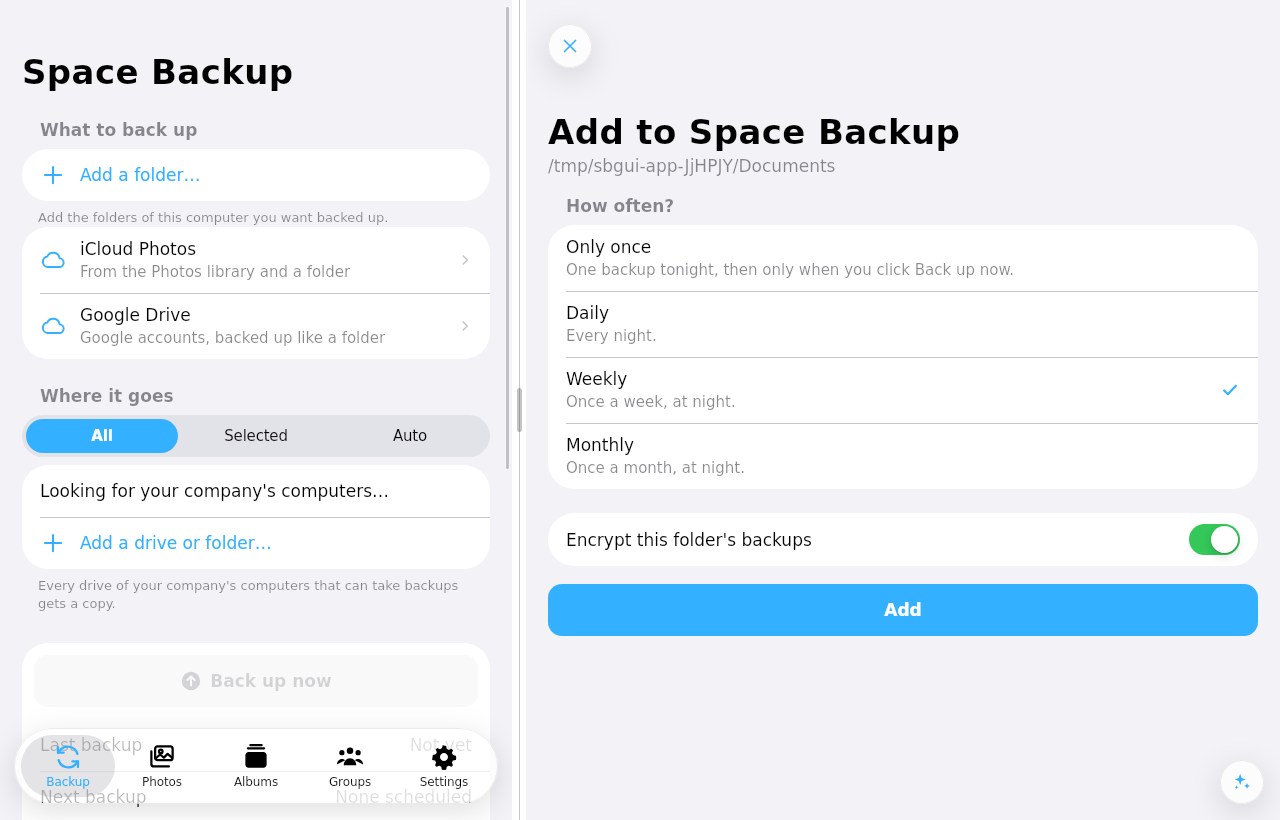
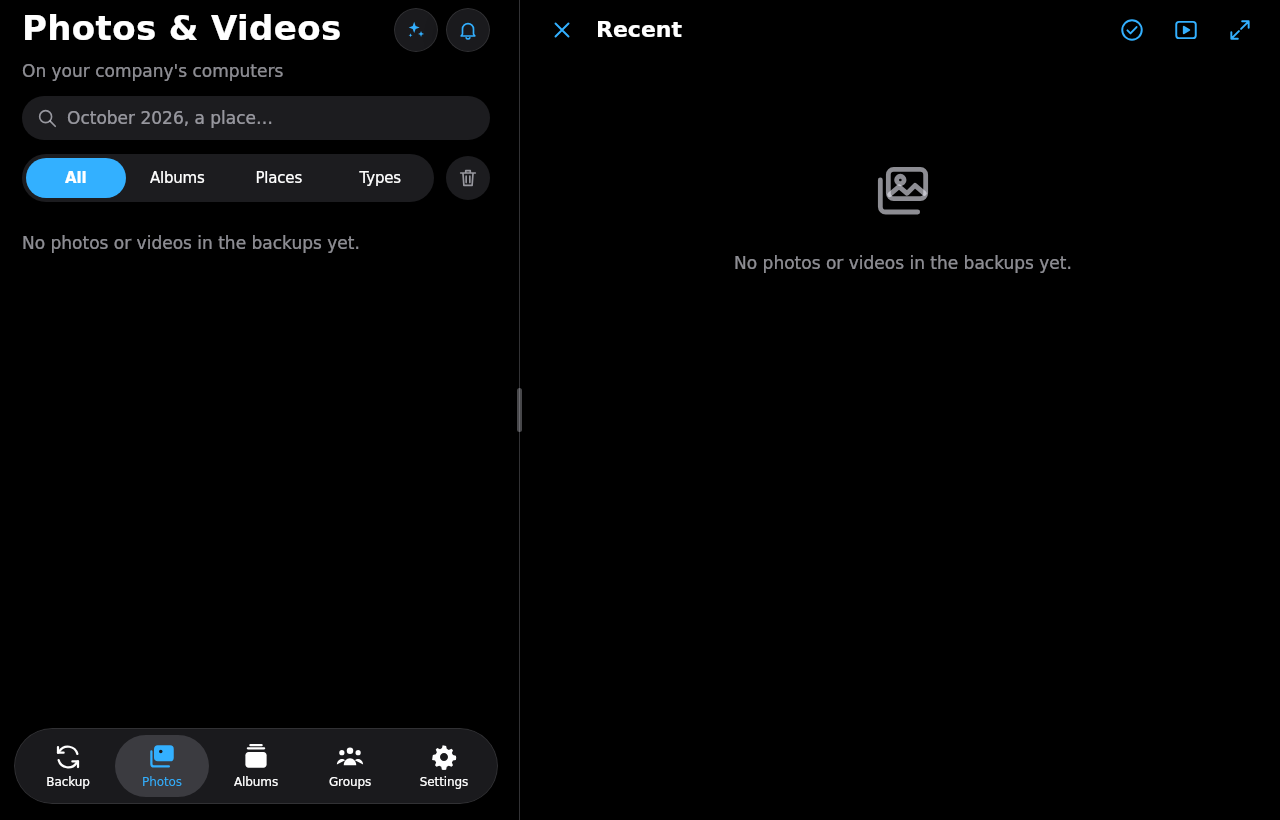
On Windows the tray menu's Open Space Backup opens one Space Backup window, the same app as on a Mac and as the iPhone and iPad app: Backup, Photos, Albums, Groups and Settings in the tab bar on the left, and what you open on the right. The Backup tab has your folders, the drives under Where it goes and Restore; Settings has **Check backups now, Photo analysis, This PC, the User Manual and Open log. Notifications** in the tray opens your notification history there, and a notification opens what it is about. Explorer's Add to Space Backup asks How often? in this window, and **Restore from Space Backup…** opens its Restore at that folder. A second tray item brings the same window to the front.
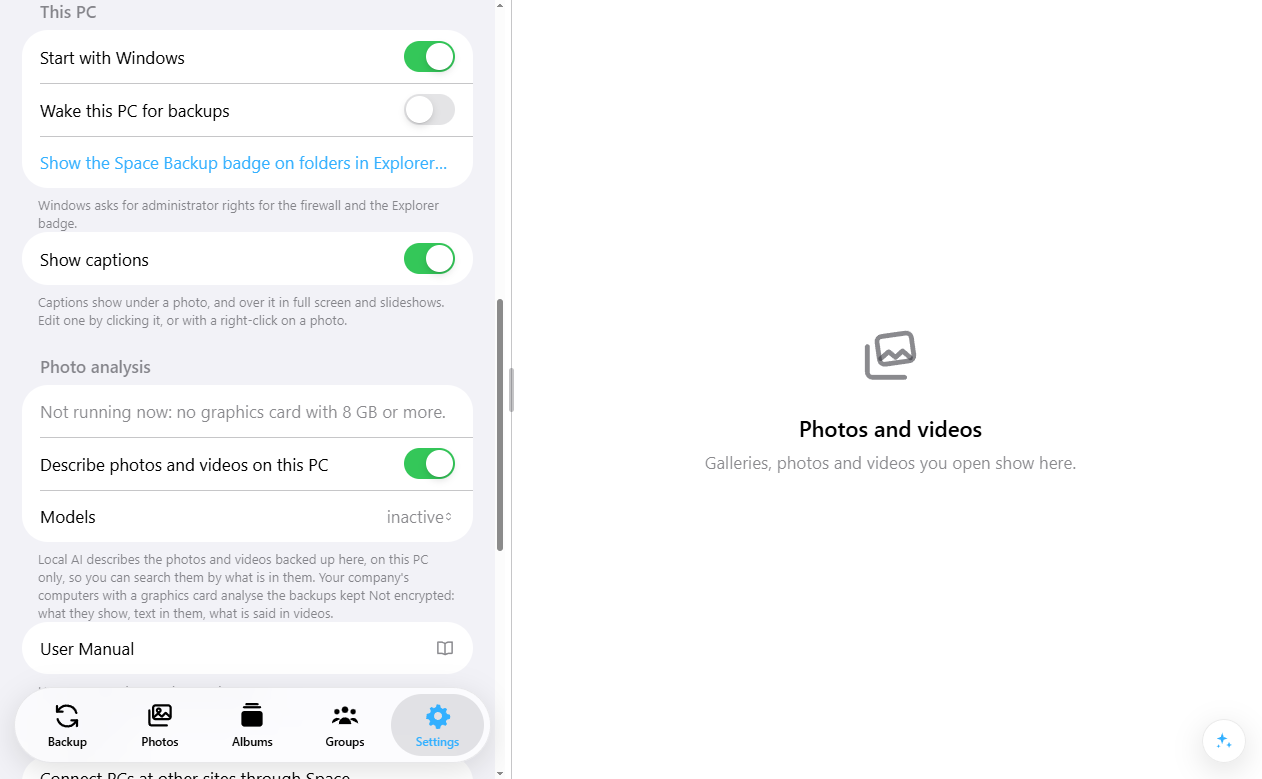
Settings has a This PC section on Windows: Start with Windows, Wake this PC for backups, **Allow through Windows Firewall… (when the firewall still blocks the other computers) and the Explorer badge (Show the Space Backup badge on folders in Explorer…, Remove the badge from Explorer…, Restart Explorer**). Windows asks for administrator rights for the firewall and the badge, as before.
Ctrl + / Ctrl − / Ctrl 0 (or Ctrl and the mouse wheel) make the whole window bigger or smaller; F1 opens this manual. The window follows Windows' light or dark mode. Without the Microsoft Edge WebView2 Runtime (the installer puts it there), the separate windows described below open instead; they stay for one release.
One window on Linux#
On Linux the tray menu's Open Space Backup (or a click on the tray icon) opens the same Space Backup window at its Backup tab (your folders, every drive under Where it goes, Restore); Notifications opens your notification history, and a notification what it is about. Settings has Open log. In the file manager, Add to Space Backup asks How often? in this window, and Restore from Space Backup… opens Restore at that file or folder. A second tray item brings the same window to the front. The pages say "this computer" and "the file manager".
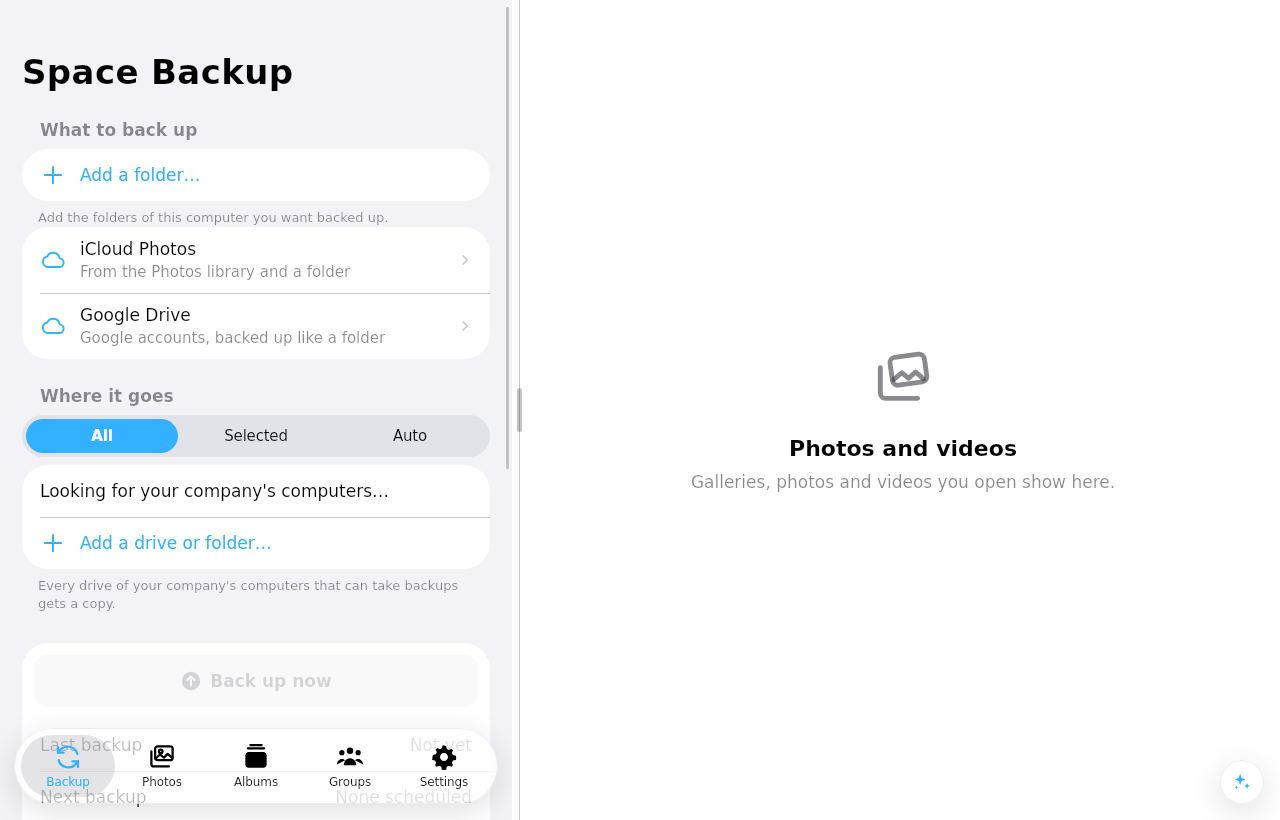
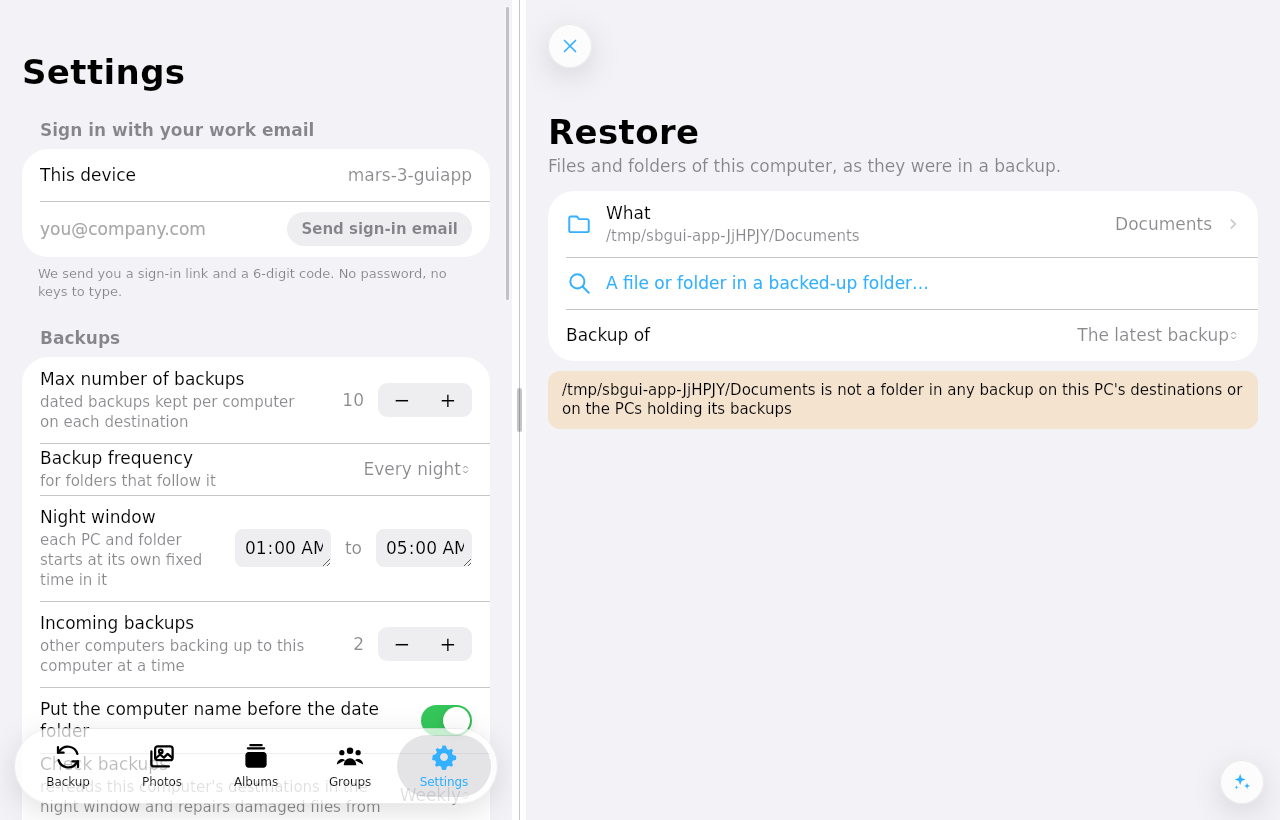
When Restore asks for A file or folder in a backed-up folder…, pick a file and click Open, or go into a folder
and click Choose This Folder. Ctrl + / Ctrl − / Ctrl 0 (or Ctrl and the mouse wheel) zoom the window and
F1 opens this manual. Uninstall Space Backup… in Settings tells you the command for the way it was installed (for
the .deb package: sudo apt remove spacebackup); your backups stay. If you sign out, or Space Backup's service restarts
(an update), the window opens again by itself. The window needs WebKitGTK (the package libwebkit2gtk-4.1-0, which the
.deb installs); without it the separate windows described below open instead; they stay for one release.
Folders#
A folder is a folder of this computer that Space Backup backs up, with everything inside it. Each folder has its own frequency, its own destinations and its own encryption setting.
Adding a folder#
You can add a folder in three ways:
- Backed-up folders… → Add… (a folder picker), or type a path in the box under the list ("or type a path, e.g.
D:\Projects") and click Add path. - In the file manager, right-click the folder → Add to Space Backup (Windows Explorer, macOS Finder, Linux Nautilus, Nemo and Dolphin; see File manager badges and menus). On Windows 11 the item is under Show more options.
- From the command line:
sbctl folders add D:\Projects --frequency weekly
spacebackup folders add ~/Projects --frequency daily --dest auto:2 --encrypt on
Whichever way you add it, Space Backup first asks How often?:
| Choice | What it means |
|---|---|
| Only once | "One backup tonight, then only when you click Back up now." |
| Daily (already chosen) | "Every night." |
| Weekly | "Once a week, at night." |
| Monthly | "Once a month, at night." |
Folders added together (several selected in Explorer) get one question. Cancel adds nothing. A folder already in the list is selected instead of added twice.
A newly added folder is not backed up at once: it waits for its first time in the night window. Click Back up now if you want it backed up right away.
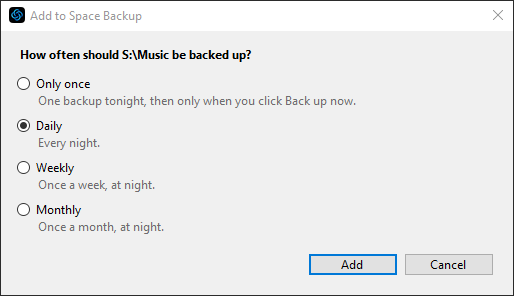
Note: Drive roots (
F:\) have no Explorer menu item; add them from Backed-up folders…. A destination that lies inside a backed-up folder is left out of that folder's backup.
How often: Only once, Daily, Weekly, Monthly#
- Daily: every night in the night window, at the folder's own minute.
- Weekly: once a week in the night window, on the same night of the week as its first backup (the first night after it was added).
- Monthly: once a month in the night window, on the same day of the month as its first backup. A folder whose day is the 29th, 30th or 31st is backed up on the last day of shorter months.
- Only once: one backup at the next night window (or at once with Back up now), then never again by schedule. The folder stays in the list as "Backed up once on 2026-10-16", its next start says "only with Back up now", and Back up now still works (it updates that date). Its backup is kept until you remove the folder.
A weekly or monthly backup costs only what changed: the folder's unchanged files are linked from its own newest backup, not from yesterday's date folder (which may not hold it).
Change a folder's frequency in Backed-up folders…: select the folder and use Frequency of the selected folder:. Command line: folders set <path> -.
Advanced frequencies#
The frequency list in Backed-up folders… starts with the four plain choices and then offers:
| Choice | Command line value | When |
|---|---|---|
| Use global | global | the global frequency of Settings (Backup frequency:) |
| Hourly | hourly | every hour, on the hour |
| Every N hours | every:N (1–24) | from midnight, every N hours |
| Daily at a set time | daily:HH:mm | every day at that time |
| Weekly on a set day | weekly:<day>:HH:mm (day: mon…sun) | once a week at that day and time |
| Monthly on a set day | monthly:<day>:HH:mm (1–31), or monthly:<day> in the night window | once a month |
| Manual only | manual | only with Back up now |
Folders added before these four choices existed keep what they had, which for most is Use global. The plain choices are spelled once, daily (also night, which folders list prints), weekly and monthly.
The Backed-up folders window#
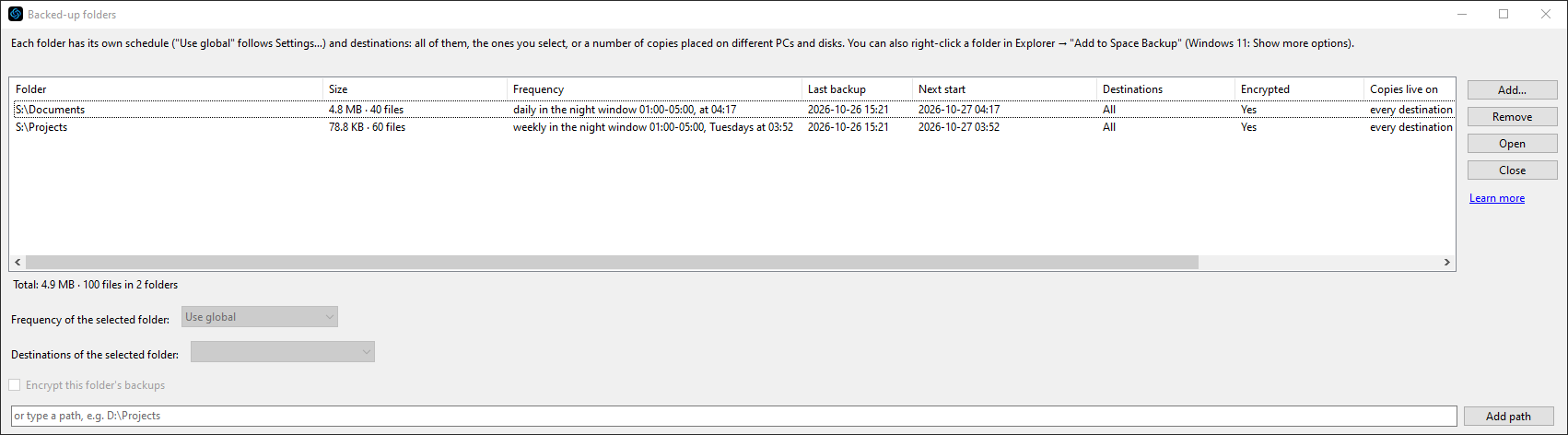
| Column | Shows |
|---|---|
| Folder | the path; "(missing)" after it when the folder does not exist on this computer now |
| Size | "300.3 GB · 146,402 files" from the last backup's scan; "calculating… 12,340 files" while a new folder is counted; "size pending" before that |
| Frequency | the choice in words, e.g. "weekly in the night window 01:00-05:00, Thursdays at 01:23", or "Backed up once on 2026-10-16" |
| Last backup | when it was last backed up, with "(incomplete: <date>)" when that run did not finish everywhere, and "running now (resumed)" while an interrupted run resumes |
| Next start | when it runs next |
| Destinations | All, Selected, or "Auto, 2 copies" |
| Encrypted | "Yes", "Yes, once signed in" or "No (plain files)" (Linux: Encrypt) |
| Copies live on | where its copies are: computer → path; a warning first when something is short, e.g. "2 of 3 copies (only 2 PCs available)" |
Under the list: Frequency of the selected folder:, Destinations of the selected folder: (with Choose… for Selected and a number of copies for Auto), and Encrypt this folder's backups. Buttons: Add…, Remove, Open (shows the folder in the file manager), Close, and the typed-path box with Add path. A total line under the list says, for example, "Total: 1.2 TB · 300,000 files in 3 folders".
A row is shown in yellow when one of its chosen destinations is missing or offline, or when Auto cannot place all its copies.
folders list prints the same list, one line per folder with its size (D:\) and a Total line.
Command line: folders list (--json for scripts):
D:\Projects (300.3 GB · 146,402 files)
C:\Users\anna\Documents (12.4 GB · 20,118 files)
Total: 312.7 GB · 166,520 files in 2 folders
Folder sizes#
The size of a folder comes from its last backup's scan and is refreshed after every run. A newly added folder is counted at once by a background scan at low priority ("calculating… N files"), which is cancelled if you remove the folder. The numbers are kept in the settings file, so the window opens at once and folders list never walks the disk.
Back up now and Space Backup Now#
- Back up now (tray or menu) backs up every folder now, outside the schedule. Command line:
now, ornow --waitto wait and print the result. - Space Backup Now (right-click files or folders in the file manager, several at once too) backs up exactly the selected items right away into today's date folder, at their original paths, whether or not they are inside a backed-up folder. Items inside a backed-up folder go to that folder's destinations; others go to all destinations. Command line:
now <path> <path>…. - Cancel backup (Linux and Mac menus) or
cancelstops the running backup. A cancelled run is not resumed.
now --wait exits with 0 when the run was fine, 4 when it ended with warnings (a destination missing, a folder not backed up, files skipped, cancelled) or errors after copying something, and 1 when nothing was backed up.
Removing a folder#
Select it in Backed-up folders… and click Remove ("Remove D:\Projects? Files already backed up there are kept."), or right-click it in the file manager → Remove from Space Backup, or folders remove <path>.
Removing a folder never deletes its backups. They stay on the destinations and age out with the max number of backups like any other date folder.
What is not backed up#
- Files that are locked, unreadable or deleted while the run reads them are skipped, logged and tried again next run; the run ends with a warning.
- A file that changes while it is being copied is skipped and copied on the next run, so a half-changed file is never stored.
- Junctions and symbolic links inside a folder are not followed (Linux and Mac store the link itself in the folder's metadata file and restore it).
System Volume Informationand$RECYCLE.BINare skipped at Windows drive roots. - Linux: other file systems mounted inside a backed-up folder are not entered unless
settings set cross-. Sockets, FIFOs and devices are skipped.filesystems yes - A backed-up folder that is missing at run time (an unplugged drive, a renamed or deleted folder) is skipped, and a notification says "<path> is missing on this PC: it was not backed up." (once per folder, until it is back or removed).
Encrypting a folder's backups#
Each folder has the setting Encrypt this folder's backups, on by default. When it is on and this computer is signed in to your company, the folder's files leave the computer encrypted, names and contents. The other computers and drives store data they cannot read; only this computer can read its backups (or a computer that an owner or admin approves, see Another computer's backups). Nobody sees, copies or types a key. How the keys work is in Security model.
- Turn it off for things that should be plain files on the destinations (photos you want to open on another computer, for example). Turning it off asks first: "Back up D:\Photos as plain files? Its next backups are readable by anyone with access to the destinations (other PCs of your company, USB disks). Backups made so far stay as they are."
- Switching either way starts a new chain of backups from the folder's next run; older dates stay as they were (encrypted ones stay encrypted, plain ones plain).
- Per drive. One folder can go encrypted to some drives and as plain files to others: for example your home folder encrypted to two drives of each of two computers, and plain to two other drives of each. In the Space Backup window, a folder's page lists under Encryption each drive it goes to with its own Encrypted switch (turning one off asks "Don't encrypt on <drive>?"; the folder's other drives stay as they are), and a drive's page on the Backup tab has Encrypt / Don't encrypt for each folder going there (saved with Save). Encrypt this folder's backups stays the setting for every drive at once: switching it sets all of them. Each drive keeps its own chain: switching one drive starts a new chain there only; the other drives go on as before. The folder's lock on the Backup tab shows an open lock with "Not encrypted on some drives" when they differ.
- Before this computer is signed in, an Encrypt folder is backed up as plain files and shows "Yes, once signed in" (Linux: "(encrypts once you sign in)"). It is encrypted from the first run after the sign-in. See Sign in by email link.
- On a destination, an encrypted backup sits in a folder named
.sbe-<key id>inside the date folder, with encrypted names. Hard links, the check, copying between computers and resuming work on it as on plain files. - Restoring decrypts on the fly: the Restore window, Explorer's Restore from Space Backup…,
restoreandSpaceBackup.all show plain names and give back plain files.exe - - restore
Command line: folders add <path> -, folders set <path> - (every drive), and per drive --plain-dest <id>|<id> and - (ids as in dest list; a folder with selected destinations goes to them too):
spacebackup folders add /home/mercury --dest "selected:CHIA2:K:\|CHIA3:I:\" --plain-dest "CHIA2:J:\|CHIA3:E:\"
Added /home/mercury: daily at 03:00 to 4 drives, encrypted on 2 (CHIA2:K:\, CHIA3:I:\), not encrypted on 2 (CHIA2:J:\, CHIA3:E:\); first backup …
folders list --json has encrypt (the folder's setting), encryptPending (on, but this computer cannot encrypt yet) and destinations (each drive it goes to, with encrypted true or false); its text says "(encrypted)" or "(not encrypted)" after each drive.
Note: Google Drive mirrors are never encrypted (they are already in Google's cloud), and a phone chooses encryption per destination drive instead; see Encryption per destination.
Destinations#
A destination is a drive or folder that receives backups. Every destination gets a full copy of each folder that goes to it (see Where each folder goes).
Adding and removing a destination#
Open Destinations… and click Add… ("Add a drive or folder to back up to"), or type a folder or network share in the box ("Or type a folder or network share, e.g. G:\Backups"; on Linux "Or type a folder, e.g. /media/you/Backups") and click Add. Examples: F:\, G:\backups, \, /media/anna/Passport, /Volumes/Backup.
sbctl dest add F:\
spacebackup dest add /media/anna/Passport
spacebackup dest list
To stop backing up to one of this computer's destinations, select it and click Remove (or right-click → Remove): "Stop backing up to F:\? Files already backed up there are kept." Command line: dest remove <path or id>.
Removing a destination never deletes the backups on it.
Note:
F:\andF:\SpaceBackupare the same backup folder, so only one of them can be added.
The Destinations window#
"Your folders are backed up to these drives and computers."
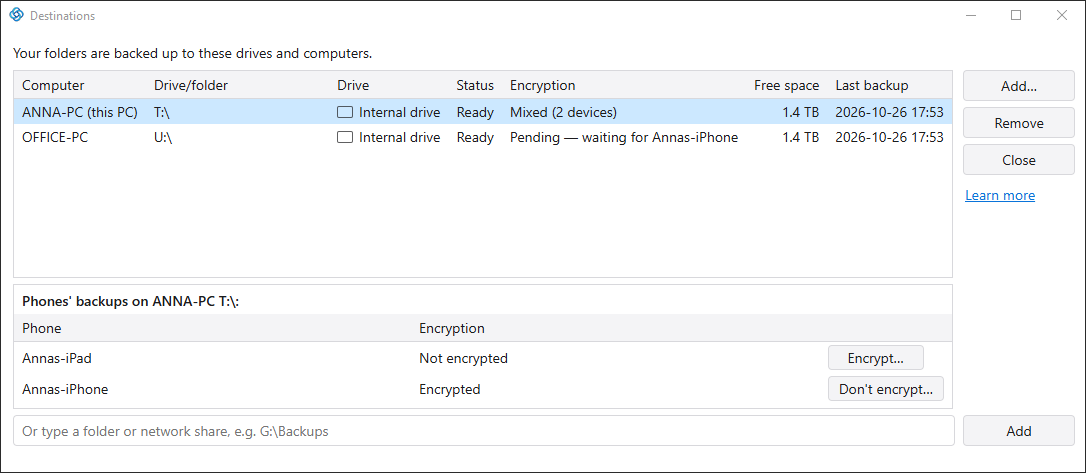
On Linux the window is the same page (it needs WebKitGTK, which desktop Linux systems ship; without it a simpler window without the Encryption column opens, and spacebackup dest list / dest encrypt do the same):
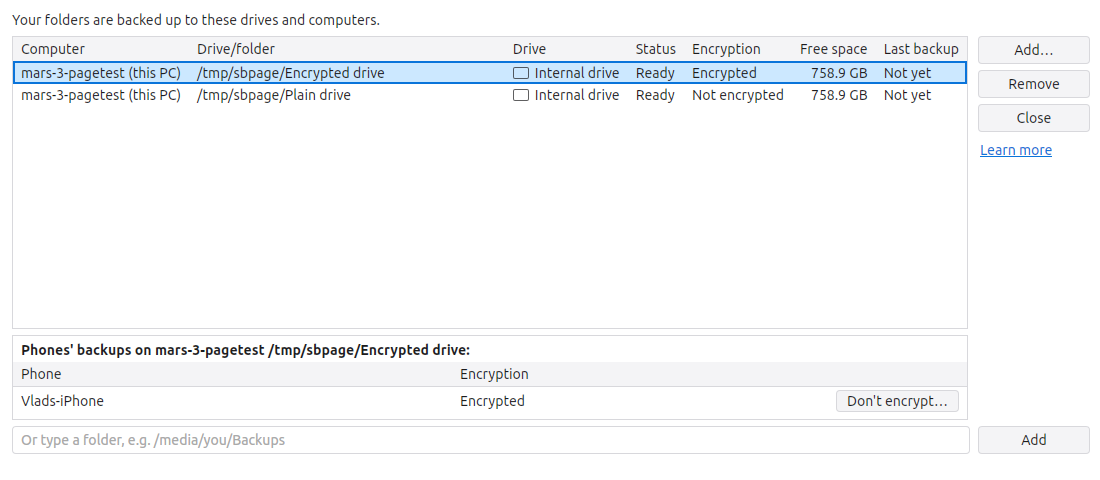
| Column | Shows |
|---|---|
| Computer | this PC, or the other computer the drive belongs to |
| Drive/folder | the path as it was added (or as the other computer announces it) |
| Drive | Internal drive, External drive or Network, with a small icon (below) |
| Status | Ready, Offline, Copying… (a backup writes there now or copies are queued to it), or Full (under 1 GB free) |
| Encryption (Windows, Linux) | how the phones' backups there are stored: Encrypted, Not encrypted, Mixed (2 devices) (the phones differ, or one is changing), Pending — waiting for Annas-iPhone (you asked for a change, below), or - when no phone's backups are there. Point at a row for each phone's own |
| Free space | blank while offline |
| Last backup | when this computer's folders were last copied there, or "Not yet" |
- Double-click one of this computer's rows (or press Enter) to open it in the file manager. Right-click (or Shift+F10, or the menu key): Open, Remove on this computer's rows, Forget on another computer's row while it is offline.
- Encryption per phone. Select a row: below the list each phone with backups on that drive is listed with how they are stored, each with its own button: Encrypt… or Don't encrypt… (or right-click the row: Encrypt Annas-iPhone's backups… / Don't encrypt Annas-iPhone's backups…). Don't encrypt… first says "Anyone who can open that drive can see these photos." A computer cannot encrypt or decrypt a phone's photos, so it asks the phone: the phone makes the change the next time it is open or backs up (the same as tapping the drive's lock on its Backup tab, then Rearrange), copies already in that form on other drives are copied between the computers, and only what exists nowhere in that form is sent again by the phone. Until then the row says Pending — waiting for Annas-iPhone; when the drive holds the phone's backups in the new form it shows it. Asking for the form the drive already has cancels the request; if the phone says no, its details say so. Command line:
dest encrypt <id or path> <phone> on|off.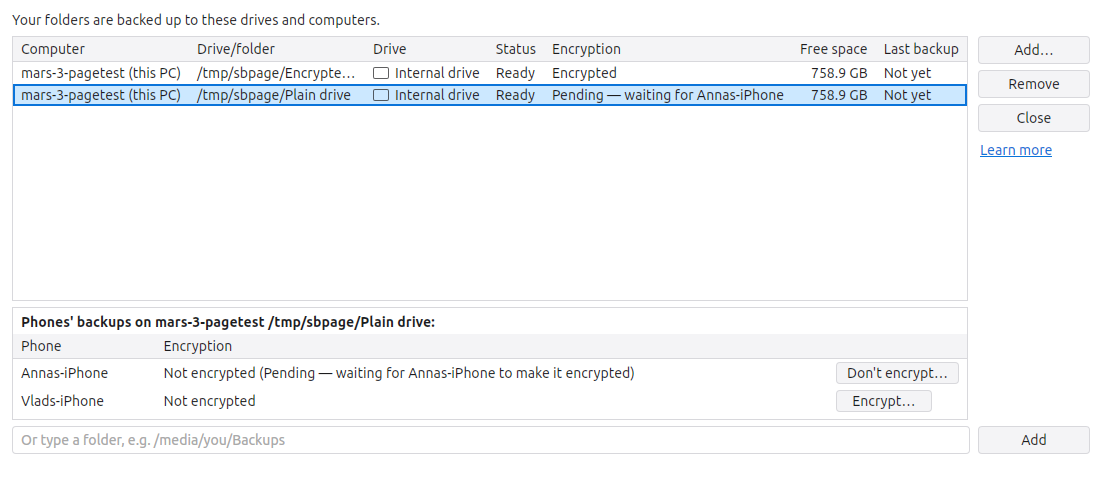
Linux: Annas-iPhone asked to encrypt its backups on the plain drive - Forget is for a drive of another computer that is gone for good: "Forget E:\ on OFFICE-PC? It comes back if OFFICE-PC offers it again. Files already backed up there are kept." Command line:
dest forget <id>. - A destination whose date folder is unfinished shows "incomplete (<date>)" in yellow.
- The keyboard (Windows, Linux): the arrow keys, Home and End move between destinations, Enter opens one, Delete removes it (or forgets another computer's offline drive), Shift+F10 shows its menu, Escape closes the menu, a question or the window; F1 opens this page. Screen readers read each row with its column names, and the questions and their results.
- The list updates itself every few seconds without redrawing (a new drive gets a row, the others keep their place and selection).
- Under the list, one plain line about the other computers when it matters: "Other computers appear here after they sign in with the same company.", or "Computers at other places can't be reached right now. Those on this network still can."
Technical details (how each computer is reached, write speed, copy backlog, the last check) are not in the window. dest list shows them:
sbctl dest listdest list --json gives each destination's id (as MACHINE:path), machine, path, kind, online state, free space, speed rank, how it is reached (LAN, direct, relayed) whether a backup writes there now (writing), and its encryption with each phone's form (devices).
Internal, external or network#
Every destinations list (Windows, Mac, Linux and the iPhone) says what kind of drive each destination is on:
- Internal drive: a disk inside the computer (SATA, NVMe and the like).
- External drive: one that can be unplugged: USB, Thunderbolt, FireWire, an SD card.
- Network: a share or a NAS (on Windows also a mapped network drive).
It is found when the destination is added and checked again at each start (a disk can move from a USB case into a computer). An older computer that does not say shows nothing. dest list prints the word after the drive, for example …/.
Other computers' drives#
Once the computers of your company are signed in with the same company, they find each other on the local network (and through Space Relay between sites) and back up to each other's destinations. A folder set to All destinations goes to every destination of this computer and to every destination of every other computer of the company, including ones added later. The Destinations window lists the other computers' drives too (read-only: only the computer that owns a drive adds or removes it). See Replication between computers for how this works and how to limit it.
Each computer writes only inside its own folder on the others' drives (SpaceBackup\<its name>\), and the computer that owns the drive does the writing.
Where each folder goes: All, Selected, Auto#
Each folder has a Destinations setting (Destinations of the selected folder: in Backed-up folders…):
| Choice | Command line | Means |
|---|---|---|
| All destinations (default) | --dest all | every destination of this computer and of every paired computer, including ones added later |
| Selected destinations | - | only the ones you tick in Choose… |
| Auto (by computers) | --dest auto, - | copies spread over the computers by themselves (Auto by computers) |
| Auto, by number of copies | --dest auto:N (1–99) | an Auto set before version 0.16.62: N copies, placed as independently as possible (below) |
Selected: Choose… opens "Destinations of <folder>", a list of every destination with Machine, Backup folder, Drive, Free, Speed ("#1 (180 MB/s)" or "not measured"), Status and Online at backups (14 days). One click on the box or anywhere on the row ticks or unticks it; Space toggles the selected row. "Only the ticked destinations get this folder. If one is missing or offline the folder is shown in yellow; nothing is used instead." A ticked destination that no longer exists is listed as "(no longer exists)".
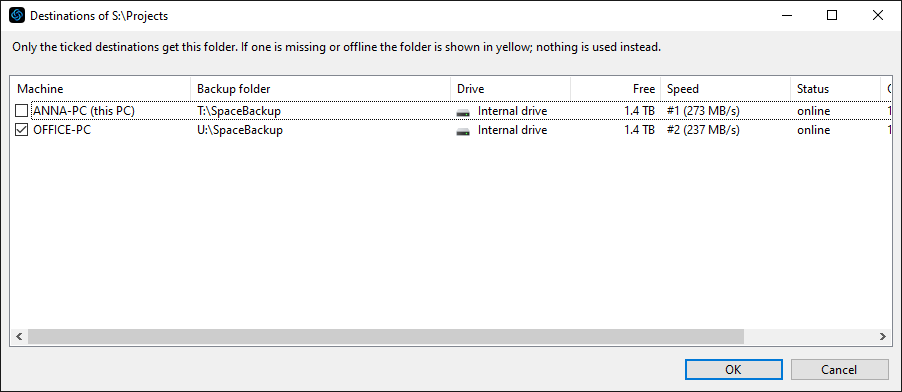
sbctl folders set D:\Projects --dest 'selected:CHIA3:F:\|OFFICE-PC:E:\'   # quoted: | is a pipe in the shell
spacebackup folders set ~/Projects --dest auto:2
The ids are the ones dest list prints (MACHINE:path), or a local path.
Auto by computers#
Auto in the window (Backup tab › Where it goes, or a folder's page) is chosen the same way as on the iPhone (Auto: where the copies go):
- Computers: All (the default: every computer that can take backups, the ones added later too) or a number.
- Copies in all: at least one on each of those computers, so 1 means one copy on each.
- Always back up to: drives ticked here get every backup of the folder besides Auto's own copies (they do not count as one of them).
Each new copy goes to the chosen computer with the fewest copies, on another disk first, on the drive with the most free
space, so all drives fill evenly; a copy stays where it is while its drive is there and has room. Changes wait for
Save. A computer's folders keep their own encryption (each folder's lock); Auto does not change it. A folder set
to Auto before (auto:N) keeps the rule below until Auto is changed.
spacebackup folders set ~/Projects --dest 'auto:computers=all,copies=2'
sbctl folders set D:\Projects --dest 'auto:computers=2,copies=3,always=OFFICE-NAS:/mnt/backup'
Auto: N copies#
With an older Auto, by number of copies (auto:N) Space Backup chooses where the N copies go:
- Distinct computers first. One copy per computer until every available computer holds one; only then a second copy on a computer.
- This computer last. A copy on the same computer does not survive losing that computer, so it comes after the others.
- Distinct physical disks. Two copies on one computer go to different physical disks (found by the disk's serial number, not the drive letter), never two on one disk.
- Room and reliability. A new copy needs room for the folder (its size at the last run plus 10 %, at least 1 GB); then the destination that was online at backup time most often over the last 14 days wins, then the faster one.
- Copies stay put. A copy moves only when its destination was offline more than 7 days, is full (under 1 GB free) or was removed, or when a clearly more independent place appears (a new computer joins while two copies share one, or a copy sits on this computer while another computer is free). The new copy is made first; the old one keeps receiving until every current copy has completed a run. Old backups are never deleted because of a move; they age out.
- Fewer places than copies. It backs up to what is possible and shows the folder in yellow: "2 of 3 copies (only 2 PCs available)".
Copies live on in Backed-up folders… shows where the copies are; folders list --json has them too.
What is on a destination#
Backups go into dated folders under a SpaceBackup folder on the destination:
| Source | On the destination |
|---|---|
Windows C:\Users\anna\Documents | G:\ |
Windows network source \\server\share\x | …\ |
Linux or Mac /home/anna/projects | …/ |
| A Google account | …/ |
- The computer's name comes first, then the date. With Put the computer name before the date folder switched off (Settings, a setting of each computer) it is
SpaceBackup\instead.2026- 10- 18\ ANNA- PC\ … - When the destination folder is itself named
SpaceBackup(any case, e.g.F:\SpaceBackup), it is used directly, without anotherSpaceBackupinside it. Any other folder (F:\,G:\backups) gets aSpaceBackupsubfolder. - Several runs on one day update that day's folder; a changed file is written as a new file, so older days never change.
- Names that Windows cannot hold (a Linux file named
a:b,CON, names that differ only by case) are written escaped (a%3Ab), on every destination alike, so a backup can sit on NTFS, ext4, exFAT or a share and move between them. Restore gives the exact original names back. - A Linux or Mac folder has one more file,
.spacebackup.posix, holding the modes, owners, times and symbolic links; restore uses it.
Next to the drive-letter folders, each date folder holds a few hidden files of Space Backup's own (see Files to leave alone).
Unchanged files are hard links#
A file is copied when it is new or its size or modification time changed (2 seconds of tolerance for FAT, exFAT and network shares). An unchanged file gets a hard link in the new date folder to the same file in the previous one: one copy of the data on disk, with a name in every date folder. So every date folder is a complete snapshot that you can open and copy from, while 10 dates take about one full copy plus the changes. A file deleted at the source is simply absent from newer dates.
NTFS allows 1,023 names per file, so up to about 1,000 date folders can share an unchanged file; beyond that it is copied again.
Drives without hard links#
FAT32 and exFAT USB disks and some NAS shares cannot make hard links. There, unchanged files are copied instead (by the computer that owns the drive, so nothing extra crosses the network), and the tray warns once per destination: "… cannot use hard links (FAT32/exFAT or a NAS share?). Unchanged files are copied there, so each dated backup on it takes the full size." Such a destination needs about N × the full size for N date folders: lower the max number of backups or format the drive NTFS (Windows), ext4 (Linux) or APFS (Mac).
Fingerprints: manifests#
When a destination completes a run, the date folder gets a manifest, .spacebackup-manifest (hidden): one line per backed-up file with its hash (xxHash128), size, modification time and path. Restore checks every file against it, and the integrity check re-reads the files against it. Files linked from an older date take their hash from that date's manifest, so nothing is read twice.
Protected backup files#
Because one file on disk can be every date's copy at once, editing it in a backup folder would change all those dates. On Windows each backed-up file therefore has a Deny entry for Everyone on writing and deleting; on Linux and Mac its write permission is removed. A copy you make with Explorer, Finder or cp is a normal, writable file. Where you have full control over the folder, Windows still lets you delete a protected file; the weekly check notices a missing file. Drives that keep no permissions (FAT32, exFAT, some NAS shares) are guarded by the weekly check alone.
Catch-up when a drive comes back#
A drive that was away (an external drive unplugged, a network share offline, another computer or its drive offline) is synced as soon as it is back: every folder that backs up to it and is behind there is backed up to that drive at once, without waiting for the folder's schedule or the night window. This holds for every backed-up folder of the Space Backup app on Windows, Linux and macOS (Documents, Projects, Photos, any folder you back up). The iPhone and iPad app's photo backups work separately (see The iPhone and iPad app).
- When: as soon as the drive is ready (mounted, spun up, share connected): Space Backup tries it at once and then every second, for at most 30 seconds. Another computer: as soon as it is heard online. Space Backup notices arrivals at once (Windows: a drive plugged in or a network drive mapped; Linux: the mount table; macOS: a volume appearing under
/Volumes; other computers: when they come online, or announce that their drive is online again) and also looks at every destination every minute, so a missed arrival costs at most a minute. - What: the folders that are behind on that drive, and only to that drive: never backed up there, a newer backup of the folder on another drive, or files in the folder changed since its last backup there. A folder set to Manual waits until you ask. A drive that is up to date gets nothing.
- Normal checks apply: every file verified, one drive at a time, the number of backups kept per drive as set. If a backup is running, the drive is synced right after it, not at the next schedule.
- The tray status line and a notification say it in plain words: "G: is back: backing up Documents to it now.", another computer "CHIA3 is back online: syncing Documents to it now." (for a share, its name; for several folders, "Documents, Projects and 2 more folders"). Back while a backup runs: "G: is back: it is synced as soon as the backup running now ends."
- In
runs listsuch a run has the triggerdrive-back(this computer's drive) orpeer-back(another computer's drive).
Schedule and the night window#
The night window#
The night window (Settings → Night window:, default 01:00 to 05:00 local time) is when scheduled backups and the weekly check run. "Each PC and folder starts at its own fixed time in it": the start time of each (computer, folder) pair is a minute inside the window that is the same every night but different for each computer and folder, so a whole office does not start at once. A window that ends at or before its start runs past midnight (for example 22:00 to 03:00).
A computer runs its due folders one after another in a single run, never in parallel.
sbctl settings set night-window 22:00-03:00The global frequency#
Settings → Backup frequency: is the frequency of every folder set to Use global (most folders added before the four plain choices existed are). Default: daily in the night window. Its choices are the advanced ones above without Only once and Use global. Command line: settings set frequency night (or hourly, every:6, daily:02:30, weekly:sun:02:00, manual).
Missed runs#
- Runs missed while the computer was off or asleep happen once after it starts or wakes, after a random delay of 0–10 minutes (at least 1 minute), so an office switched on at 9:00 does not all start at once. Runs whose time comes after the computer is up start on time.
- If every destination of a folder was offline for its run, that folder is retried every 15 minutes until a run reaches a destination, or earlier if its next slot comes first. Retries never wake the computer.
- A folder whose chosen destinations are all gone (removed) is not backed up, and the run ends with a warning: "<folder> was not backed up: its drives are no longer available".
- An interrupted run (crash, power cut, quit) resumes at once at the next start; see Crash safety and resume.
Wake this PC for backups (Windows)#
Settings → Wake this PC for backups (on by default, Windows only) lets the app wake the computer from sleep for backups, without administrator rights:
- A computer that only sends backups wakes 2 minutes before its own earliest slot and may sleep 10 minutes after its last backup finished.
- A computer with destinations for other computers wakes at the start of the night window and stays awake until the window has ended and no computer has backed up to it for 30 minutes.
- While a backup runs, while another computer is connected and while a run is due, the computer is kept from sleeping (the screen may still turn off).
- Switched off: "The PC is not woken up; backups missed while it slept run when it wakes."
If Allow wake timers is off in Windows' power options, the tray turns yellow and Settings says: "Windows has wake timers turned off: Power Options → Change advanced power settings → Sleep → Allow wake timers → Enable." Until then, missed runs happen after the next manual wake. Command line: settings set wake yes|no.
On Linux and macOS there is no wake timer: an always-on computer simply runs in the night window, and a sleeping one catches up when it wakes.
How many backups are kept#
Settings → Backups to keep on each drive (default 10, 1–999): the dated backups kept per computer on each drive (one per day). Command line: settings set max-.
Each folder can keep its own number (Vladimir, 2026-10-31). On a folder's page in the Space Backup window, under Backups to keep, Use the global setting is on (the number from Settings). Turn it off and type the folder's own number in Backups to keep on each drive, for example 30 for your documents and 3 for a folder of large videos. Command line: folders set <path> -, and --keep global to follow Settings again.
- The number counts on each drive the folder goes to.
- Fewer than it has deletes nothing at once. The oldest backups go at the folder's next backup. The window asks first and says how many dates will go ("Keep 3 backups on each drive? The 7 oldest backups (dates) of this folder go from each drive at the next backup."); Settings asks the same for the folders that use the global number. The command line says it in its answer.
- Whole date folders are kept for the folder that keeps the most; a folder that keeps fewer is removed from the older date folders that stay. A folder never loses a date that a folder inside it still keeps.
- The number travels with the backup. When your computer backs up to a drive of another computer, that computer prunes your dates by your numbers, not by its own setting (a computer with version 0.16.36 or older still uses its own). The same goes for an iCloud Photos source backed up to another computer's drive (Settings' number) and a Google Drive account (it is a folder with its own number).
How pruning works:
- Only complete date folders count. The newest complete one is never deleted.
- A folder's newest backup never ages out while you back it up. A weekly, monthly or once folder is not in every date folder, so on each destination the newest complete backup of every folder in the list is kept on top of the others, however many newer date folders there are. Only its older backups age out.
- An Only once folder's backup is kept until you remove the folder from the list; then it ages out like any other.
- Incomplete date folders older than the newest complete one are pruned; incomplete ones newer than it are kept, because a run may still finish them.
- Partial date folders (a phone's run that stopped, see below) never count toward the number kept, and never push out a full one: the newest fully complete date always stays. A partial date stays while it is newer than the oldest full date kept; once it is older, it is pruned like the others. With no full date at all, no partial one is pruned.
- Pruning removes names only: files that a kept date shares (hard links) stay.
- When a destination no longer gets a folder (you unticked it, Auto moved a copy, or it was dropped from Selected), its backups of that folder there stay and are pruned like any others: each run removes that folder's date folders there that are older than the oldest of the folder's newest max number of backups complete runs elsewhere.
- Pruning does not look at free space. If a destination fills up, lower the max number of backups (or give it a bigger drive).
Note: The setting counts days, not runs: several runs on one day update the same date folder.
Partial dates#
A phone's backup can stop before it has sent everything (the app was closed, the phone locked or lost its network). When it next connects, the phone closes that date instead of leaving it incomplete: it writes the month indexes, links everything the run did not reach (untouched months and the rest of the current month) from the previous date, and marks it partial (.spacebackup-partial in the date folder, instead of .spacebackup-incomplete). A partial date:
- is a whole, consistent backup: the newest photos the run reached, the rest as of the previous date;
- is restored, browsed, checked, replicated to the phone's other drives (as partial there too), searched by Space Vision, shared by public links and rearranged like a complete one, and the next run links from it;
- is shown partial instead of complete (
history: "partial", the Restore window: "(partial)"); - never counts toward the max number of backups.
A later run that finishes the date makes it complete again. A run that had nothing left to send closes the date as complete.
When the phone never comes back to close it (iOS ended the app in the background, a computer crashed or went away), the computer holding the date closes it itself, as a safety net. A date folder that still says a run is writing it (.spacebackup-incomplete) is closed when that run has no backup on this computer, no connection in use (a connection left open with no request for 5 minutes, such as a phone iOS suspended mid-run, does not count) and nothing was written in the folder for 2 hours (setting dead-run-hours, 1–720):
- what is there stays as it is (the month indexes the run wrote too), and its manifest is written from what is on the disk;
- if every file of the previous full date is there (the run only added photos), the date becomes complete;
- otherwise it becomes partial, and what the run did not reach is linked from the earlier dates on that drive, as the phone does when it closes a date itself: each file of the newest earlier dates (back to the newest full one) that the date lacks. A run that stopped before its first file thus leaves a date holding the previous date's months, never an empty one that the phone's next backups would link their months from. A photo deleted on the phone meanwhile may still be in it, as in the date before.
Dates closed before 0.16.13 got nothing linked. At startup the computer repairs them: a partial date that lacks a month index its earlier dates hold gets what it lacks in the same way, oldest date first, and the log says Partial date repair: [PC drive] MACHINE's DATE: N file(s) linked from DATE (missing: …). Nothing is deleted, the earlier dates are only linked from, and an encrypted date gets only encrypted files (a plain one only plain files).
The computer looks at startup, after each backup or connection ends and every 5 minutes, and logs one line per date it closed (Dead run: closed [PC drive] MACHINE's DATE as partial (…)). A replication the phone asked for while the date was still being written waits and goes ahead once it is closed. A computer's own interrupted run is not closed this way: the computer resumes it.
Replication between computers#
Space Backup has no cloud storage: the computers of your company store each other's backups. This section explains how that works and what you can tune.
Backing up to the other computers#
When this computer and another one are signed in to the same company, they pair automatically: they find each other on the local network (every computer announces itself every 30 seconds) or, between sites, through Space Relay. From then on:
- This computer's folders go to its own destinations and to the destinations of the other computers (all of them with All destinations, or as chosen with Selected or Auto).
- The other computers' folders come to this computer's destinations.
- The traffic is encrypted end to end, and folders set to Encrypt are stored encrypted.
A computer with no destinations of its own still backs up to the others, and needs no firewall rule for incoming connections.
An offline computer (switched off, or not heard from for 100 seconds) is skipped and flagged; the others are still backed up. Computers stay listed while offline, so one that is away keeps the warning until it is back, or until you Forget its drives.
Backing up for the other computers: Incoming backups#
Settings → Incoming backups: (default 2, 1–16): "other PCs backing up to this PC at a time (more wait their turn)". A computer takes a turn when its backup here starts and frees it when done. The others are told "busy, retry in N s" and wait, for up to 4 hours, without failing. Raise it on a strong computer with fast disks; lower it on a computer that people work on during the night window. Command line: settings set incoming 3.
One copy per computer: fan-out#
A computer with several destinations gets each new or changed file over the network once, not once per destination. It writes the file to its fastest destination that is online and has room, checks it there, and then copies it on to its other destinations itself, in the background (fan-out), as a hard link where that drive already has the file unchanged, otherwise as a copy checked against the sender's hash. A drive that fails counts as failed on its own, and the next run sends the file again for it.
The tray says "Copying to other destinations: N file(s), X left" while this goes on, and the Destinations window shows Copying…. The queue survives a restart, and the computer stays awake until it is empty. A computer backing up to several of its own destinations does the same: it reads each source file once.
Which destination is fastest is measured: a quick 256 MB write and read test when a destination is added, then the real copies' speed. Speeds within 20 % count as equal; then an SSD goes before a hard disk. dest list shows each destination's write speed and backlog.
One drive at a time#
A computer never writes to two of its drives at the same moment, so a crash or a power cut can only touch the drive being written. Before it moves on to another drive, it flushes the one it leaves. Backups arriving, fan-out copies, pruning, manifests and repairs all take their turn; reading (restores, the check reading files) never waits. You see nothing of this except that copies to the other drives come after the landing writes.
Computers not in your company yet#
When this computer signs in to a company (or its company key changes), a paired computer still on the old key can no longer be reached. If a folder backs up to it, it is kept and marked waiting instead of dropped: the folder's destinations list it as "CHIA3 (not in your company yet)", dest list says "not in your company yet", and the status says "CHIA3 isn't signed in to Acme yet, so Projects isn't backed up there. Sign in on CHIA3 with an email of your company." When CHIA3 joins, backups to it resume by themselves. A waiting computer is forgotten after 30 days, or at once with Forget in Destinations.
Computers at other places#
Computers at other sites (another office, home) reach each other through Space Relay, which is on by default (Settings → Connect PCs at other sites through Space Relay). The relay stores nothing and cannot read anything. A computer seen on the local network is always reached there; relayed traffic is used only between sites and is metered (50 GB free per company and month). Do the first full backup of a computer on the local network where you can. Details: Space Relay and Billing and prices.
Phones: sent once, copied between the computers#
An iPhone or iPad sends each day's backup once, to one computer (the primary, on the phone's network when possible), which then copies the finished day to the phone's other chosen drives on the other computers, computer to computer. This keeps relay traffic and the phone's battery use low. The copies are hash-verified, hard-linked from the previous day, and stored exactly as the phone sent them: an encrypted backup stays encrypted, and no computer ever holds the phone's key. A computer that is off, even for days, gets its copy when it is back, from the computers that already hold the day complete, without the phone (the primary retries every minute, under the permission the phone gave, for up to 90 days). The phone is asked to send a day again only when no computer holds it complete, and the primary's log says which items are missing where. Every copy is authorised by a permission the phone signs, which each computer checks itself. You do not set anything up on the computers for this.
Rearranging and renaming#
What happens to existing backups when you change where things go, move things, or rename a computer.
Changing where a folder goes#
Changing a folder's Destinations (All, Selected, Auto) affects its next runs only. Drives that no longer get the folder keep its backups, which age out with the max number of backups. Drives that start getting it begin with a full copy (then hard links from there on). With Auto, copies move only for the reasons listed in Auto: N copies, and always new copy first.
Moving or renaming a backed-up folder#
Space Backup follows folders by their path. If you rename or move a backed-up folder on disk, the old path goes missing ("… is missing on this PC: it was not backed up.") and the new path is not backed up until you add it:
- Backed-up folders… → Add… the folder at its new place (choose how often again).
- Remove the old path.
The new path is a new folder for Space Backup: its first backup copies its files, and the old path's backups stay and age out.
Moving a destination#
A destination is its path. If a drive gets a new drive letter or mount point, add the new path in Destinations… and remove the old one; the backups already in its SpaceBackup folder are found there and the next backups carry on from them. A drive that is unplugged and plugged in again at the same path needs nothing: it catches up.
Putting the computer name before or after the date#
Settings → Put the computer name before the date folder (on by default) chooses between SpaceBackup\ and SpaceBackup\. As Settings says: "Changing this moves this PC's existing dated folders on the next backup." The move is a rename on each drive, nothing is copied. Command line: settings set name-.
Renaming the computer#
The computer's name is the folder its backups go into (SpaceBackup\ANNA-PC\…) and its device name in the company.
- An install that already has backups keeps its name when the computer is renamed in Windows, macOS or Linux, so its backups continue in the same folder.
- To change the name Space Backup uses:
settings set machine-(letters, digits,name <NAME> -,_,., up to 64 characters; no other active computer of the company may have it). The app restarts to use it and says: "Backups from now on go into ANNA-LAPTOP; the earlier ones stay under ANNA-PC." Restores find both. - When you sign in and the company already has a computer of that name, the sign-in asks you to choose a name for this computer (see Choose a computer name).
A phone's backups rearranged#
When a phone's Where it goes changes and the user picks Rearrange, the phone has the computers move the days it already backed up to its new drives, computer to computer, without sending them again. The computers only act on the phone's signed request, copy a day only from a copy in the form the new drive wants (they cannot encrypt or decrypt the phone's files: a drive switched between Encrypted and Not encrypted gets those days from the phone itself), and remove a day from a drive that is no longer chosen only after a new drive has just been checked complete, so there is never less than one complete copy. A computer that is off, or a drive that is not connected, waits. The log of the computer doing the work says, for example, "Rearrange: rearranged 1,204 items to CHIA2 G:" and "Rearrange: dropped Annas-iPhone's 2026-10-16 from OFFICE-NAS E:".
Nothing is dropped while the new copy lacks an item (version 0.13.2). Before a day's old form leaves a drive switched between Encrypted and Not encrypted, and before a day leaves a drive no longer chosen, the computer compares the two copies item by item: every photo, video, thumbnail and month index file of the old copy must be in the new one. The computers cannot read encrypted names, so an encrypted file is paired with its plain twin by what encryption keeps (the length of each name, the file's size plus the encryption's fixed overhead, and its date); month index files, which a computer rewrites in a Not encrypted copy, are counted. A copy made for a rearrangement also no longer removes files the copy it came from lacks. When something is missing, the old copy stays, the log says, for example, "Rearrange: kept the encrypted form of Vlads-iPhone's 2026-10-20 on CHIA2 M:: 1 item(s) not yet in the new form", and the phone is asked to send that day to the drive again (it also sends items it no longer holds, read back from a drive). The old copy goes on a later pass, once nothing is missing.
Crash safety and resume#
A crash, a power cut or quitting in the middle of a backup costs neither data nor time:
- New data is written to a temporary file (
*.~sbpart) and renamed into place only when complete and verified, so an interrupted copy never damages the existing backup. - Each run marks its date folder on each destination with
.spacebackup-incompleteuntil that destination completes it. Backed-up folders… shows "(incomplete: <date>)" and Destinations "incomplete (<date>)" meanwhile. - At the next start an interrupted run resumes at once, in the same date folder (even after midnight), without the schedule wait. If it involves other computers, it waits for them on the network (at most 2 minutes for one that just restarted). A run that keeps crashing the app is given up after 3 resumes.
- A file of 64 MB or more resumes from its last verified 8 MB block instead of starting over.
- After an unclean end, the small files written just before it are read back and copied again if they are wrong ("Check after an unclean end: …" in the log). A clean quit puts them on the disk first, so the next start has nothing to check, even for a date a phone left unfinished.
Integrity check (scrub)#
Every computer re-reads the backups on its own destinations (its own and the ones other computers store there) and checks every file against the manifests:
- Settings → Check backups: Weekly (default), Monthly or Off: "re-read this PC's destinations in the night window, check every file and repair damaged files from good copies". Command line:
settings set scrub weekly|monthly|off. - It runs inside the night window at low disk priority, reads each physical file once (however many dates link to it), saves its place every minute, stops when the window ends and continues the next night. It wakes a Windows computer at the window start while a check is due.
- Check backups now (Open Space Backup → Settings → Backups) runs one at once, outside the window too. Command line:
scrub --now;scrub --statusshows the last check and one in progress. - A file that does not match is repaired from a good copy with the same hash: another destination of this computer first, then a paired computer. Every date folder that shares the file is pointed to the repaired copy.
- If no good copy exists anywhere, the file is kept as it is, marked damaged, and the tray turns red ("N damaged backup file(s)…"); Open Space Backup → Settings lists them under Damaged backup files. The device it came from is then asked to send it again, by itself (A damaged copy is sent again); the next check repairs every date folder from the new copy.
- After each check: a line in the log, the tray status ("All good; last backup …; last check …: N files OK, M repaired"),
dest list("Last check: …", "checking… 40 %", "check paused at …"), andscrub-report.txtin the destination'sSpaceBackupfolder with every repaired, damaged or missing file.
Warning: A tray warning "copies failed verification and were redone (check this PC's memory)" means a copied file read back differently from what was read: faulty memory or a failing disk. The copy was redone and is good, but have the computer checked.
A damaged copy is sent again#
A photo, video or file whose backup copy is damaged (cut short, unreadable, not what was backed up, or missing on every drive) is put right without you doing anything:
- A good copy heals it first. Another drive of this computer, or another computer holding the same backup, gives its copy (the same hash), and every date folder is pointed to it.
- Else its device sends it again. The computer that found it asks the phone, tablet, Mac or computer the file came from to read it again from its library or disk and send it. A phone or tablet is woken for it in the background; a computer does it in its next backup, an iCloud Photos backup too. A Mac whose Photos keeps that photo in iCloud only (Optimize Mac Storage) downloads the original from iCloud first, by itself, and sends it with its next backup. The new copy replaces the damaged one only once it is verified.
- You hear of it only if nothing more can be done: the device no longer has the file ("no longer on Marinas-iPad to be sent again"), the file is damaged on the device itself, it was sent again twice and is still damaged, or the device has not answered for 3 days (it may be off, or its app too old). The notification names the files.
There is no Fix to press for it and no need to back the device up again. A photo whose copy is whole but which this
computer cannot decode (for example a JPEG that the phone named .HEIC) is not damaged: Space Backup reads it by its
bytes, and what it still cannot read is a bug for us, never a notification for you. The protocol is in
the peer API.
Every file is checked as it arrives#
A computer checks each file the moment it lands on one of its drives, before it counts as backed up: from a phone or tablet, from another computer, through Space Relay, and each copy it makes onto its other drives or another computer.
- Size and checksum: what landed must be exactly what the device read and declared. If not, the copy is not kept and the device, still connected, sends it again at once.
- Photos and videos must open: the picture's size can be read, a video has a duration, and nothing is cut short. A photo or video that fails is kept for now, and the device it came from is asked to send it again straight away, within a second, while it is most likely still online and still has the file (A damaged copy is sent again).
- The phone or computer that sent it keeps the item in its queue until the computer confirms the copy is good, and sends it again by itself if it is not.
You see nothing of this unless the file cannot be put right. The weekly integrity check and the photo processing watchdog still look over every backup for damage that happens on a disk later. Details: the peer API › put.
File manager badges and menus#
Windows Explorer menu#
Right-click in Explorer (on Windows 11 under Show more options):
| Item | On | Does | Command line |
|---|---|---|---|
| Add to Space Backup | a folder (also the empty space inside a folder) that is not backed up | asks How often? and adds it | folders add <path> - |
| Remove from Space Backup | a backed-up folder | removes it (its backups are kept) | folders remove <path> |
| Space Backup Now | files and folders, several at once too | backs up exactly those items now | now <path>… |
| Restore from Space Backup… | files and folders inside one of this computer's backup folders | opens the restore window for them | restore <path> |
Each folder shows either Add or Remove, never both. The items stay visible with more than 15 items selected.
The Explorer badge#
images/win-explorer-badge.pngAn optional badge in the bottom-left corner of each backed-up folder's icon in Explorer (the folder you added, not the files and subfolders inside it), like OneDrive's. While that folder is being backed up, the badge turns (it flips between two positions about once a second).
- Install: Settings → Show Space Backup badge on folders in Explorer… (admin). Windows asks for administrator rights once. Explorer loads badges only when it starts, so Space Backup then offers to restart Explorer (Restart Explorer). Command line:
sbctl shell install -(without- restart- explorer --restart-explorerExplorer is not restarted). - Remove: Settings → Remove the badge from Explorer… (admin) ("Remove the Space Backup badge from Explorer? (Needs administrator rights.)"), or
sbctl shell uninstall -.- restart- explorer - Update: after an app update the badge may be older; the app offers it once with a tray balloon (click it), and Settings shows Update the Explorer badge… (admin) (
sbctl shell install). Explorer is not restarted for an update; Settings says when Explorer keeps showing the previous badge until it restarts (for example at the next sign-in). - Status: Settings shows one line, and
sbctl shell statusthe same:
| Line | Means |
|---|---|
| "Explorer badge: on; it turns while a folder is backed up." | all good |
| "Explorer badge: off. Showing the Space Backup badge on backed-up folders needs administrator rights once (Windows asks)." | not installed |
| "Explorer badge: installed; restart Explorer to show it." | click Restart Explorer |
| "Explorer badge: on, without the busy badge (Windows' overlay slots are full)." | it shows, but does not turn |
| "Explorer badge: installed, but Windows gives it no overlay slot: …" | other apps took all the slots (below) |
| "Explorer badge: installed; this version has a new one. Updating it needs administrator rights once (Windows asks)." | click Update the Explorer badge… (admin) |
Note: Windows shows only 15 badge types in total (4 for itself) and gives them out in alphabetical order of their names. OneDrive, Dropbox, Adobe Creative Cloud and others take many. Space Backup needs two (still and turning); with one it shows a still badge, with none no badge. Folders are never changed to show a badge (no
desktop.ini).
Linux file managers#
spacebackup integrate (run by the installers; spacebackup unintegrate removes exactly what it added) adds:
- Nautilus (GNOME Files) with
python3-nautilusinstalled: a Space Backup submenu with Add to Space Backup (asks "How often?": Only once, Daily, Weekly, Monthly) and Remove from Space Backup on folders, Space Backup Now on files and folders, and Restore from Space Backup…. Restart Nautilus once afterwards:nautilus -q. Nautilus 43 and later draws no icons in context menus for any app, so the submenu has no icon there. - Nautilus without
python3-nautilus: the same four items under right-click → Scripts. Aftersudo apt install python3-, Space Backup switches to the submenu by itself within 10 minutes (or at once withnautilus spacebackup integrate) and tells you to restart Nautilus. - Nemo (Cinnamon): the same items as actions with the app icon.
- Dolphin (KDE): a Space Backup submenu with the same items.
- Emblems: in Nautilus (icon view) and Nemo, each backed-up folder shows the Space Backup knot as an emblem. In Nautilus the emblem turns while that folder is backed up. Dolphin shows no emblems. Emblems you set yourself are kept.
The items report their result as a desktop notification. Restore from Space Backup… opens the Restore window preset to that path.
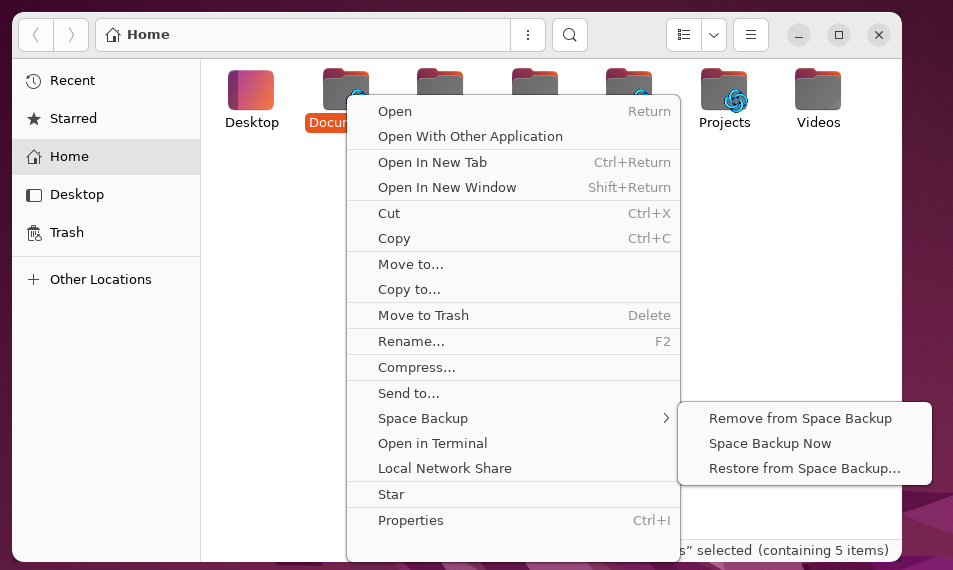
macOS Finder#
The Mac app's Finder extension adds the same items to Finder's right-click menu: Add to Space Backup, Remove from Space Backup, Space Backup Now and Restore from Space Backup…, handled by the menu-bar app. macOS lets you turn Finder extensions on and off in System Settings; if the items are missing, check that Space Backup's is on.
Restoring files#
There are four ways to get files back:
- Restore (Open Space Backup → Backup → Restore): this computer's own backups by date, and computers shared with you.
- Restore from Space Backup… in the file manager, on files inside a backup folder.
- The command line:
restore. - By hand: the backups are plain folders (unless encrypted).
Every restore checks each file against the date folder's manifest while it reads it, writes it next to its target, reads it back, and only then puts it in place. A backed-up copy that no longer matches its manifest is not restored (try another date or destination). Restored files are normal, writable files with their original times.
The Restore window#
"Backups by date: this PC's, on its own drives and on the other PCs that hold them, and the PCs shared with you. Choose a folder and a date, open folders to find what you need, tick it and restore it. With nothing ticked, the folder shown is restored."
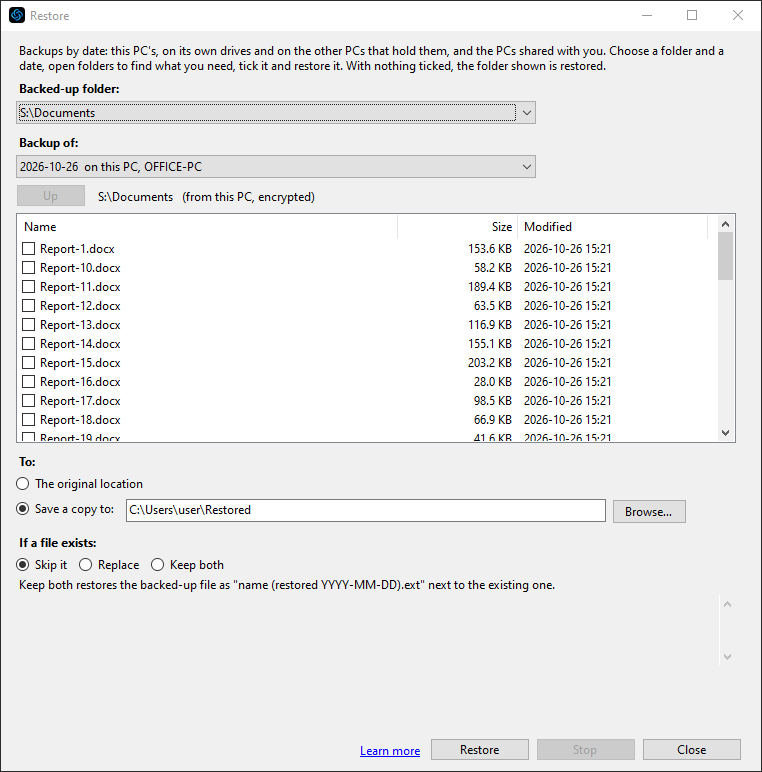
- Backed-up folder: (Linux and Mac: What:) choose one of this computer's folders. The list also holds the folders its backups on other computers hold (useful on a computer set up again), and, after them, Shared with me: BOB-PC (bob@acme.com) and Restore approved: BOB-PC (bob@acme.com) entries for other computers (see Another computer's backups); on a Mac, other computers' backups are under Another PC's backups…. On Linux you can also type a path, a path inside a backed-up folder, or a path inside a date folder.
- Backup of: choose a date. Each date says where it is ("on this PC", "on OFFICE-PC") and "(incomplete)" when that run did not finish. The dates come from this computer's destinations and from the online computers holding its backups, so this works on a computer with no destinations of its own.
- The list shows the folder's contents in that backup: name, size, modified. Double-click a folder to open it; Up goes back. Tick the files and folders you want; with nothing ticked, the folder shown is restored.
- To: The original location, or Save a copy to: a folder (Browse… to choose; on Windows it starts as
Restoredin your user folder). A ticked folder is saved into a folder of its name. - If a file exists: Skip it (default), Replace, or Keep both ("Keep both restores the backed-up file as "name (restored YYYY-MM-DD).ext" next to the existing one.").
- Click Restore. A progress line ("12.0 MB restored so far") and Stop appear; Stop keeps what is restored so far. On Linux and Mac, Open target shows the target folder.
Encrypted backups are listed by their real names and decrypted as they are restored. Command-line equivalents:
sbctl history --folder C:\Users\anna\Photos
sbctl browse C:\Users\anna\Photos --date 2026-10-01
sbctl restore C:\Users\anna\Photos\2026 --date 2026-10-01 --to C:\Restored --keep-both
sbctl cancel --restore
Restore from Space Backup… in the file manager#
Open a destination's SpaceBackup folder, go to a date folder, select files or folders, right-click → Restore from Space Backup…. The window "Restore from Space Backup" lists the items and their original paths ("Backed up from OFFICE-PC: the original location is a path on that PC." when they are another computer's) and offers:
- To the original location (the path it was backed up from, e.g.
C:\), or Into this folder: with Browse….Users\ anna\ Documents\ report. docx - If a file already exists: Overwrite, Keep both (
report (restored 2026-) or Skip, with Do this for all remaining conflicts.10- 05). docx
When it is done it says, for example: "Done: 42 file(s), 18.3 MB restored (42 checked against the backup's fingerprints)", and notes when it restored from a date folder whose backup did not complete. Items encrypted with another computer's key say "Nothing this PC can restore: the selection is encrypted with another PC's key." and offer Restore another PC's backups….
Another computer's backups#
You can restore the backups of another computer of your company in two cases:
- It is shared with you: its owner (or an admin) shared that device's backups with you. It appears in the Restore window as Shared with me: BOB-PC (bob@acme.com), with nothing to ask. See Sharing a device's backups.
- An owner or admin approved a restore: Settings → Account → Restore another PC's backups… → Ask to restore next to the computer; the window shows "Waiting for approval by the company owner or an admin" (and checks every 10 seconds); once approved, Restore… asks for What (a file or folder as it was on that PC): and a folder here. See Approving a restore of another computer.
In the Restore window such a computer opens at its drives (C:\, /) and goes straight to the first folder that holds more than one thing (for example C:\Users\bob). Ticked items are saved into a folder here, or put back at the same path here (a Windows computer's path on Windows, a Linux computer's on Linux; never a whole drive).
sbctl recover list
sbctl recover request BOB-PC
sbctl history --pc BOB-PC
sbctl browse "C:\Users\bob" --pc BOB-PC --date 2026-10-01
sbctl restore "C:\Users\bob\Documents" --pc BOB-PC --date 2026-10-01 --to C:\Restored --keep-both
Plain (not encrypted) backups of another computer that sit on this computer's own destinations can always be copied by hand.
Restoring by hand#
Plain backups are ordinary folders: copy files back from <destination>\ with Explorer, Finder or any copy tool, on any computer that has the destination. Each date folder holds everything as it was that day. Encrypted backups (.sbe-… folders with scrambled names) need Space Backup.
On Windows, SpaceBackup. copies an item out of a date folder with the same checks, never overwriting anything, and works without the app running.
Files to leave alone#
These are Space Backup's own files on a destination; the restore tools skip them, and you should not restore or edit them by hand:
| File | What it is |
|---|---|
*.~sbpart, *.~sbinfo.~sbpart | a file being written, and its resume information; the real file next to it, if any, is the previous good copy |
.spacebackup-incomplete | in a date folder: the run writing it has not completed on this destination; files there are good copies, but some may be missing or older |
.spacebackup-manifest (and .bak) | the date folder's fingerprints |
.spacebackup-hashes | hashes of a run not completed yet |
*.~sbrepair.~sbpart, *.~sbbad.~sbpart | a repair in progress |
scrub-report.txt | the check's report, in the SpaceBackup folder |
. | where each folder's copies live, for repairs |
Note: iCloud Photos are backed up from a Windows PC with iCloud for Windows or from a Mac. Apple has no iCloud app for Linux, so the Linux app's Backup tab has no iCloud Photos row and
spacebackup icloud addexits 1 there;icloud listandicloud removestill show and stop a library added before.
Google Drive#
A computer can back up Google accounts (My Drive, shared drives) like a folder: dated folders with hard links, verification, the max number of backups, destinations All / Selected / Auto, the check and restore.
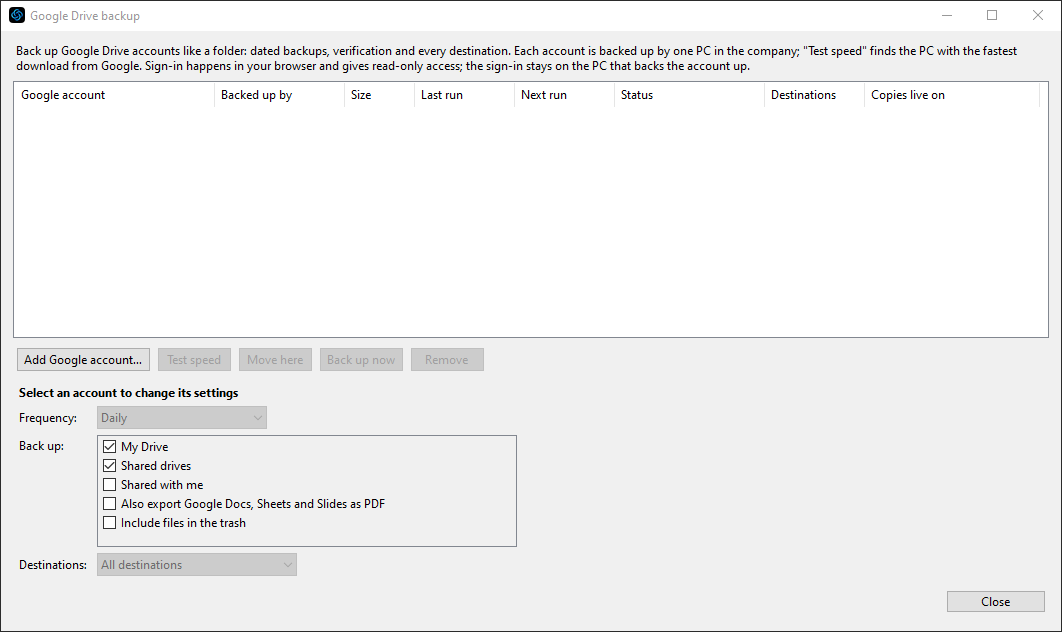
Open Settings → Google Drive… ("back up Google accounts (My Drive, shared drives) like a folder"):
- Add Google account…: the browser opens Google's sign-in; approve read-only access. No keys or ids to type.
- Choose its Destinations: right after the sign-in (All by default; Selected and Auto as for folders).
- The account is listed with the computer that backs it up, size, last and next run, status, destinations and where its copies live.
Each account is backed up by exactly one computer of the company. Test speed (on the computer that backs the account up) measures the download speed from Google on every online computer and suggests the fastest one with enough disk ("→" marks it). Move here moves the account to this computer (you sign in again here; sign-ins are never copied). Adding an account another computer already backs up says "Already backed up by CHIA3" and offers to move it here. If the computer backing an account up is offline for more than 7 days, the others warn ("CHIA3 offline for 9 days (Move here to take over)").
Settings of each account ("Settings of anna@gmail.com"):
| Setting | Choices | Command line |
|---|---|---|
| Frequency: | default daily in the night window; also hourly, every N hours, daily at a time, weekly, manual | gdrive set <email> frequency night|hourly|every:N|daily:HH:mm|weekly:<day>:HH:mm|manual |
| Back up: | My Drive (default), Shared drives (default on if any), Shared with me (default off) | gdrive set <email> scope my- |
| Also export Google Docs, Sheets and Slides as PDF | off by default | gdrive set <email> export- |
| Include files in the trash | off by default | gdrive set <email> include- |
| Destinations: | All, Selected, Auto | gdrive set <email> dest auto:2 |
Back up now runs the account at once (gdrive now <email> -); Remove stops backing it up (the backups on the destinations are kept, the sign-in is dropped and revoked; gdrive remove <email>).
How it works: the first run downloads everything; later runs fetch only what changed. Google Docs, Sheets, Slides and Drawings are exported as .docx, .xlsx, .pptx and .png (over Google's 10 MB export limit: .pdf). Shortcuts and Google Forms, Sites and Maps are listed, not backed up. The computer keeps a local working copy (the mirror) in its data folder, which does not count as a backup copy; on the destinations an account appears as <PC>\. Google Drive backups are not encrypted. A revoked or expired sign-in shows "Sign in again" on that account; everything else keeps working.
All of it from the command line: gdrive list, gdrive add [-, gdrive speedtest, gdrive move <email> -, gdrive now, gdrive set, gdrive remove. On a computer without a browser, gdrive add --no-browser prints the address to open elsewhere.
Note: Until Google has verified the Space Backup app, Google shows an "unverified app" warning at sign-in and only invited test accounts can sign in.
Automatic updates#
Space Backup updates itself from https://spacebackup.net/download/. The setting Updates: (Linux and Mac Settings; on Windows sbctl settings set updates …):
- Automatic (default): checks shortly after start and every 6 hours, downloads a newer version, and installs it only when the computer is idle (no backup, restore, check, fan-out copy, or other computer being served) for 2 minutes, or at the next idle moment after waiting 24 hours.
- Notify: tells you (a notification and Update to Space Backup X… in the tray or menu) and installs when you click it;
update skipstops offering that version until a newer one appears. - Off: no automatic checks; Check now or
update checkstill checks.
Every update is signed: the list of versions and each file are checked against Space Backup's signing key before anything is installed, and a version is never downgraded. When another computer of the company announces a newer version, this one checks at once (at most hourly), and every 20 minutes while the download list does not have that version yet, so a company updates within hours.
| Platform | How it installs |
|---|---|
| Windows | runs the new installer silently (per user, no administrator prompt), keeping your settings; Space Backup restarts. A guard keeps the previous version: if the new one does not start within 2 minutes (an antivirus blocking the new program, for example), it puts the previous one back and says "The update to X could not be completed on this PC; Space Backup stays on Y." That version is not tried again for a day (update now still can). |
| macOS | replaces the whole Space Backup.app with the new one after testing it, keeps the old one until the new one runs, and restarts. An app in a folder you cannot write to only tells you. |
Linux, .tar.gz install | swaps the program folder in ~/.local/opt/spacebackup and restarts the service and the tray icon; the old one is kept until the new one runs. |
Linux, .deb install | notify only: it prints the exact sudo apt install . command. The tray icon restarts by itself within a minute of the upgrade. |
| Linux, AppImage | notify only. |
After an update the log says "Updated from 0.12.0 to 0.12.1", version shows it, and the transaction log has an update record.
sbctl update status
sbctl update check
sbctl update now
spacebackup settings set updates notify
On Linux and Mac, Settings shows the update status text under Updates: with its own Check now.
Settings, field by field#
Settings shows only what a user needs. Technical settings (the network port, the relay address, certificate and token, crossing file systems) are not in the window; they are changed with settings set and listed in Settings keys. Save never changes them.
Windows#
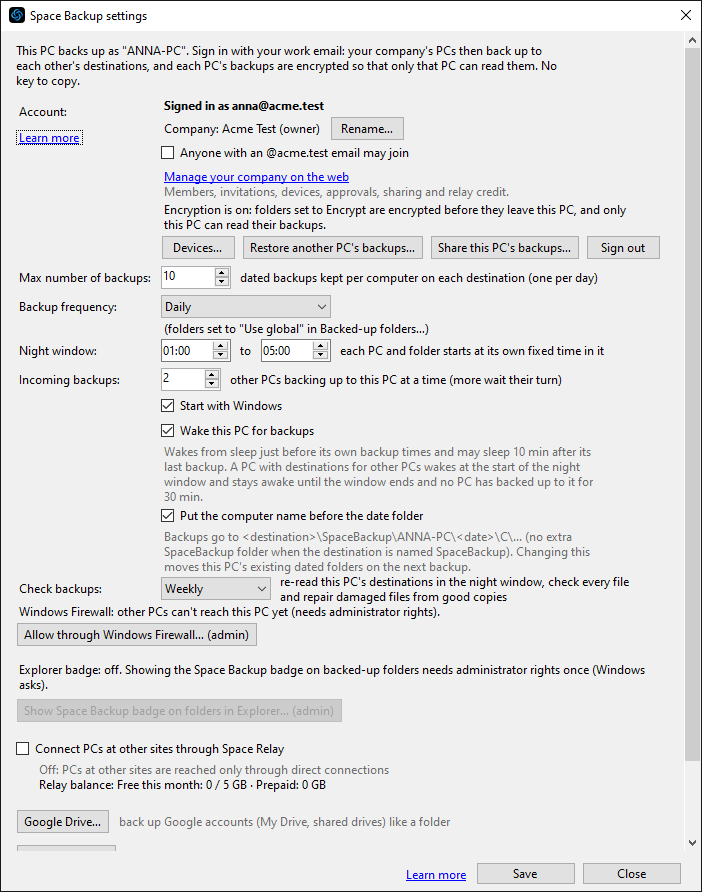
"This PC backs up as "ANNA-PC". Sign in with your work email: …"
| Field | What it does | Default | Command line |
|---|---|---|---|
| Account: | sign-in by email, company, encryption state, Devices…, Restore another PC's backups…, Share this PC's backups…, Sign out; see Sign in by email link | account status | |
| Backups to keep on each drive: | dated backups kept per computer on each destination; a folder may keep its own | 10 | settings set max- |
| Backup frequency: | the global frequency, for folders set to Use global | daily in the night window | settings set frequency night |
| Night window: | when scheduled backups and checks run | 01:00 to 05:00 | settings set night- |
| Incoming backups: | other computers backing up to this one at a time | 2 | settings set incoming 2 |
| Start with Windows | start the tray app at sign-in | on | settings set start- |
| Wake this PC for backups | wake from sleep for backups | on | settings set wake yes |
| Put the computer name before the date folder | SpaceBackup\PC\date or SpaceBackup\date\PC | on | settings set name- |
| Check backups: | Weekly, Monthly, Off | Weekly | settings set scrub weekly |
| Windows Firewall line | "Windows Firewall: other PCs can reach this PC." or "…can't reach this PC yet (needs administrator rights)." with Allow through Windows Firewall… (admin) | firewall --allow | |
| Explorer badge line | the badge's state with Show…, Remove… or Update the Explorer badge… (admin) and Restart Explorer | off | shell install, shell uninstall |
| Connect PCs at other sites through Space Relay | Space Relay, with its status line, Activate Space Relay… when needed, the relay balance and Buy relay credit… when signed in | on | settings set relay on |
| Google Drive… | opens the Google Drive window | gdrive list |
Save applies the changes; Close closes without saving. Updates have no field on Windows: use sbctl settings set updates automatic|notify|off.
Linux#
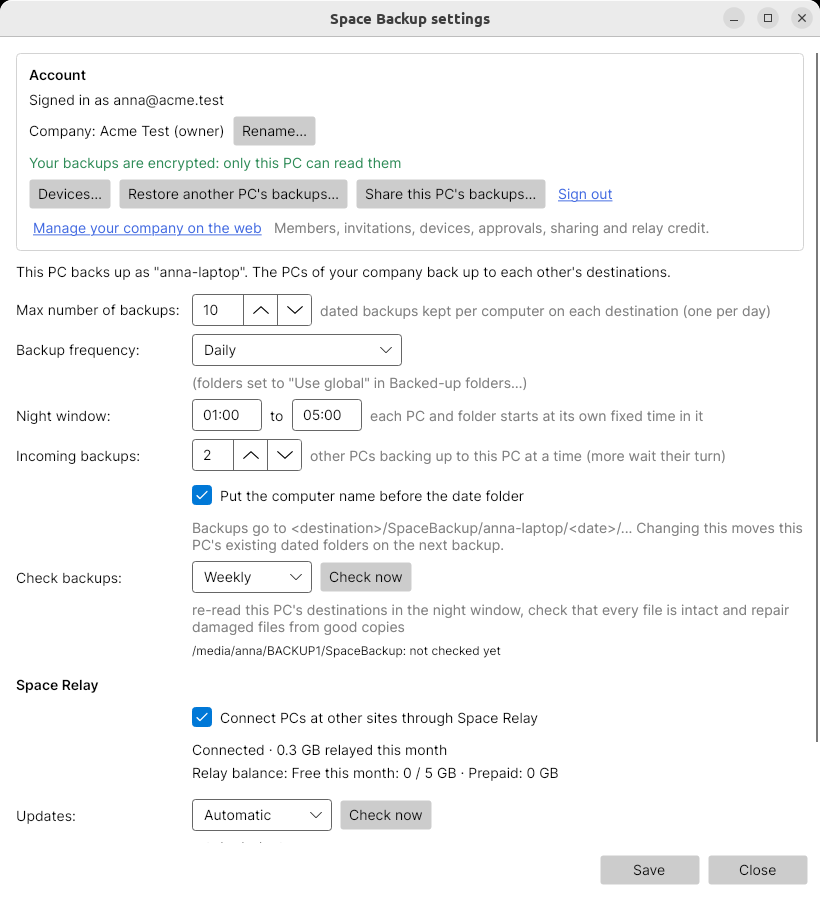
The Account section comes first (as on Windows). Then Backups to keep on each drive:, Backup frequency:, Night window:, Incoming backups:, Put the computer name before the date folder, Check backups: (with its status and Check now), Updates: Automatic / Notify / Off (with the update status and Check now), Space Relay (Connect PCs at other sites through Space Relay, its status line, Activate Space Relay…, the relay balance and Buy relay credit…) and Google Drive…. Save and Close.
Not on Linux: start with the system (the service is a systemd user service, started at login, or at boot with sudo loginctl enable-), wake for backups, the firewall (the main window's Other PCs can't reach this PC yet line with Allow, see Firewall and ports) and the Explorer badge (the file manager integration covers it).
macOS#
images/mac-settings.pngThe same fields as Linux: the account, Backups to keep on each drive:, Backup frequency:, Night window:, Incoming backups:, Put the computer name before the date folder, Check backups: with Check now, Updates: with Check now, Space Relay with its status, activation and credit, and Google Drive…. Uninstall Space Backup… removes the app (spacebackup uninstall removes the service and its start at login; settings, state and backups stay). The service starts at login; there is no wake setting.
Settings from the command line#
sbctl settings                       # every key with its value
sbctl settings get max-backups
sbctl settings set max-backups 30
On macOS and Linux the same with spacebackup. The keys, values and the CLI-only ones are in Settings keys.