 Space Backup Manual
Company administration
Chapter 7 of 14 · Contents
What the company's owner and admins do: the admin page on the web, members and invitations, outside email addresses, the company's name, devices and the company key, approving restores, key recovery, shared backups and Space Relay credit, with checklists for people joining and leaving.
Everything here is done in one of three places, and they all do exactly the same thing:
- The admin page on the web: https://spacebackup.net/account/admin (owner and admins).
- The apps: Settings → Account on Windows, macOS and Linux (and Settings on the iPhone) have the everyday parts: renaming, auto-join, devices, approving a waiting device, restore requests, sharing.
- The command line:
sbctl …on Windows,spacebackup …on macOS and Linux. Each section below gives the command.
A company is everyone who signs in with an email that belongs to it, and all of their devices. It has one company key, which every device of the company holds and which lets the company's computers back up to each other and encrypt for each other (Companies, The company key). An email belongs to at most one company at a time.
Roles#
Every member has one of three roles:
- Owner: the person who created the company (the first to sign in for it). There is one owner. The owner's role cannot be changed and the owner cannot be removed.
- Admin: everything the owner can do on the admin page and in the apps. The owner and admins make other people admins or members.
- Member: uses Space Backup for their own devices; sees their own page, not the admin page.
| Who can… | Owner | Admin | Member |
|---|---|---|---|
Open the admin page (/account/admin) | yes | yes | no (sent to their own page) |
Open their own page (/account/me), set their own name | yes | yes | yes |
| Invite people, approve or deny a join, remove a member | yes | yes | no |
| Make someone an admin or a member | yes (not the owner) | yes (not the owner) | no |
| Set anyone's first and last name | yes | yes | only their own |
| Rename the company, turn auto-join or recognising faces on or off | yes | yes | no |
| See every device of the company | yes | yes | yes (the list in the apps) |
| Remove any device | yes | yes | only their own |
| Rename (label) a device | any | any | only their own |
| Approve a device waiting for the company key | yes | yes | no |
| Approve or deny a restore of another computer | yes | yes | no (they ask) |
| Ask for a company key recovery, cancel one | yes | yes | no |
| Share a device's backups | any device, also a removed one, with anyone in the company | the same | only their own devices |
| See and stop every share of the company | yes | yes | only their own |
| Delete, share or unshare any album of the company | yes (account service) | yes (account service) | only their own albums |
| Buy Space Relay credit | yes | yes | yes |
| Turn Space Relay auto top-up on or off | yes | yes | no |
Note: A person's role is checked at the moment they act. A mailed approval link sent to someone who is no longer an admin by the time they click it does nothing ("403").
The admin page#
Signing in#
- Open https://spacebackup.net/account/ (or, from a computer: Manage your company on the web in the Space Backup
window's Settings → Account, or
account web -).- admin - - open - Type your email and click Email me a sign-in link. There is no password.
- You get a mail with a link and a 6-digit code (it works for 15 minutes). Either click the link, or type the code on the "Check your mail" page and click Sign in. The link can be opened on any device: opened in the same browser it signs you in at once; opened elsewhere (on your phone), it asks "Sign in a web browser?" and, once you confirm, the original tab signs in by itself.
- Signed in, the owner and admins land on the admin page; everyone else on their own page.
A web session ends after 12 hours without use. Sign out is at the top right of every page.
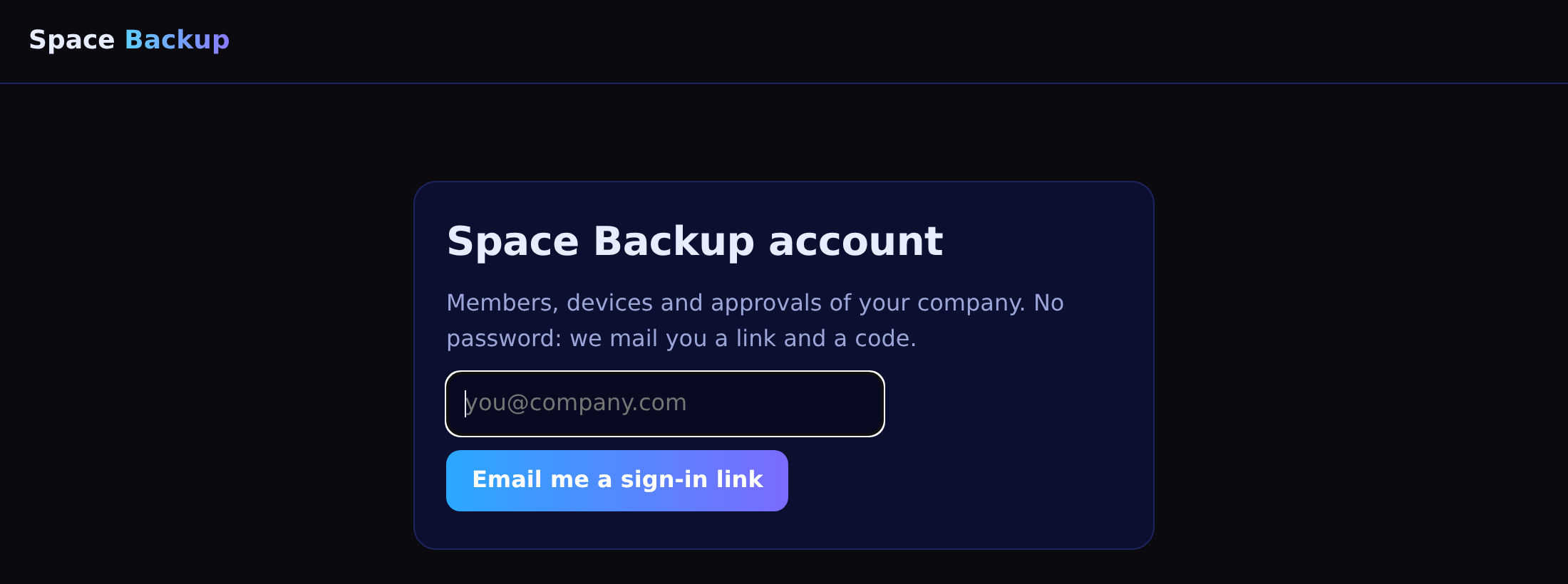
Your own page and the admin page#
There are two pages:
/account/me (Your account) | /account/admin (the company admin page) | |
|---|---|---|
| Who | everyone signed in | the owner and admins |
| How to get there | members land on it; admins click Your account at the top of the admin page | admins land on it; from your own page click Company admin page |
| What | your name, your devices, what you share, what is shared with you, your groups, Space Relay credit | the whole company |
The apps open the same two addresses: account web gives https:/ (**Your account on the
web** in Settings → Account), account web --admin gives the admin page.
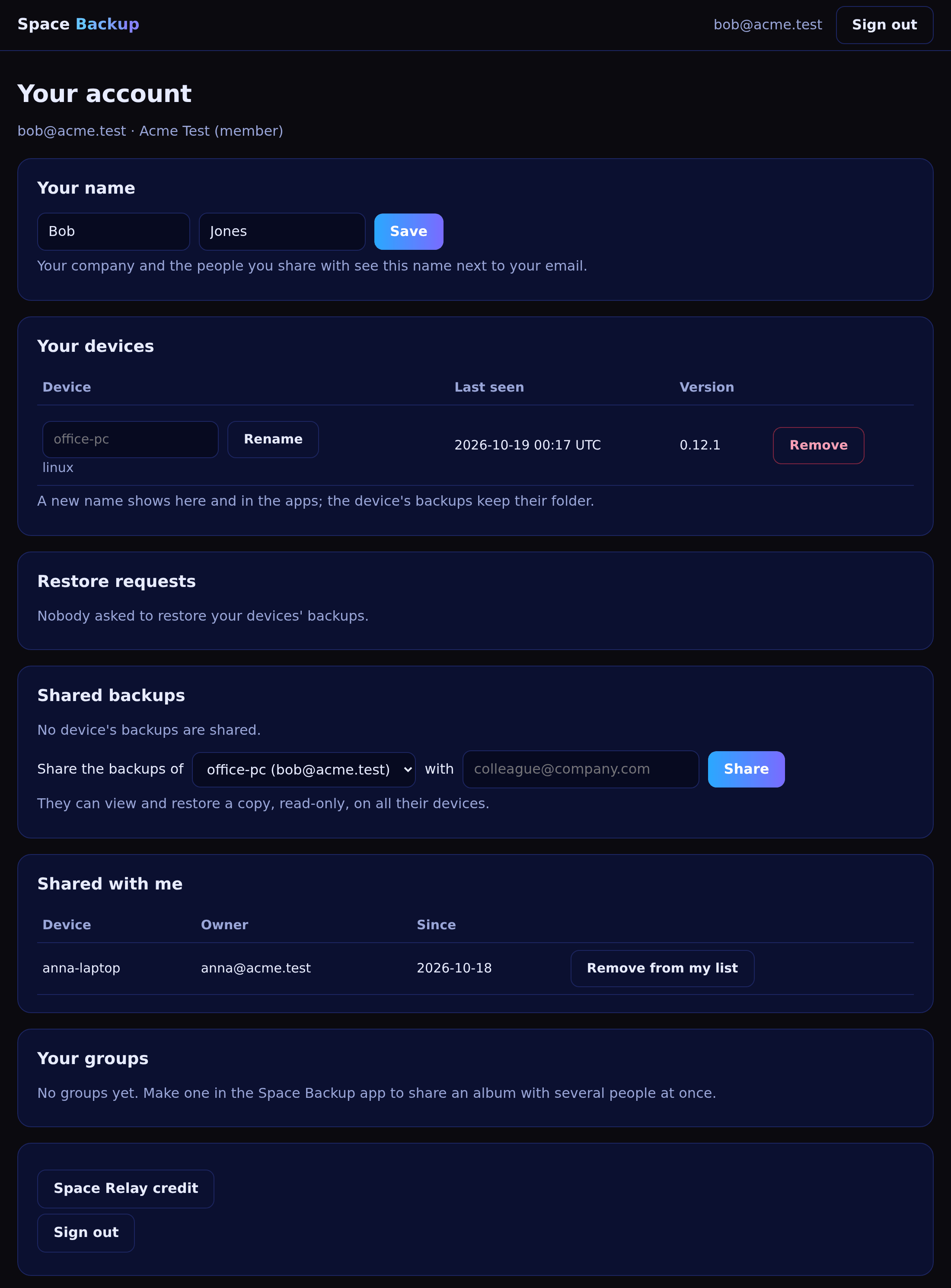
Your account (/account/me) has, from the top:
- your email, company and role;
- Your name: first and last name with Save ("Your company and the people you share with see this name next to your email."). Empty fields clear it.
- Your devices: your active devices with last seen and version. Type a new name and click Rename to give a device a label ("Bob's laptop"); its backups keep their folder. Remove asks first: "Remove <device>? It is signed out, and the company key is replaced on the other devices. To use it again, sign in on it again."
- Restore requests: who asks to restore the backups of one of your devices (Who, On, Asks for the backups of, Since), with Approve and Deny: you decide these whatever your role, the same as the links in the mail. Your own request from another computer shows "Your request: an owner or admin approves it". The owner and admins also see every other member's request here (the device's member's email beside the device) and approve or deny it the same way. The last few decided requests stay listed with the decision and who made it. See Approving a restore.
- Shared backups: the shares of your own devices, "Share the backups of [device] with [email]" → Share, and Stop sharing per row. (On this page, the owner and admins too see only their own devices; the company's are on the admin page.)
- Shared with me: devices shared with you, with Remove from my list.
- Your groups: your groups of people and Coworkers, read-only (groups are made in the iPhone app).
- Space Relay credit, Company admin page (owner and admins) and Sign out.
Someone signed in who is not an active member sees who they are and why: "This email is not a member of a company yet: sign in with it in the Space Backup app." or "Your request to join Acme waits for an admin's approval."
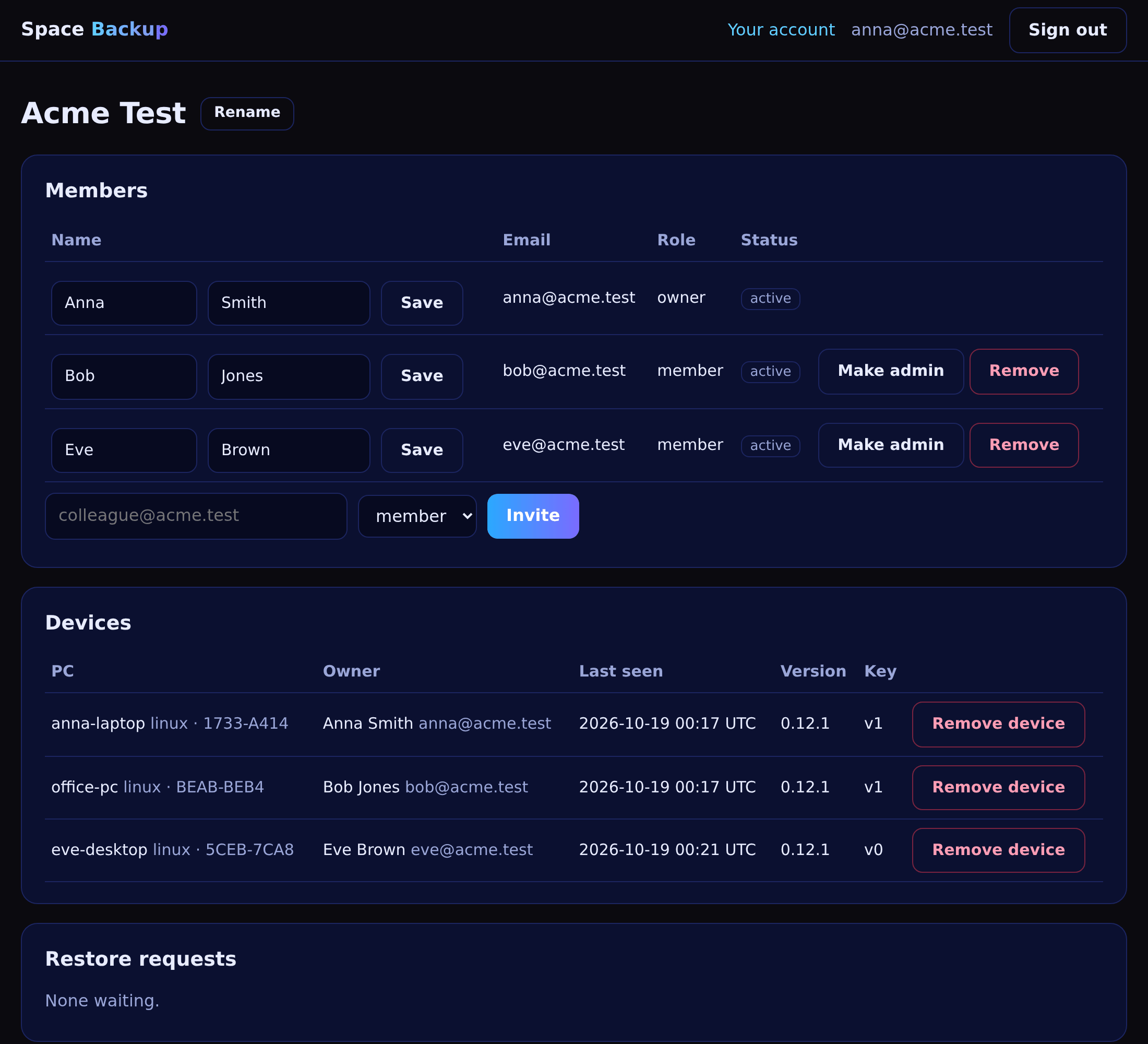
What is on the admin page#
From the top:
| Section | What it shows | Buttons |
|---|---|---|
| The company's name | the name as a heading | Rename (shown when you point at the name; always on touch screens), then Save |
| Message | the result of what you just did ("Invited bob@acme.com", "Role changed", "Restore approved") | — |
| Members | Name (first and last, editable), Email, Role, Status | Save (name), Approve / Deny (pending), Make admin / Make member, Remove; below: email, role (member/admin), Invite |
| Devices | PC (name, system), Owner (name and email), Last seen, Version, Key | Remove device, or "removed" |
| Restore requests | Who, On (which computer asks), Asks for the backups of, Since | Approve, Deny ("None waiting." when empty) |
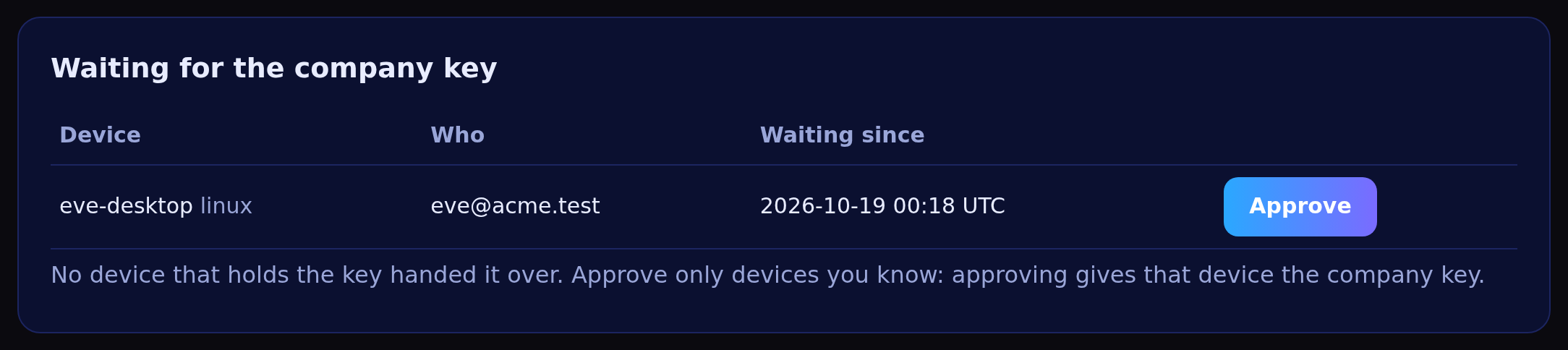
| Waiting for the company key (only when a device waits) | Device, Who, Waiting since | Approve |
| Company key recovery | Who, On, Release at | Cancel ("No recovery waiting." when empty) |
| Shared backups | Device, Owner, Shared with, Shared by, Since | Stop sharing; below: "Share the backups of [device] with [email]" → Share |
| Shared with me | devices shared with you | Remove from my list |
| Space Relay | the credit line, usage per month, purchases | Buy relay credit, auto top-up with Save |
| Settings | Company name; "Anyone with an @acme.com email may join automatically"; "Recognize faces in photos (on the company's computers; encrypted, never sent outside)" (on by default; albums made afterwards take it) | Save |
When the company key is being replaced (after a device or member was removed), a line under the name says: "Your company's key is being replaced; the next computer that comes online does it automatically."
Every form returns to the page with a message. A form left open too long answers "This form has expired. Go back, reload the page and try again."
Members#
The Members table lists everyone in the company: those waiting for approval first, then the owner, admins and members.
| Status | Meaning |
|---|---|
active | a member: signed in and in the company |
invited | invited by an owner or admin, has not signed in yet; becomes active when they sign in with that address |
pending | signed in with an address at the company's domain while auto-join is off (or came back after being removed): waits for Approve or Deny |
Removed members leave the list.
Buttons per member:
- Approve / Deny (pending only). Approving makes them active and mails them "You joined Acme on Space Backup". Denying turns them away. The owner and admins also get a mail with Approve and Deny links when someone asks to join ("<email> asks to join Acme on Space Backup"), so they can decide from the mail (Mailed approval links).
- Make admin / Make member (active or invited members; never the owner).
- Remove (anyone but the owner): see Removing a member.
- First name, Last name and Save: the member's display name, shown next to their email inside the company
(albums, devices, the member list). Each part is up to 40 characters; a last name needs a first name; empty fields
clear it. Members set their own on their page or with
account name set. Whoever saves last wins.
From the command line (owner or admin):
spacebackup account members                      # email role status [name] [(invited by …)]
spacebackup account members approve dan@acme.com
spacebackup account members deny dan@acme.com
spacebackup account members role bob@acme.com admin
spacebackup account members remove bob@acme.com
An email that is not in the list exits 1. A member running these gets "only the company's owner or an admin may do this".
Removing a member#
Remove (or account members remove <email>), in one step:
- signs them out everywhere (all their sessions are revoked);
- removes all their devices: they stop backing up and syncing, and can no longer reach the other computers;
- ends the shares of their devices' backups and the shares with them;
- deletes their phone's saved backup choices;
- asks for a new company key: the next computer that comes online makes one, and the others receive it (offline ones when they come back). Removed devices get nothing new;
- mails the owner and admins "<email> was removed from Acme", naming their devices.
Their backups stay on the drives (and can still be restored or shared by an owner or admin, see
Offboarding). If they sign in again later by auto-join, they are pending until approved; an
invitation lets them straight back in.
Warning: Albums owned by the removed person can no longer be opened by anyone through the apps. Before removing someone, have a colleague they shared the important albums with copy them into an album of their own (see the offboarding checklist).
Inviting people#
Below the members table: type the person's email, pick member or admin, and click Invite. Or:
spacebackup account invite bob@acme.com
spacebackup account invite carol@gmail.com --role admin- They get a mail: "anna@acme.com invited you to Acme on Space Backup … The invitation is for this address: bob@acme.com. Install Space Backup (https://spacebackup.net) and sign up with exactly this address, not another one of yours: you join Acme automatically."
- They appear as
invitedand becomeactivethe moment they sign in with that address in any Space Backup app (Join a company). A computer already signed in with it joins withaccount join(the apps also try every minute). - Any address can be invited: one at the company's domain, a personal one (gmail.com, outlook.com…), or one at another domain.
- Inviting someone who is
pendingapproves them. - You (the inviter) get a notification when they accept ("bob@acme.com accepted your invitation and joined Acme").
Refusals:
| Answer | Why |
|---|---|
<email> is already a member | already active in this company |
<email> belongs to another company | they are in another company that holds anything (see below) |
only the company's owner or an admin may do this | a member tried |
Personal and outside email addresses#
How someone ends up in a company depends on their address. When a person signs in, the service puts them in a company in this order:
- They are already a member of a company: that one.
- Their computer already holds a company's key (an existing install): that company.
- They were invited: the inviting company.
- Their address is at a domain whose company has auto-join on: that company.
- Their address is at a domain a company has claimed, with auto-join off: they are pending in it until an owner or admin approves them.
- Their address is personal (gmail.com, outlook.com and the like): no company. The app says "Ask your company's
admin to invite <email>." with Check again and Create my own company (the command line exits 6 from
account join). - Otherwise a new company is created with them as its owner, named after their domain.
Personal addresses (gmail.com, outlook.com…)#
Personal addresses join a company by invitation only, so nobody ends up alone in an accidental one-person company.
To bring in someone who uses a personal address: invite exactly that address. Only if they really are setting
up Space Backup for themselves do they choose Create my own company (account join --create). A company created
with a personal address has no domain, so it cannot offer auto-join.
An address at another domain#
A colleague at a different domain (a subsidiary, a contractor's own domain): invite them. Without an invitation, their first sign-in would create (or join) a company for their own domain.
Someone in another company#
An email belongs to at most one company. If the person is already in another company that holds anything, the invite answers "belongs to another company": they must first be removed from the other company by its admin.
Moving out of an accidental company#
If someone signed in before you invited them and so created a company of their own, your invitation still works,
as long as that company is disposable: they are its only member (nobody else active, invited or pending), it never
had a company key, and it holds no money (no relay credit, no purchase). When they accept (by signing in again, by
Check again, or account join), in one step they become an active member of your company, their devices move
along (each one then needs your company's key, which is handed over as for any new device; you get a "New device" mail
for each), and their old company is deleted.
If one of their devices has the same name as an active device of yours, nothing changes and they are told "device name <name> is already used in Acme: rename this device, then join again" (Choose a computer name).
If their company is not disposable (it has a key, other members, or money), they stay where they are, and your invite says "belongs to another company".
Auto-join for the company's domain#
A company created with an address at a company domain (acme.com) claims that domain. With auto-join on, anyone who signs in with an @acme.com address joins at once as a member; with it off (the default), they become pending and the owner and admins approve them.
- Admin page → Settings → "Anyone with an @acme.com email may join automatically" → Save.
- Apps: Settings → Account, "Anyone with an @acme.com email may join".
- Command line:
account auto-join onoroff.account statusshowsAuto-join: on|off.
A company without a domain (created with a personal address, or in a domain another company already claimed) cannot turn it on: the page says "Automatic joining by email domain is not available: the company was created with a public mail address.", and the command answers "auto-join needs a company domain; this company has none".
While auto-join is on, every member also has an automatic Coworkers group in the iPhone app's Groups tab (Photos, albums and sharing).
Guests are for albums only#
Someone outside the company can also be given one album, without joining the company: they become a guest of that album, view and save only, and never see anything else of the company. Album owners do this themselves by sharing the album with that address (Guests from outside the company). An address at your own domain that is not a member cannot be a guest: invite them to the company instead.
Renaming the company#
The company's name is shown in the apps, on the admin page and in mails. It is 1 to 100 characters of plain text.
- Admin page: point at the company's name at the top, click Rename, type the new name, Save. (Or change Company name under Settings.)
- Apps: Settings → Account → Rename… (on the iPhone: Settings, next to the company's name).
- Command line:
account rename "Acme Inc.→ "Your company is now called Acme Inc."."
Renaming changes nothing else: no device, backup or key is touched, and no mail is sent.
Devices#
The Devices table lists every device of the company: computers and phones, with their system, owner (name and email), when each was last seen, the app version and which version of the company key it holds ("v3"); removed devices are marked "removed".
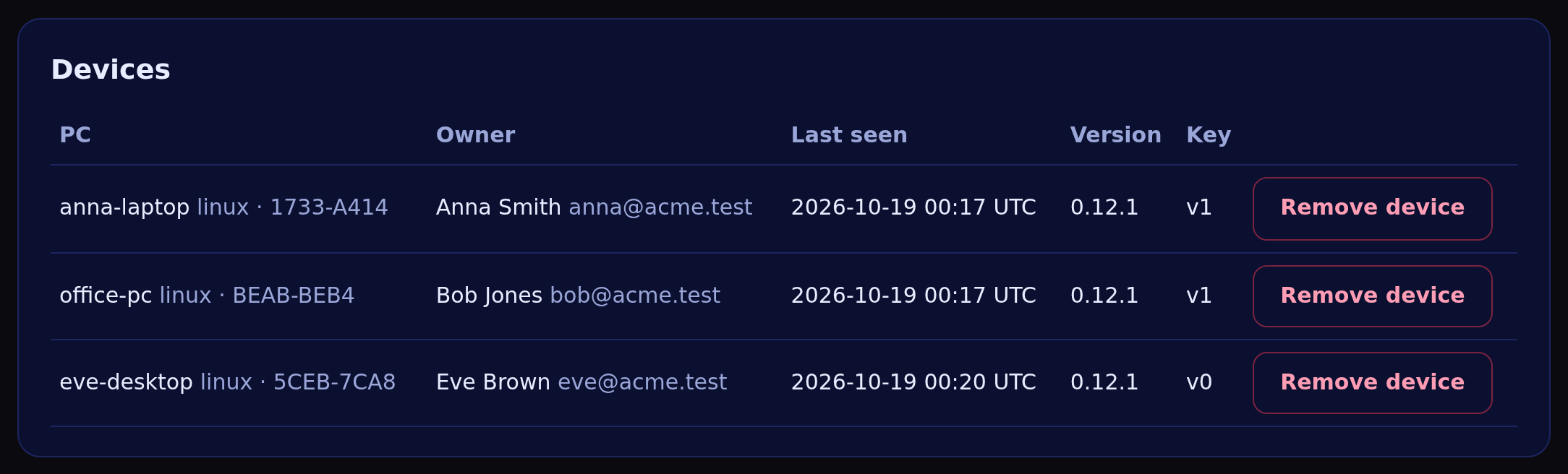
In the apps: Settings → Account → Devices… (with Remove device… and Refresh). From the command line:
spacebackup devices list
spacebackup devices remove OFFICE-PC
A device's name is its machine name: the top folder its backups are in on every drive. It is unique in the company and is changed on the device itself (Choose a computer name).
Labels#
A device can also have a label, a friendlier name shown in the lists ("Bob's laptop"), up to 64 characters. Its backups keep their folder. Members set labels on their own devices on their page (Your devices → Rename).
Removing a device#
Remove a device that is lost, stolen, sold or retired: Remove device on the admin page (no confirmation), Remove
on your own page (asks first), Remove device… in the apps, or devices remove <name>.
Removing a device:
- signs it out at once; it can no longer sync, reach the other computers or receive anything new;
- ends the shares of its backups;
- makes every computer whose key it had received (a share, an approved restore, or one of the member's own devices) make a new data key, so its later backups are out of the removed device's reach;
- replaces the company key: the next computer of the company that is online makes a new key, and every other device receives it automatically (offline ones when they come back). Nothing is copied again and no backup is lost;
- mails the owner and admins.
Its backups stay on the drives. To restore them elsewhere, use Approving a restore of another computer, or share them with someone (Shared backups across the company): both work for a removed device.
A removed device's name becomes free again. To use the device again, sign in on it again; it is then a new device of the company and gets the key like any new one.
Note: The owner and admins get a mail for every new device that joins ("New device <name> (<email>) joined Acme", with its key fingerprint): "If you do not know it, remove it on the admin page."
A device waiting for the company key#
A new device gets the company key from a device that already holds it, end to end, within a minute or two. When no holder hands it over within 2 minutes (the only holder is off, or is a phone that is asleep), the owner and admins approve the device instead, and the service gives it the key from the company's recovery copy at once. One computer is always enough.
What happens:
- On the waiting device, the app says whom it waits for: "Waiting for Annas-iPhone to hand over the company key. Open Space Backup on it." (two holders: "Waiting for ANNA-PC or Annas-iPhone … Open Space Backup on one of them."). Opening Space Backup on a holder hands it over.
- After 2 minutes the owner and admins get a mail: "<device> (<name or email>) is waiting for your company's key", naming the holders that did not answer, with an Approve link. The waiting device adds ", or approve this computer from the email we sent to anna@acme.com."
- Anyone of them approves it:
- the mail's Approve link;
- the admin page, Waiting for the company key → Approve ("Approve only devices you know: approving gives that device the company key.");
- their own apps: Settings → Account shows "<device> is waiting for the company key" with Approve;
- the command line:
devices approve <name>.
- The device says "Approved: getting the company key…" and has it with its next sync, within a minute.
spacebackup devices approve Annas-MacBook
# Approved Annas-MacBook (anna@acme.com): it gets the company key with its next sync (within a minute)
A device never approves itself: if you are the owner signing in on a new computer, its window has an Approve button that opens the admin page in the browser, "Or click Approve in the email we sent to <email>." Approve it from the mail, or from another of your devices. A device you do not know: Remove device instead.
If nobody approves, an admin can still use Company key recovery.
Approving a restore of another computer#
Each computer encrypts its encrypted folders with its own key, so another computer cannot read them.
Your own devices need no approval (since 2026-10-29). A device signed in with your email that has the company key gets the keys of all your other devices (a lost one too) automatically: no request to approve, no email, no notification. Your computers ask for them by themselves, so Photos & Videos and the TV show every device of yours. Each such release is listed in the admin page's Audit log ("BOB-PC got BOB-LAPTOP's data key: same member (bob@…), no approval"). A brand-new device that does not have the company key yet waits for it as before (A device waiting for the company key); once it has it, it gets your devices' keys too. The trade-off: whoever controls your mailbox can sign in a new device and read all your backups, so protect it with two-factor sign-in (Trust trade-offs).
When someone needs a colleague's backups, they ask, and someone else approves: the colleague or a different owner or admin. Nobody approves their own request for someone else's computer.
- Asking, on the computer that will restore: Settings → Account → Restore another PC's backups… → pick the
computer → Ask to restore, or
spacebackup recover list            # the computers whose backups you may ask for
spacebackup recover request ANNA-PC
A member may ask for their own devices; the owner and admins for any device of the company, removed ones too.
- Everyone who may approve gets a mail: "<name or email> on <requesting PC> asks to restore <source PC>'s backups", with
Approve and Deny links: the computer's own member (always, whatever their role) and the owner and admins,
but not the one who asked when it is someone else's computer. It also shows on the admin page under **Restore
requests (Who, On, Asks for the backups of, Since) with Approve and Deny** (your own request for a colleague's
computer shows "Your request: the device's member or another owner or admin approves it"), for the computer's own
member on Your account (
/account/me) under Restore requests with Approve and Deny (a plain member too; the mail says "Or decide on your account page"), in the iPhone app's Approvals (the owner and admins see every member's requests there and on Your account too, and decide them there as on the admin page), and as a notification in the apps (a click opens the page where you decide it). When it is approved, the computer's member gets "<Name> was given access to <computer>'s backups by <approver>" (unless they approved it themselves). - Approved, the asking computer receives the key and restores: the Restore… window lists the computer, or
restore <path> -. No further approval is needed on that computer for that source.- pc ANNA- PC - - to <dir>
The key goes only to the computer that asked, never to anyone else. A device whose backups are already shared with the person does not need a request (Restoring a shared device).
Note: This is also how a computer gets to show your own iPhone's photos in its Photos window: ask to restore the phone on that computer, then approve it.
Company key recovery#
When every device that held the company key is lost, an admin gets the key back from the service's recovery copy, after a waiting time that protects against someone abusing an admin's account.
- On a new computer, signed in as an admin (it holds no key yet):
spacebackup account recover-key
# Asked for the company key's recovery copy: released <date, time> unless an admin cancels (every admin got a mail)
- Every admin gets a mail with a Cancel link ("Cancel the recovery"). The admin page shows it under **Company key recovery (Who, On, Release at) with Cancel**.
- After 24 hours, if nobody cancelled, the key is released to that one computer, which takes it by itself at its next sync. It goes only to that computer, and only while the person who asked is still an admin.
Anyone of the admins cancels it: the mail's link, Cancel on the admin page, or account recover-.
Cancel any recovery you did not expect.
If the only problem is that a holder is off or asleep, you do not need this: approve the device instead (A device waiting for the company key).
Shared backups across the company#
The admin page's Shared backups lists every share of a device's backups in the company: Device, Owner, Shared with, Shared by, Since, with Stop sharing. Below it, "Share the backups of [device] with [email]" → Share shares any device's backups, also a removed one, with anyone in the company ("They can view and restore a copy, read-only, on all their devices.").
- Stop sharing asks first: "Stop sharing ANNA-PC's backups with bob@acme.com? Backups made before today stay readable to bob@acme.com, who already had access to them. New backups are not shared. ANNA-PC's next backup takes longer: it copies its encrypted folders again."
- When an owner or admin shares or stops sharing someone else's device, its owner is told by mail. When a member shares their own device, the owner and admins get a copy of the news.
- The same from the command line:
share list(an admin sees every share),share add <email> -,- pc <device> share remove <email> -.- pc <device>
How sharing works for the people involved: Sharing a device's backups.
Space Relay credit#
The Space Relay section of the admin page shows the company's relay credit ("Free this month: 3.2 / 5 GB · Prepaid: 87 GB", and "activation needed" when the free traffic is used and nothing is left), with:
- Buy relay credit: opens the buy page (any active member can buy);
- Auto top-up: buy [pack] when the balance drops below 10 % → Save (owner and admins; it uses the card of the latest purchase: "buy a pack once to save one");
- Usage per month: Month, Relayed (in + out), Free, From credit;
- Purchases: Date, Pack, Amount, How, Status, Receipt.
The owner and admins get a notification when the credit runs low or out. From the command line: relay balance,
relay buy --open. Prices, packs and how traffic is counted: Billing and prices.
Usage#
Usage on the admin page (/account/admin/usage) shows the owner and admins how the company uses Space Backup: the
assistant's requests (plans, answers, refusals, errors, the ones the app gave up on), the tokens they used and what they
cost, by day and by device; and the apps' use (opens, backups run, items backed up, albums made, items added, shares,
public links, restores, selections, crashes) by day, with the devices active that day, and by device. Choose 7, 30 or
90 days or 13 months at the top; days are UTC. The page holds counts only: never what anyone asked the assistant, never
anything about the photos. The assistant has no daily limit; only a burst of requests (20 a minute from one device, 200
an hour for the company) is turned away for a minute. Daily totals are kept 13 months.
Mailed approval links#
Several decisions can be made straight from a mail, without signing in:
| Buttons on the link's page | |
|---|---|
| "<email> asks to join Acme on Space Backup" | Approve, Deny |
| "<device> (<name or email>) is waiting for your company's key" | Approve |
| "<name or email> on <PC> asks to restore <PC>'s backups" | Approve, Deny |
| A company key recovery was asked for | Cancel the recovery |
- Each link is for one person and works once, for 7 days. Opening it shows what it is about and the buttons; nothing happens until you click one (so mail scanners that open links do not decide anything).
- Afterwards the page says "Done" with what was done. A link already used or expired says it cannot be used any more; one whose decision was already made by another admin says so; one sent to someone who is no longer an owner or admin does nothing.
- Every one of these decisions can also be made on the admin page.
Mails the owner and admins get#
All mails come from Space Backup <noreply@spacebackup., in plain text, without ids or keys.
| Subject | When |
|---|---|
| "<email> asks to join Acme on Space Backup" | someone at your domain signed in while auto-join is off, or a removed person came back |
| "New device <name> (<email>) joined Acme" | a device registered (also each device of a person who moved into the company) |
| "<device> (<name or email>) is waiting for your company's key" | no holder handed the key over within 2 minutes |
| "<name or email> on <PC> asks to restore <PC>'s backups" | a restore request |
| "<email> was removed from Acme" | a member was removed |
| "<sharer> shared <device>'s backups with <recipient>" | a member shared their device's backups |
| a company key recovery with a Cancel link | an admin asked for the recovery copy |
The apps' notification history shows the same events (Notifications and history).
Onboarding a new employee#
- Invite them with their work address (admin page Invite, or
account invite bob@acme.). With auto-join on for your domain they could also just sign in, but an invitation is clearer and works for any address.com - They install Space Backup from https://spacebackup.net/download/ and sign in with exactly that address
(Getting started). Their status turns
active. - Each device gets a name unique in the company (Choose a computer name).
- Check the device got the company key. You get a "New device" mail. If it says it is waiting for the key, open Space Backup on a computer that has it, or approve it (A device waiting for the company key).
- Set their name in the members list if they did not (first and last name, Save).
- Make them an admin if they should manage the company (Make admin).
- Choose what they back up and where on their computers (Backing up on the computers) and on their phone (The iPhone and iPad app).
- Share what they need: albums (the album's owner shares them), a colleague's device backups (Shared backups → Share).
Offboarding an employee#
- Keep what matters.
- Their computers' and phone's backups stay on the drives after removal, and can be restored or shared later. If a colleague needs them now, share the devices' backups with that colleague (Shared backups → Share, works for removed devices too).
- Albums they own become unreachable once they are removed. Have a colleague each album is shared with copy it into
an album of their own (
albums clone "<new album>" "<their album>" -, or on the iPhone), or have them share the albums and turn on members can add first.- on <PC>
- Remove them in Members (Remove, or
account members remove bob@acme.). This signs them out, removes all their devices, ends their shares, and starts the replacement of the company key.com - Check the key replacement. The admin page says "Your company's key is being replaced…" until a computer that is online has done it; nothing else is needed. Computers that were off receive the new key when they come back.
- Hand over their roles: if they were an admin, make sure someone else is. The owner cannot be removed.
- Look at Shared backups for anything left that should stop (shares of other devices with them end automatically).
- Devices you keep (a company laptop): sign it in again as its new user; it is a new device and gets the key as usual. Give it a free name if its old name is still used.
- Drives they kept at home or a disk they take with them: a plain (Not encrypted) backup or album on it can be read by whoever has it. Collect such drives.
Command line equivalents#
spacebackup … on macOS and Linux, sbctl … on Windows; --json on any of them gives the data
(Global flags and JSON).
| Admin page | Command |
|---|---|
| open the page | account web - (your own page: account web) |
| Invite | account invite <email> [- |
| the members list | account members |
| Approve / Deny a join | account members approve <email> / account members deny <email> |
| Make admin / Make member | account members role <email> admin|member |
| Remove a member | account members remove <email> |
| a member's name | (admin page only; your own: account name set "<name>") |
| Rename the company | account rename "<name>" |
| auto-join | account auto-join on|off |
| Devices | devices list |
| Remove device | devices remove <name> |
| Waiting for the company key → Approve | devices approve <name> |
| Restore requests | asking: recover list, recover request <PC>; deciding: the admin page or the mail |
| Company key recovery | account recover-key, account recover- |
| Shared backups | share list, share add <email> -, share remove <email> - |
| Space Relay | relay balance, relay buy --open |
| who you are, your role | account status |
Every one of these is also an account service call, for scripts and integrations: Account service API.
When something goes wrong#
| What you see | What to do |
|---|---|
| A new colleague with a gmail address gets "Ask your company's admin to invite <email>." | Invite exactly that address; they then click Check again. |
| Your invite says "belongs to another company" | They are in another company that holds something. Its admin must remove them first. |
| Someone created their own company by mistake | Invite them; when they accept they move into yours if their company is disposable (Moving out of an accidental company). |
| "device name <name> is already used in Acme" | Rename the device (Choose a computer name), then join again. |
| A device keeps waiting for the company key | Open Space Backup on a device that has it, or approve it (mail, admin page, devices approve). |
| You can't approve from the waiting computer | By design: approve from the mail or another device. |
| "This link cannot be used any more" | It was used, it expired (7 days), or another admin already decided. Use the admin page. |
| "auto-join needs a company domain; this company has none" | The company was created with a personal address; invite people instead. |
| "the owner's role cannot be changed" / "the owner cannot be removed" | The owner always stays owner. |